
This is a step-by-step guide on how to troubleshoot and fix DPI, mouse button, and other issues such as:
-
Double-clicking or input spamming
-
Scroll wheel issues
-
Mouse not recognized or detected by the system or Razer Synapse
Possible causes of these issues include:
-
Improper USB hub connections
-
Software bugs
-
Hardware-related issues such as debris buildup, dirty sensors, or faulty switches
Below are the steps to fix mouse issues.
Note: After each step, check whether your device is functioning properly or if the issue has been resolved.
-
Connect your wired mouse directly to a PC USB port instead of a USB hub. For a wireless mouse, connect the dongle directly to a PC USB port and ensure a clear line of sight between the mouse and dongle.
-
Update your mouse firmware.
-
Use compressed air to gently remove dirt from under the affected buttons.
-
Test the mouse on a different system without Razer Synapse.
-
If your mouse supports surface calibration, reset it in Razer Synapse.
-
Check if another application is causing the issue.
-
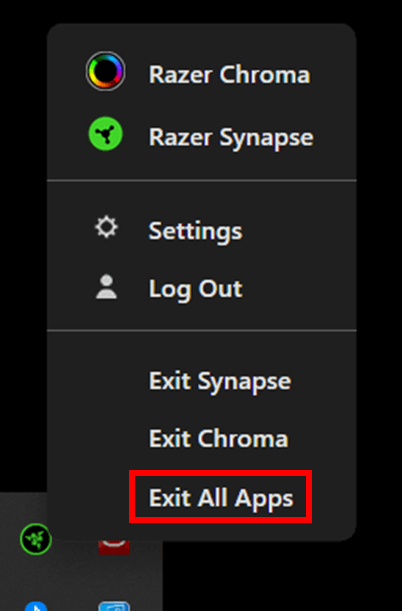
Go to the system tray.
-
Right-click the Razer icon and select “Exit All Apps”.
-
-
Perform a clean re-install of Razer Synapse if the issue persists.
-
Uninstall the mouse driver. It will automatically reinstall after the uninstallation process.
Related links:

