
Applicable Models
Firmware v1.03.00_r2
- https://rzr.to/Ena32f | March 19, 2024
- Fixed unable to enter pairing mode when pairing button assigned other function.
STEP-BY-STEP PROCESS
-
If you are using a laptop, please make sure it is plugged into a wall outlet and not just running on battery before proceeding.
-
Save all files and close all programs.
-
Download the latest firmware updater.
-
Run the updater. If you have already closed all running applications, click "NEXT" to proceed.

-
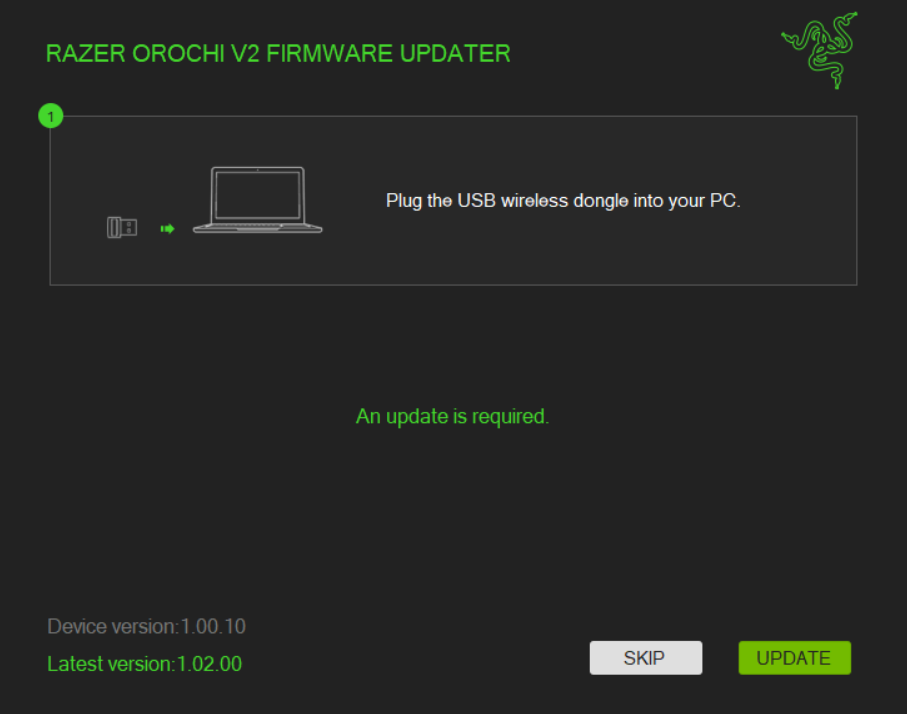
Connect the dongle to your system and click "UPDATE".
-
Wait for the update to complete.
-
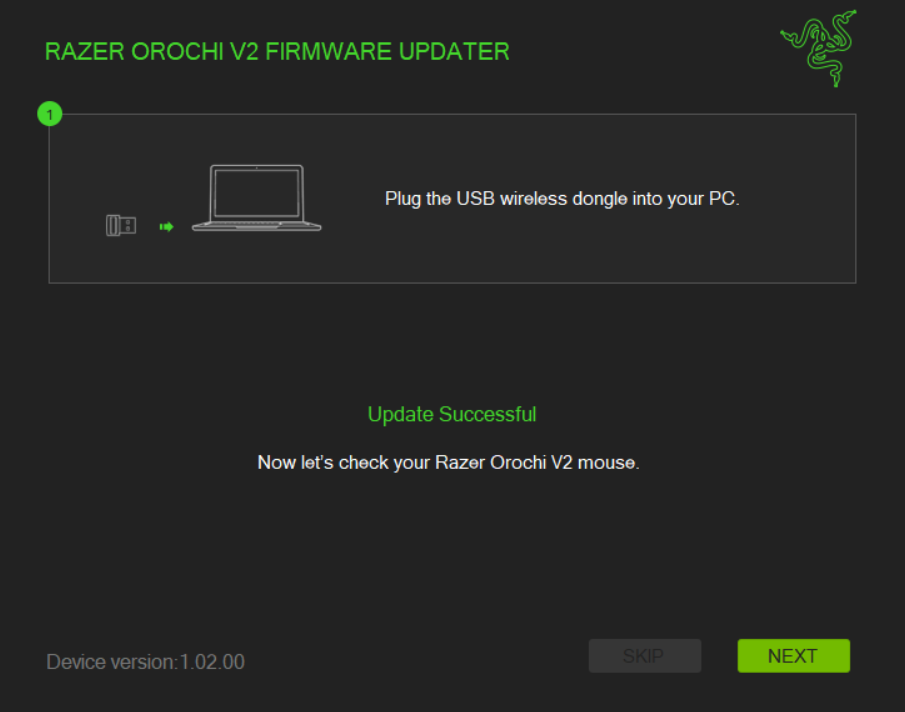
Once the update for the dongle is complete, the updater will prompt you to proceed with the mouse. Click "NEXT".
-
Make sure you are in "special mode" in order for the updater to continue. The updater will provide instructions in preparing the mouse before the update. Once you have completed the steps, click "NEXT". Note that this step must be completed properly in order to proceed to step 9.

-
The updater will prompt you to add the device (DFUOrochiV2) in the Windows Bluetooth Settings. If it does not, check if "DFUOrochiV2" is already in the paired list.
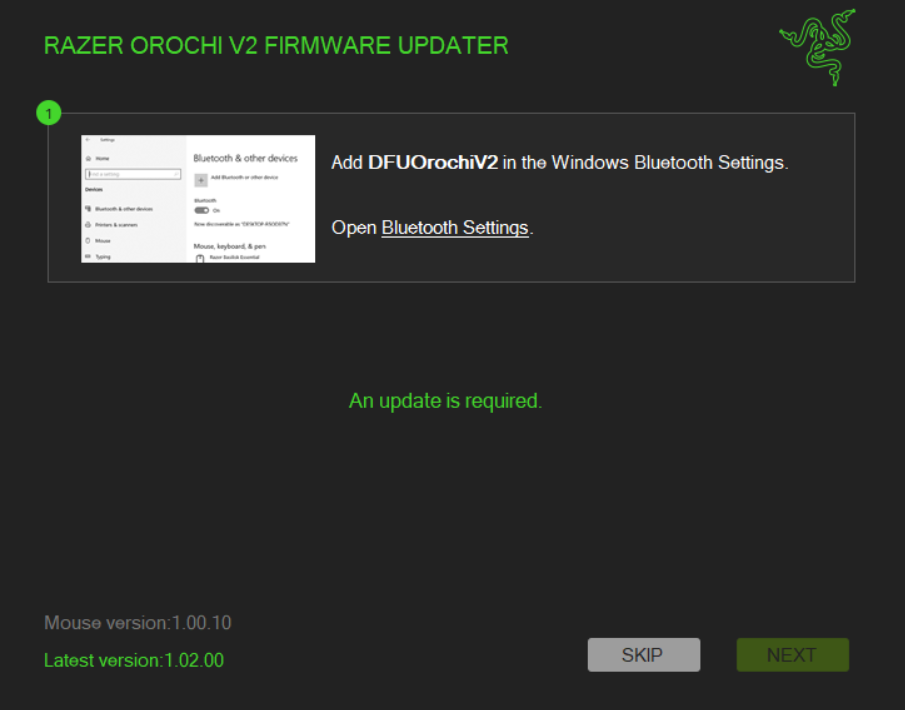
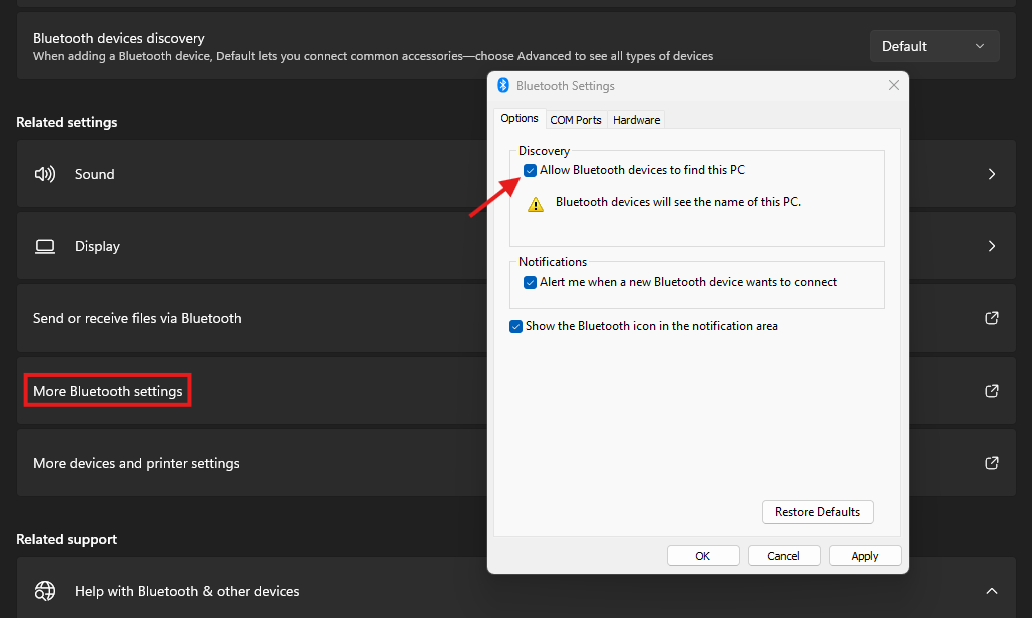
If your device is not detected, follow these steps:
- Go to Bluetooth settings, scroll down, and click on "More Bluetooth settings".
- Check on the "Allow Bluetooth devices to find this PC".
-
Once the Bluetooth Settings is done, click "NEXT".
-
Click "UPDATE" to proceed.

-
Wait for the update to complete.

-
Once the update is complete, click "NEXT".

-
Click "EXIT" to close the updater.


