
Step-by-step process
Disconnect all devices from the Thunderbolt dock.
Power off the Thunderbolt dock.
Disconnect then reconnect the Thunderbolt dock to the laptop.
Power on the Thunderbolt dock.
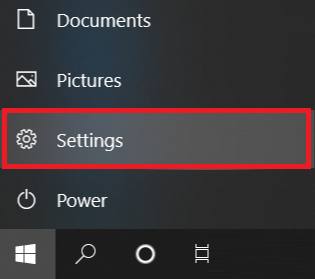
Open the Start Menu and click on "Settings".
Select "Apps" > "Apps and features" and look for Thunderbolt Control Center.

Note: On some laptops, the Thunderbolt Control Center may not be available. In this case, check the Windows USB4 settings instead to see if the dock is detected. However, there is no reset function available using this method. See How to check if your Razer Blade supports Thunderbolt™ and USB4 for more details.
Click "Advanced options".

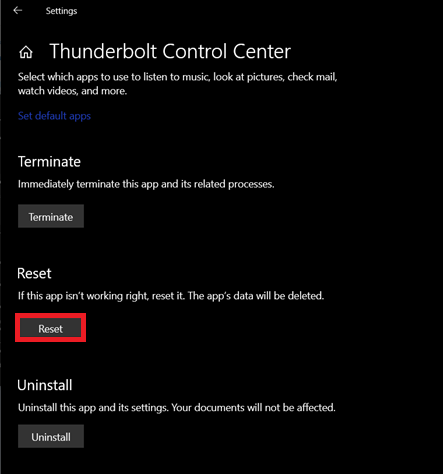
Click "Reset".
- Restart the PC or laptop that is connected to the Thunderbolt Dock.

