Applicable models:
Firmware v3.03.00_r1
- https://rzr.to/f5dhjy | October 16, 2024
- Fixed issue on keyboard being unusable while charging
- Minor bug fixes
- Improved Bluetooth connectivity
Follow the detailed instructions below to run the updater on your device.
Step-by-step Process
-
If you are using a laptop, please make sure it is plugged into a wall outlet and not just running on battery before proceeding.
-
Save any open documents on your computer and close all other programs before attempting the update.
-
Download the latest firmware updater.
-
Run the updater.
-
Click "NEXT".

-
Plug in the wireless USB dongle to your computer.
-
Click "UPDATE".
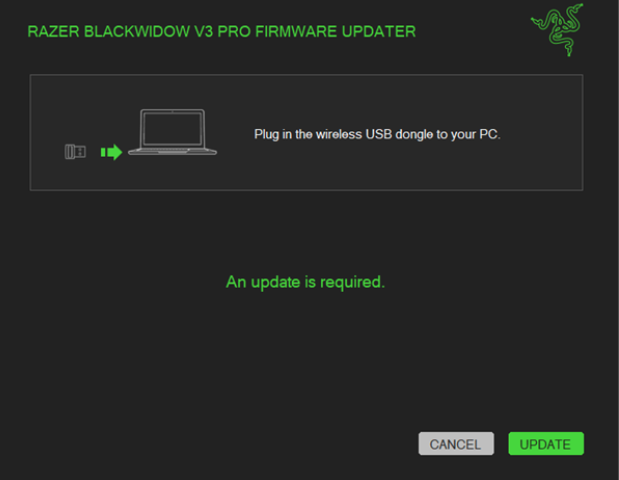
-
Wait until the process is complete.
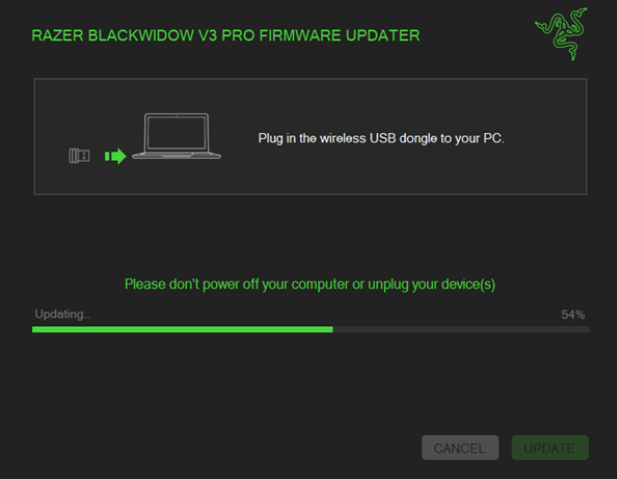
-
Click "NEXT" once the update is successful.
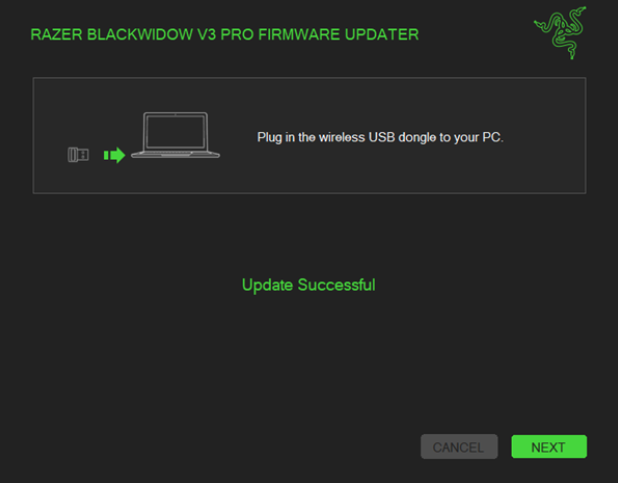
-
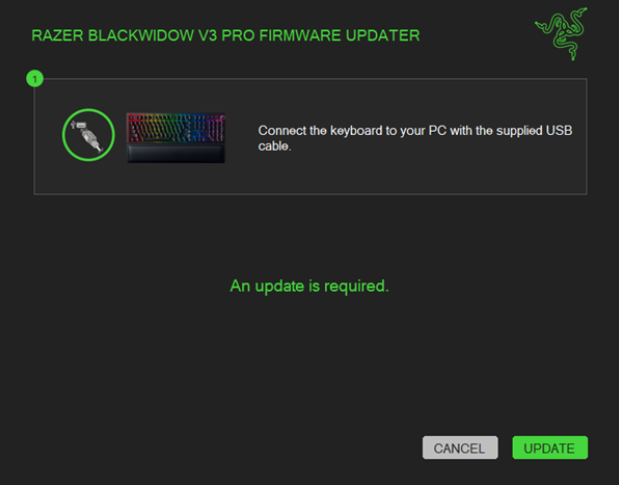
Connect the keyboard to your computer using the supplied USB cable.
-
Click "UPDATE".
-
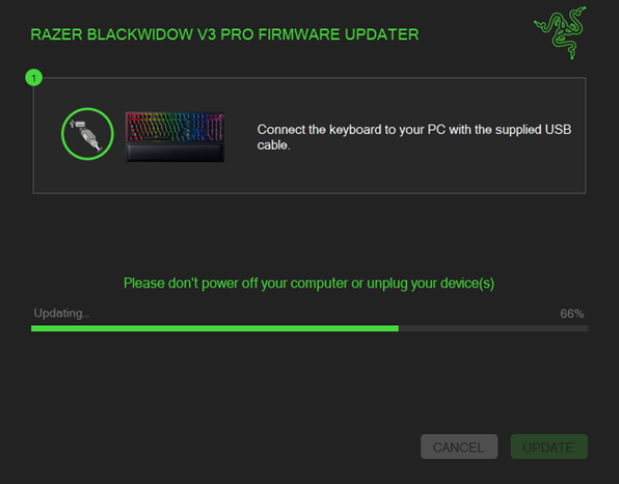
Wait until the process is complete.
-
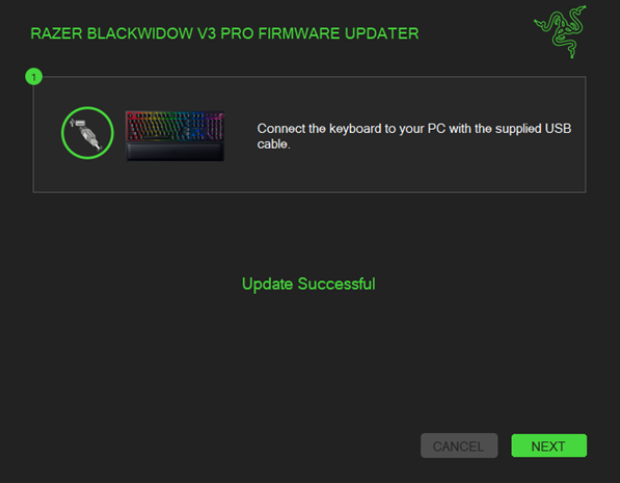
Click "NEXT" once the update is successful.
-
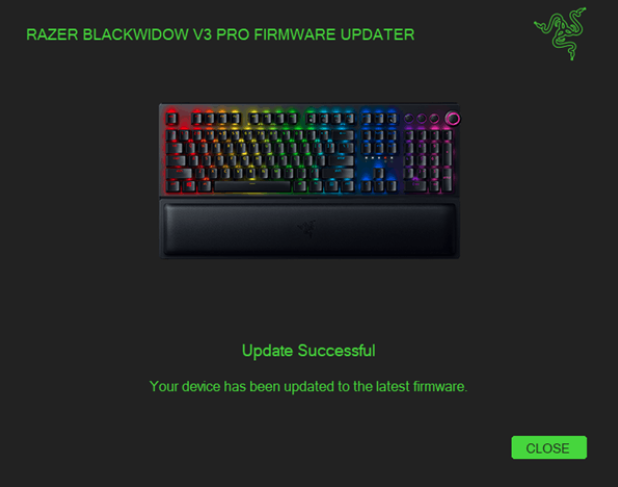
When the installation is complete, click "CLOSE".