
Applicable models:
Razer Blade models
- Razer Blade Pro 17” (2019) | RZ09-0314x
- Razer Blade Pro 17” (2019) | RZ09-0287x
- Razer Blade Pro 17 Full HD - GTX1060 (2017) | RZ09-02202
- Razer Blade Pro 17 (2017) | RZ09-01663
- Razer Blade Pro 17 (2016) | RZ09-01662
- Razer Blade 15 Advanced (2019) | RZ09-0301x
- Razer Blade 15 Advanced (2019) | RZ09-0288x
- Razer Blade 15 Advanced (2018) | RZ09-0238x
- Razer Blade 15 Base (2019) | RZ09-03006
- Razer Blade 15 Base (2018) | RZ09-02705
- Razer Blade 14 Intel 6700HQ (2016) | RZ09-01952
- Razer Blade 14 GTX970M (2016) | RZ09-01652
- Razer Blade Stealth 13 (2019) | RZ09-0281x
- Razer Blade Stealth 13 Intel 8550U (2017) | RZ09-0239x
- Razer Blade Stealth 13 Intel 7500U (2017) | RZ09-0196x
- Razer Blade Stealth 12.5 Intel 7500U (2016) | RZ09-01962
- Razer Blade Stealth 12.5 Intel 6500U (2016) | RZ09-01682
Intel ME Firmware Update
Intel ME Firmware Update 12.38.1430
For Model Numbers with prefixes:
- RZ09-02810 Razer Blade Stealth 13 (2019)
- RZ09-02812 Razer Blade Stealth 13 (2019)
- Download the firmware updater here: https://rzr.to/GgCRl
For Model Numbers with prefixes:
- RZ09-03006 Razer Blade 15 Base (2019)
- RZ09-03009 Razer Blade 15 Base - GTX1660 (2019)
- Download the firmware updater here: https://rzr.to/IxOCn
For Model Numbers with prefixes:
- RZ09-03017 Razer Blade 15 Advanced (2019)
- RZ09-03018 Razer Blade 15 Advanced (2019)
- Download the firmware updater here: https://rzr.to/nRGKB
For Model Numbers with prefixes:
- RZ09-02876 Razer Blade Pro 17 (2019)
- RZ09-02877 Razer Blade Pro 17 (2019)
- RZ09-02878 Razer Blade Pro 17 (2019)
- Download the firmware updater here: https://rzr.to/DkqNg
For Model Numbers with prefixes:
- RZ09-02385 Razer Blade 15 Advanced (2018)
- RZ09-02386 Razer Blade 15 Advanced (2018)
- Download the firmware updater here: https://rzr.to/SjGBU
For Model Numbers with prefixes:
- RZ09-02886 Razer Blade 15 Advanced (2019)
- RZ09-02887 Razer Blade 15 Advanced (2019)
- RZ09-02888 Razer Blade 15 Advanced (2019)
- Download the firmware updater here: https://rzr.to/dwTWh
For Model Numbers with prefixes:
- RZ09-02705 Razer Blade 15 Base (2018)
- Download the firmware updater here: https://rzr.to/gwEjF
For Model Numbers with prefixes:
- RZ09-01682 Razer Blade Stealth 12.5 - Intel 6500U (2016)
- RZ09-01962 Razer Blade Stealth 12.5 - Intel 7500U (2016)
- RZ09-01963 Razer Blade Stealth 13 - Intel 7500U (2017)
- RZ09-01964 Razer Blade Stealth 13 - Intel 7500U (2017)
- RZ09-02393 Razer Blade Stealth 13 - Intel 8550U (2017)
- RZ09-02394 Razer Blade Stealth 13 - Intel 8550U (2017)
- RZ09-01652 Razer Blade 14 - GTX970M (2016)
- RZ09-01952 Razer Blade 14 - Intel 6700HQ - GTX1060 (2016)
- RZ09-01953 Razer Blade 14 - Intel 7700HQ - GTX1060 (2017)
- RZ09-01662 Razer Blade Pro 17 (2016)
- RZ09-01663 Razer Blade Pro 17 (2017)
- RZ09-02202 Razer Blade Pro 17 - Full HD - GTX 1060 (2017)
- Download the firmware updater here: https://rzr.to/tPlWq
Follow the detailed instructions below to run the updater on your device.
Step-by-step Process
Before you start
-
Please ensure you have installed all the latest Microsoft® Windows Operating Systems and Security Updates. To help verify that your OS is up to date, please refer to this Microsoft® article.
-
Ensure your Blade is plugged into a wall outlet and not running on battery alone before proceeding.
-
Please save any open documents on your computer and close all other programs before attempting this update
Update process
-
Download the latest Razer Blade model's firmware updater from the link above.
-
The Razer Updater will automatically download to your default download destination (this should be the Downloads folder unless this has been manually changed)
Note: Be advised that during the update process of your Razer Blade laptop, you will not be able to interact or save progress within other open applications. As such, it is strongly advised that you save your progress and close all other applications or programs prior to launching the Razer Updater and updating the system.
-
Click on the updater file located in your chosen download location to begin the update process.

-
The User Account Control window may pop up to confirm changes that will be made by the application. Click “Yes” to allow the Razer Updater application to launch.

-
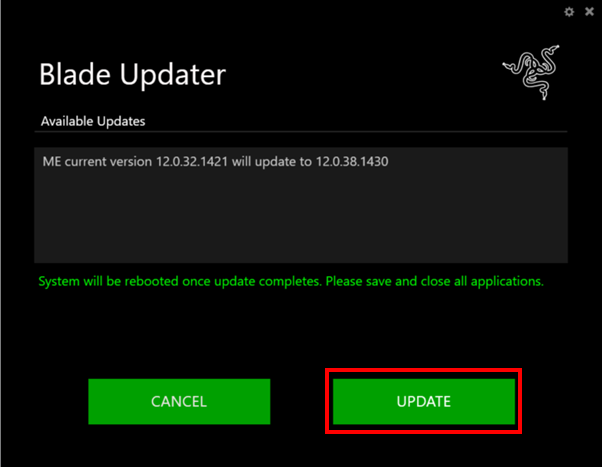
The Blade Updater window will appear with details regarding your current update version and the version your Razer Blade laptop will be updated too.
-
Click "UPDATE" to initiate the update process of your Razer Blade laptop. You may lose control of your mouse and keyboard during the updating process. You will also not be able to proceed if you already have the latest software installed.
-
A progress bar will appear indicating the status and progression of the installation process. During the installation process, you will not have access to other applications. This update may take 15 minutes or longer to complete. Do not interrupt the installation process.
-
Once the progress bar reaches 100% completion, your Razer Blade laptop will restart automatically. No further action or steps are required after the progress bar reaches 100%. Once your Blade has restarted your system will be updated.

