
This is a guide on how to update the Razer Blade with Intel ME Firmware Updater. The update addresses the findings of an in-depth comprehensive review done by external researchers on the Intel® Management Engine (Intel® ME) Firmware, who discovered what is now known as the INTEL-SA-00125. This vulnerability may allow an unauthenticated user to potentially modify or disclose information via physical access to the Intel® ME chipset, even when your device is not powered on.
To solve this, Razer has released firmware updates specific to individual models. Make sure that you download the correct firmware specific to the model number located at the bottom of your device.
Applicable models:
Razer Blade 14
- Razer Blade 14 - GTX970M (2016) | RZ09-01652
- Razer Blade 14 - Intel 6700HQ - GTX1060 (2016) | RZ09-01952
- Razer Blade 14 - Intel 7700HQ - GTX1060(2017) | RZ09-01953
Razer Blade 12.5
- Razer Blade Stealth 12.5 - Intel 6500U (2016) | RZ09-01682
- Razer Blade Stealth 12.5 - Intel 7500U (2016) | RZ09-01962
Razer Blade 13
- Razer Blade Stealth 13 - Intel 7500U (2017) | RZ09-01963
- Razer Blade Stealth 13 - Intel 7500U (2017) | RZ09-01964
- Razer Blade Stealth 13 - Intel 8550U (2017) | RZ09-02393
- Razer Blade Stealth 13 - Intel 8550U (2017) | RZ09-02394
- Razer Blade Stealth 13 8550U (2017)
Razer Blade 17
- Razer Blade Pro 17 (2016) | RZ09-01662
- Razer Blade Pro 17 (2017) | RZ09-01663
- Razer Blade Pro 17 FHD (2017) | RZ09-02202
Intel ME Firmware Update v11.8.60.3590
Follow the detailed instructions below to run the updater on your device.
Step-by-step Process
Before you start
-
Ensure Windows is up to date. See How to get the latest software and driver updates from Windows.
If you just updated Windows, please install the "Optional updates" under Settings > Windows Update > Advanced options.
-
Ensure your Blade is plugged into a wall outlet and not running on battery alone before proceeding.
-
Please save any open documents on your computer and close all other programs before attempting this update
Update process
-
Download the latest firmware updater
-
The Razer Updater will automatically download to your default download destination (this should be the Downloads folder unless this has been manually changed)
Note: Be advised that during the update process of your Razer Blade laptop, you will not be able to interact or save progress within other open applications. As such, it is strongly advised that you save your progress and close all other applications or programs prior to launching the Razer Updater and updating the system.
-
Click on the updater file located in your chosen download location to begin the update process.

-
The User Account Control window may pop up to confirm changes that will be made by the application. Click “Yes” to allow the Razer Updater application to launch.

-
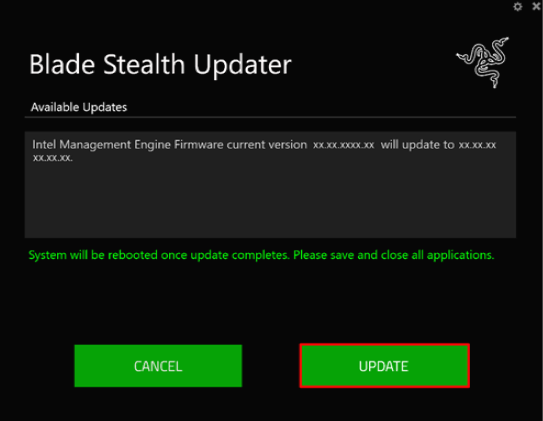
The Blade Updater window will appear with details regarding your current update version and the version your Razer Blade laptop will be updated too.
-
Click "UPDATE" to initiate the update process of your Razer Blade laptop. You may lose control of your mouse and keyboard during the updating process. You will also not be able to proceed if you already have the latest software installed.
-
A progress bar will appear indicating the status and progression of the installation process. During the installation process, you will not have access to other applications. This update may take 15 minutes or longer to complete. Do not interrupt the installation process.
-
Once the progress bar reaches 100% completion, your Razer Blade laptop will restart automatically. No further action or steps are required after the progress bar reaches 100%. Once your Blade has restarted your system will be updated.

