
Performance mode or Gaming mode is a feature that optimizes your Razer device’s performance for gaming. It can also prevent accidental key presses when enabled on keyboards or laptops. Most gamers activate this mode to maximize the effect of anti-ghosting and boost hardware performance for a smoother gaming experience.
You can view the video below for instructions or review a copy of the video transcript.
Follow the detailed instructions on your selected device below to enable Performance or Gaming Mode.
Select your device
Razer Blade
Certain Razer Blade models running Razer Synapse allow you to increase hardware performance.
Performance modes available:
-
Balanced - This is the default setting on the Razer Blade.
-
Custom - Configure your preferred CPU and GPU levels on the Razer Blade.
To enable High GPU on your Razer Blade, follow the steps below:
Select Razer Synapse version
Razer Synapse 4
-
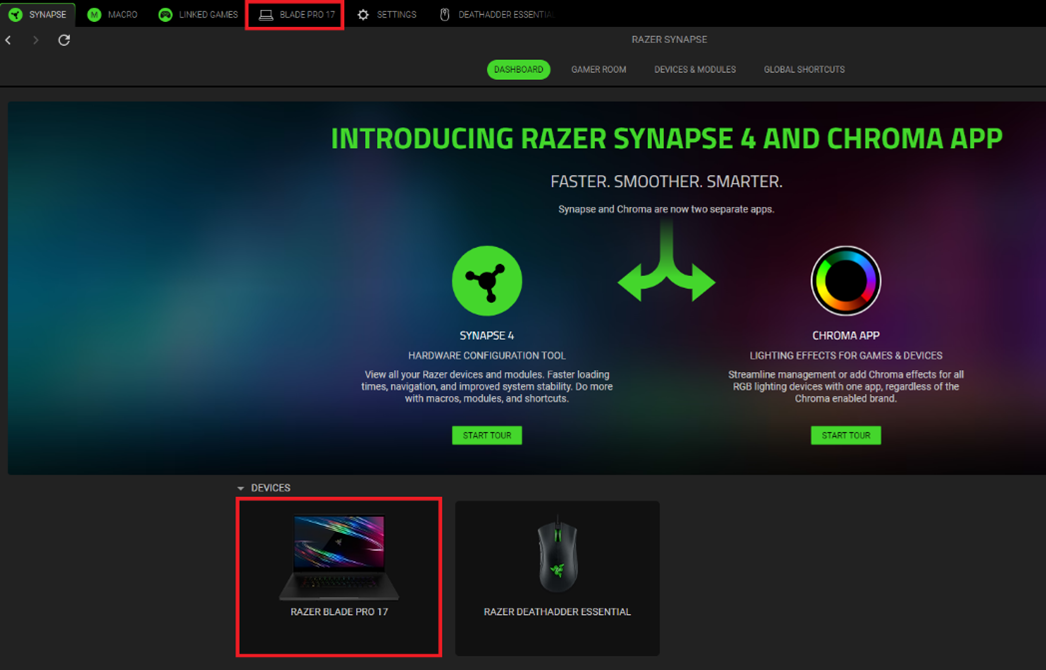
Open Razer Synapse 4 and select your laptop under “DEVICES”. Alternatively, click on the tab for your Razer Blade.
-
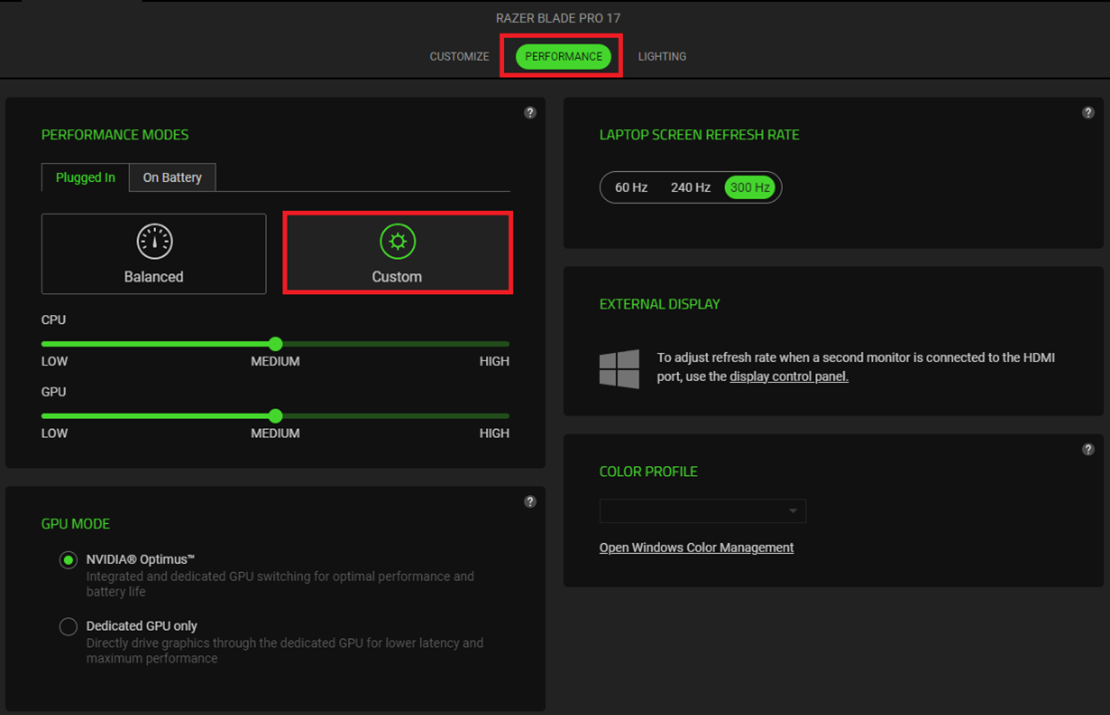
Go to “PERFORMANCE” tab and click on “Custom” under “PERFORMANCE MODES”.
-
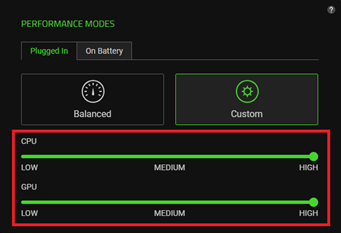
Select “HIGH” for both “CPU” and “GPU”.
Razer Synapse 2.0
-
Open Razer Synapse 2.0. Go to "SYSTEM" > "GAMING MODE".
-
Toggle the Gaming Mode switch on.

Razer Keyboard
You can disable the "Alt + Tab" and "Alt + F4" key functions on the Gaming Mode settings in Razer Synapse. An indicator will light up when Gaming Mode is active.
Enable Gaming Mode using key combinations:
-
Press fn + F10 for full-sized keyboards including tenkeyless.

-
Press fn + U for Razer Huntsman Mini and Razer Huntsman Mini Analog, or fn + O for Razer Huntsman V3 Pro Mini.
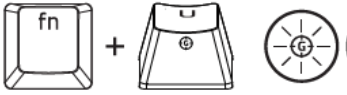
Enable Gaming Mode in Razer Synapse:
Select Razer Synapse version
Razer Synapse 4
-
Open Razer Synapse 4 and select your keyboard under “DEVICES”.
-
Select "Always on" or “Enable in-game” from the dropdown list under “GAMING MODE”.

Razer Synapse 2.0
-
Open Razer Synapse 2.0. Go to "KEYBOARD" > "GAMING MODE".
-
Toggle the Gaming Mode switch on.


