Proper pairing of the Razer Nari Ultimate for Xbox One relies on Xbox Wireless compatibility, correct power state, and supported connection methods. Successful connection depends on firmware alignment, adapter availability when required, and maintaining clear wireless conditions to ensure stable audio and microphone functionality.
Follow the detailed instructions below to pair or connect a Razer Nari Ultimate for Xbox One headset to Xbox or a system.
Select an action
Pair the Razer Nari Ultimate for Xbox to a system
Connect your Razer Nari Ultimate for Xbox One headset to your PC using an Xbox wireless adapter.
Note: Make sure that your Xbox Wireless Adapter for Windows 10 is up-to-date.
Step-by-step process
-
Connect your Xbox Wireless Adapter for Windows* to your PC.
-
Press the connect button on the console.

-
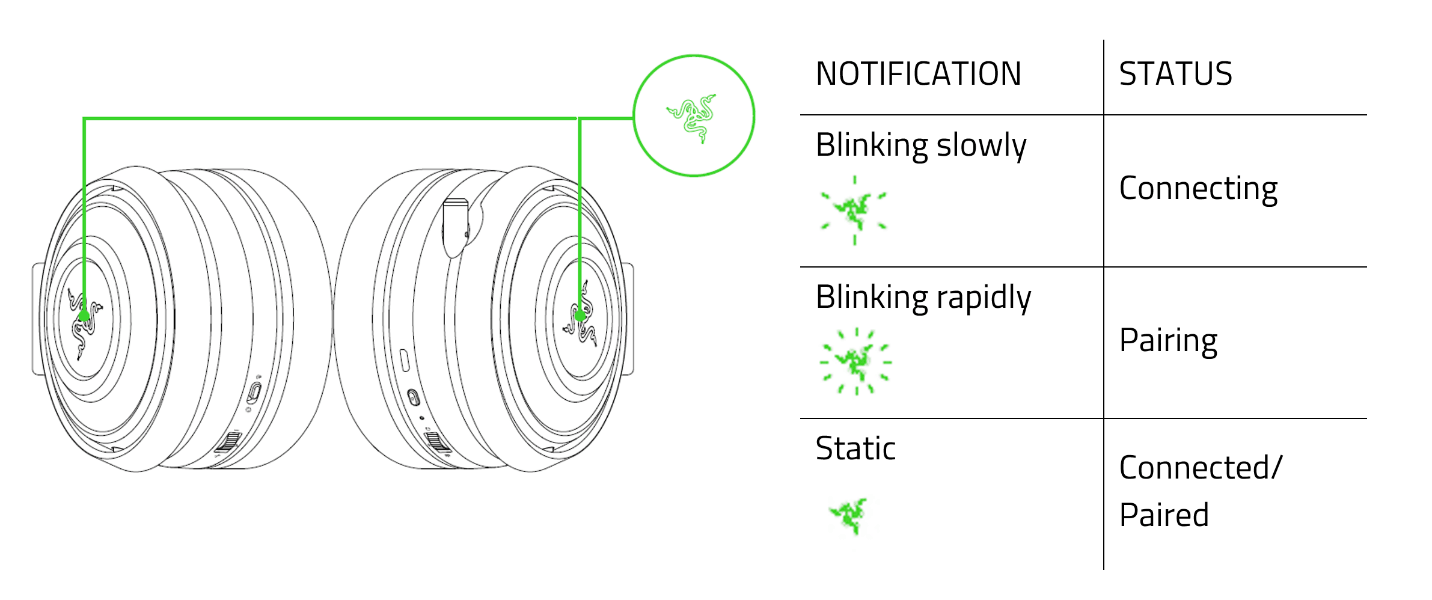
Press and hold the headset power button until the Razer logo starts blinking rapidly, while in power-off state.

-
Wait until the Razer logo becomes static green to notify that the headset is paired.

Pair the Razer Nari Ultiimate for Xbox One to Xbox One console
Step-by-step process
-
Power on your Xbox One and log into your Xbox Live account.
-
Press the connect button on your console.

-
Press and hold the headset power button until the Razer logo starts blinking rapidly, while in power-off state.

-
Wait until the Razer logo becomes static green to notify that the headset is paired.