

To resolve this issue, perform the following steps:
Note: In case you encounter errors, click "Retry" in the Windows Update screen as needed.
-
Make sure your Razer Blade is connected to the Internet.
-
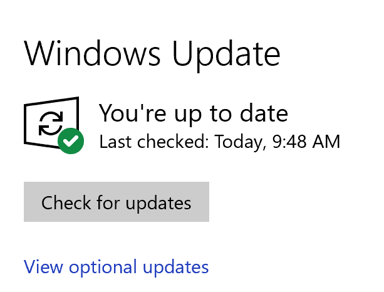
Start the Windows Update process and reboot as required. For detailed instructions, see the answer below:
-
After restarting your blade and Windows Update shows that there are more updates, click "Retry" to check.
-
If retry does not work, go back to the main Windows Update screen and check for updates again.
-
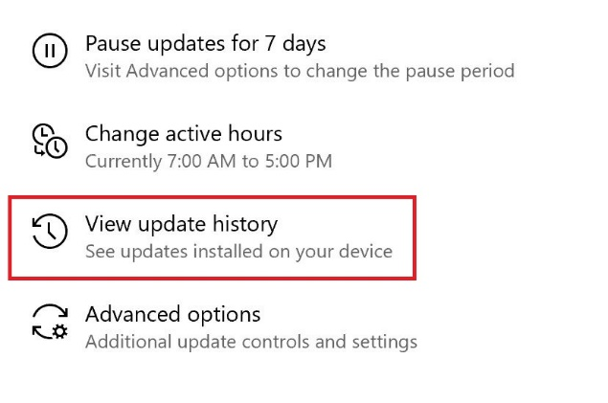
To verify the system updates, click “View update history”.
-
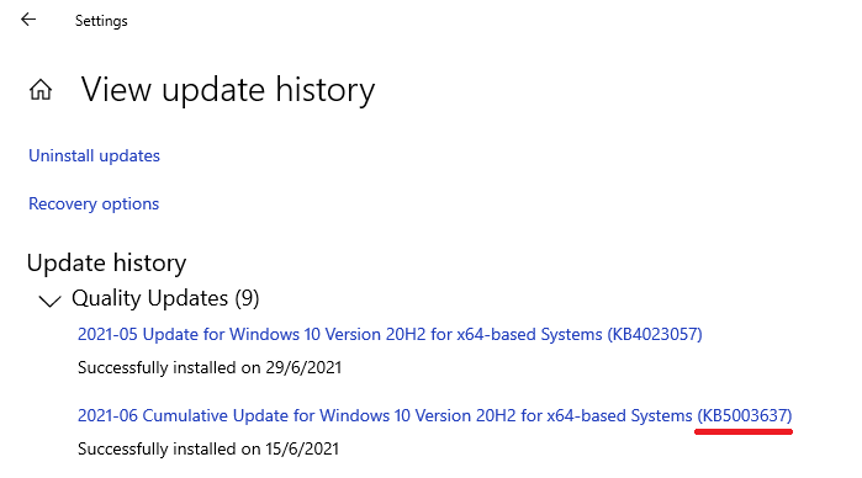
Make sure the system has KB5003637 installed. Check out the image below for more details.
After all available updates are installed, your Windows 10 should be activated.

