
Use a USB-C dongle to wirelessly connect your Razer Barracuda, Barracuda X, or Barracuda Pro to a PC, PlayStation, Switch, and Android devices.
Note: Images used in this article are for Razer Barracuda X.
Select preferred action
Connect the headset to your PC
-
Plug the Type-C wireless transceiver to your PC.

-
Press and hold the power button until the status indicator lights up, or until you hear a tone.

-
Wait until the status indicator briefly becomes static indicating that the headset is now connected to the Type-C wireless transceiver.

-
Right-click on the sound icon on the system tray of your PC and then select "Open Sound settings".
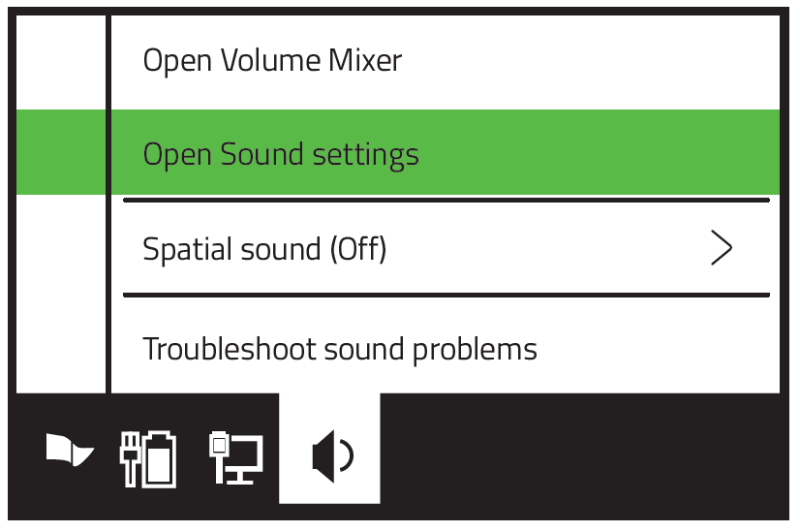
-
Set the Razer Barracuda, Barracuda Pro, or Barracuda X as the default Output and Input device.

Connect the headset to other devices
-
Plug the Type-C USB wireless transceiver to your device.
-
Set the Razer Barracuda, Barracuda Pro, or Barracuda X as its default input and output audio device.

