
Aside from the Alexa Home skill functionality, the Razer Synapse skill allows you to control your computer as well as the following Razer Chroma device features with your voice, for example:
- Basic lighting control - “Turn on Chroma Lighting”
- Chroma lighting control - “Set Chroma Lighting to Breathing Green”
- Launch applications - “Launch Calculator”
- Multimedia controls - “Change volume to 50”
Follow the steps below to control the RGB lighting on Razer devices using Alexa in Razer Synapse:
You can view the video below for instructions or review a copy of the video transcript.
Note: Ensure you have installed the module first. You can then use Alexa once the registration is complete. See How to restore a missing module in Razer Synapse for detailed instructions.
-
Open Razer Synapse 4.
-
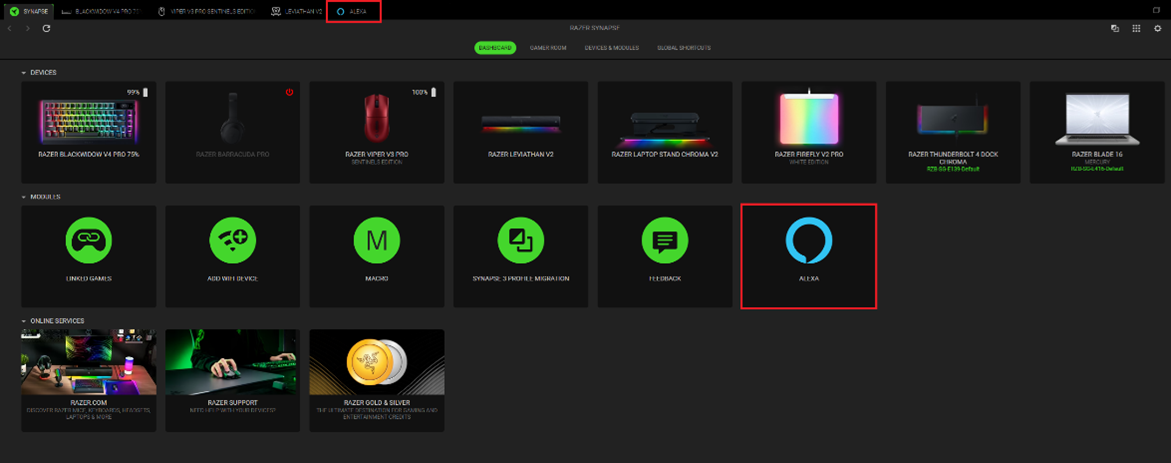
Click on “ALEXA” under “MODULES”.
-
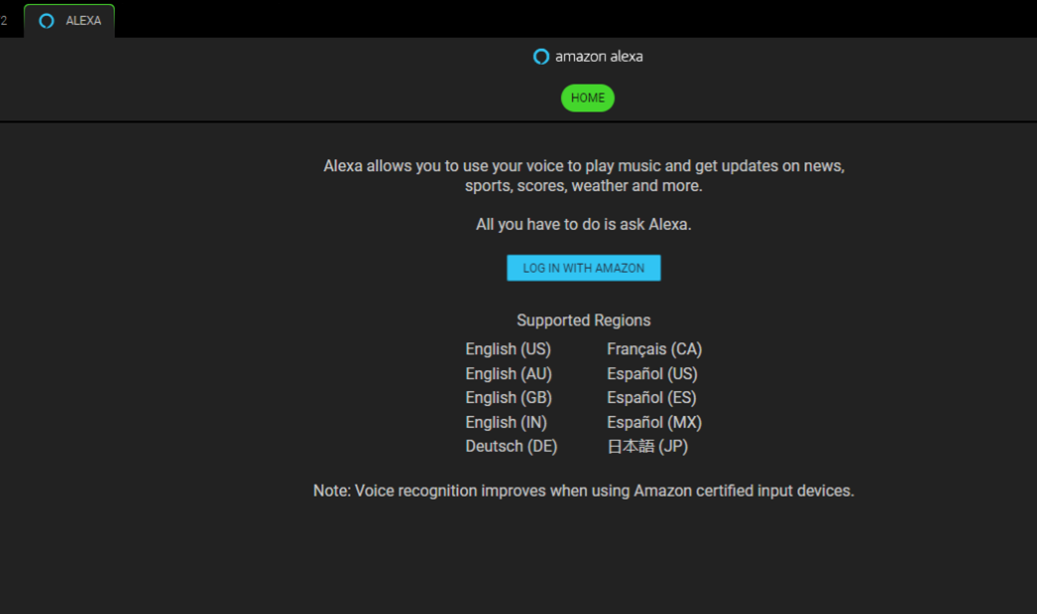
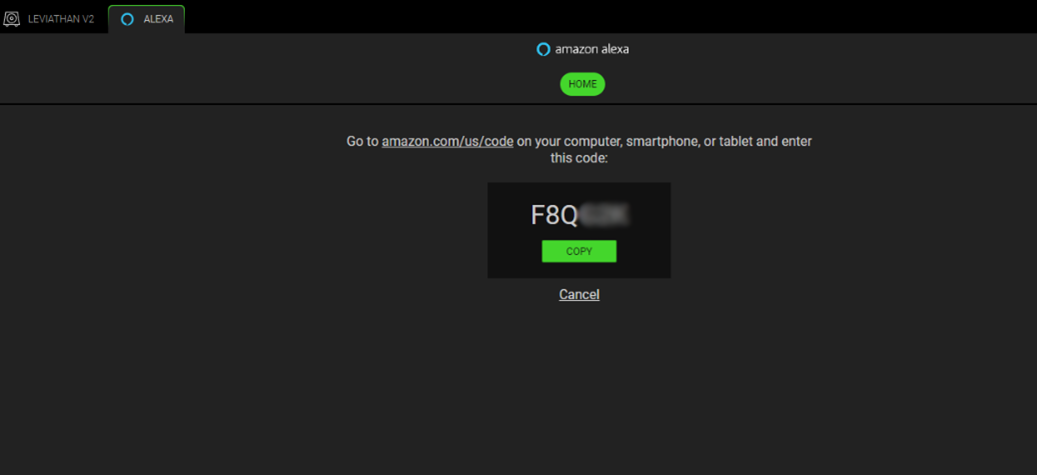
Log in with Amazon and register Razer Synapse as the device using the provided code.
-
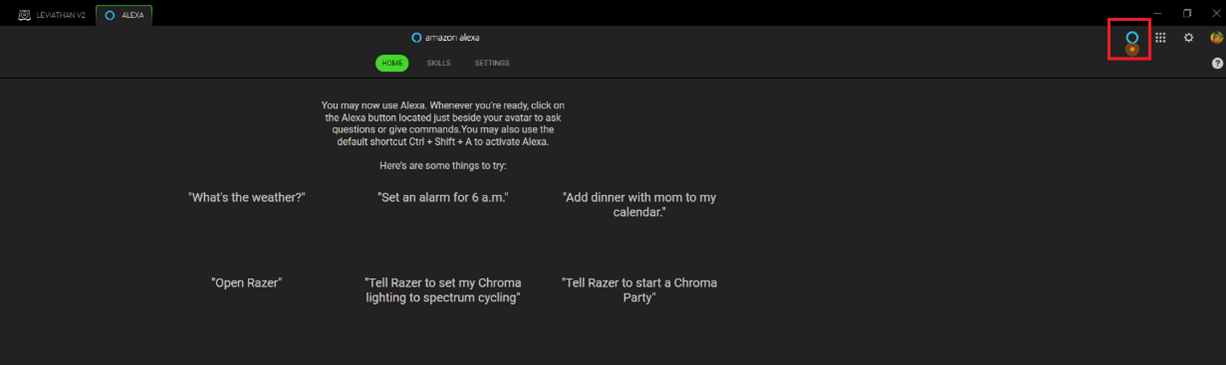
Click on the Alexa button on the top-right corner near your avatar or use the default shortcut Ctrl + Shift + A to ask questions or give commands.
Note: Speak clearly and concisely into the selected input device.
-
Test the RGB lighting control by trying the commands found in “HOME” such as “Tell Razer to set my Chroma lighting to spectrum cycling”.
Note: To see the complete list of skills and commands, see Razer Amazon Alexa FAQs.

