
See answers below for common video or display issues encountered with the Razer Ripsaw HD.
If it was set to 1080p, try lowering your capture resolution to 720p in order to reduce the CPU usage. The performance of the capture is heavily reliant on the performance capability of the machine you are streaming to.
The Razer Ripsaw pass-through video doesn't appear on-screen
Ensure that you have installed the drivers as delivered via Razer Synapse to output or view the pass-through video from your Razer Ripsaw.
The Razer Ripsaw HD is not displaying smooth video feed in the streaming system
Ensure that your gaming PC’s graphics card is configured to output at 60 FPS.
To configure your PC to 60FPS, see How to configure your graphics card to output 60 FPS / 60 Hz and follow the steps depending on your graphics card.
If the issue persists, follow the steps below:
-
Download the RipsawHDSystemOptimizationTool.
-
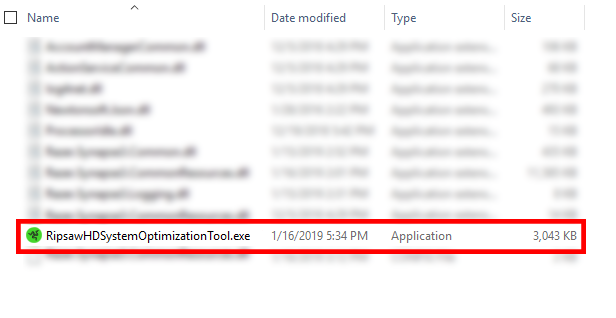
Extract the downloaded .zip file and run RipsawHDSystemOptimizationTool.exe
-
Enable the tool by clicking the CPU Booster slider.
Note: The FPS tool will need to be run on the PC where the streaming is happening, i.e., the PC where OBS or similar streaming software is installed.


