
Applicable Models
Firmware Update v1.01.00_r1
- https://rzr.to/t5PGPb | July 27, 2021
- Fix 'Del/Ins' key does not light up when pressing Fn key
STEP-BY STEP-PROCESS
Before you start
-
Ensure Windows is up to date. See How to get the latest software and driver updates from Windows.
If you just updated Windows, please install the "Optional updates" under Settings > Windows Update > Advanced options.
-
Ensure your Book is plugged into a wall outlet and not running on battery alone before proceeding.
-
Pause or stop any windows update while performing the firmware update.
-
Save any open documents on your computer and close all other programs before attempting this update.
Update Process
-
Download the latest firmware updater.
-
The Razer Updater will automatically download to your default download destination (this should be the “Downloads” folder unless changed manually).
Note: Be advised that during the update process of your Razer Book you will not be able to interact or save other applications’ progress. As such, it is strongly advised that you save your progress and close all other applications or programs before launching the Razer Updater and updating the system.
-
Click on RazerUpdater_ to begin the update process
Note: Filename on actual updater may be different from what is shown below.

-
The User Account Control window may pop up to confirm changes that will be made by the application. Click “Yes” to allow the RazerUpdater_ application to launch.
-
The Book Updater window will appear with details regarding your current firmware version and what version your Book will be updated to. Click "NEXT" to proceed.
Note: Your updater’s version may be different from what is shown below. Also, If your Book does not need an update, the updater will not proceed from this point.

-
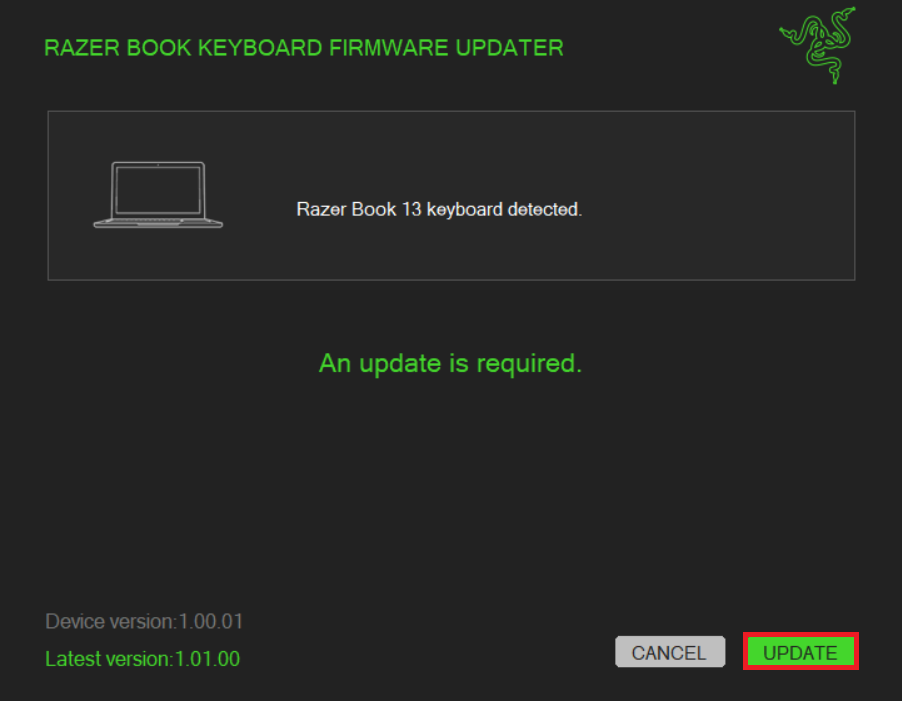
Click “UPDATE” to initiate the update process of your Book.
-
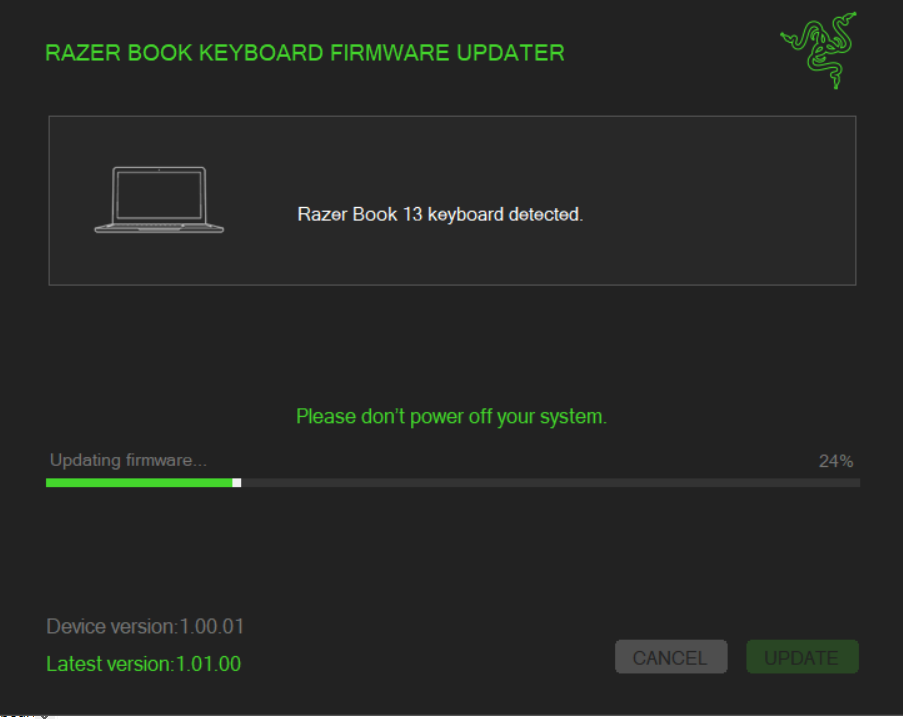
A progress bar will appear indicating the status and progression of the installation process. During the install process, you will not be able to access other applications.
-
The Blade will restart a few times and will automatically boot to Windows once the update is complete.
Important: Do not force restart or shut down the Blade during this process.

