
Symptoms:
- The display backlight is up but the screen is blank.
- Any situation where there are indications of power, such as functioning keyboard, fans, and speakers, but no display.
Step-by-step process
Press and hold the power button for 15 seconds or until the power indicator blinks white. Do this with the charger plugged into the laptop.
Test the display by connecting an external monitor.
Press F4 until the screen displays on the external monitor.
Ensure your graphics driver is up to date.
Important: Install graphics driver updates that are made available only via Windows Update.
Do the following if you have manually updated the graphics driver to a newer version from Nvidia:
Right-click on the "Start" button and select "Device Manager".
Select "Display adapters" to expand the category.
Right-click on the graphics card driver and select "Uninstall device".
Tick the "Attempt to remove the driver for this device" checkbox.
Click "Uninstall".
Click on "Action" and select "Scan for hardware changes". This will automatically reinstall the driver.
Perform a system recovery if you are able to enter the BIOS screen. See How to create and use a system recovery stick for the Razer Blade for more details.

Reseat the memory module. This only applies to Razer Blade models with removable RAM.
Important: Any damages caused by service (including upgrades and expansions) are not covered by Razer Warranty Policy.
Turn off the Razer Blade.
Remove the power adapter.
Remove the underside cover by unfastening the T5 screws. Use an appropriate screwdriver.
Locate the RAM under a ribbon tape.
Release the retainer clip to remove the ribbon tape.
Release the metal brackets to remove the RAM from the slot.
Reinsert the RAM at an angle then push it down until it clicks. Ensure to align the notches.
Reconnect the ribbon tape.
Put the underside cover and screws back in place.
Boot up the Razer Blade to test.
Other situations
The screen is blank after waking the Razer Blade from sleep
Wait for a few moments for the light on the keyboard to go off.
Press the power button to wake the unit up.
Razer Blade Pro 17” (2019): the screen is blank but the keyboard lighting is on
The Razer Blade Pro 17” (2019) | RZ09-0314x may display a blank or black screen even when the lighting on the keyboard is turned on in these scenarios:
- After selecting "Dedicated GPU only" > Performance > GPU Mode in Razer Synapse, the laptop screen goes blank after restart.
- The laptop screen goes blank after waking it up from sleep.
Roll back your graphics driver to version 431.70 or an earlier version.
IMPORTANT: You will need an external monitor or switch to "NVIDIA Optimus" mode in the BIOS after you hit the blank screen issue. Otherwise, you cannot continue with any of the troubleshooting steps below.
Open "Device Manager".

Expand "Display adapters".

Double-click on your NVIDIA GPU adapter.

Select the "Driver" tab.
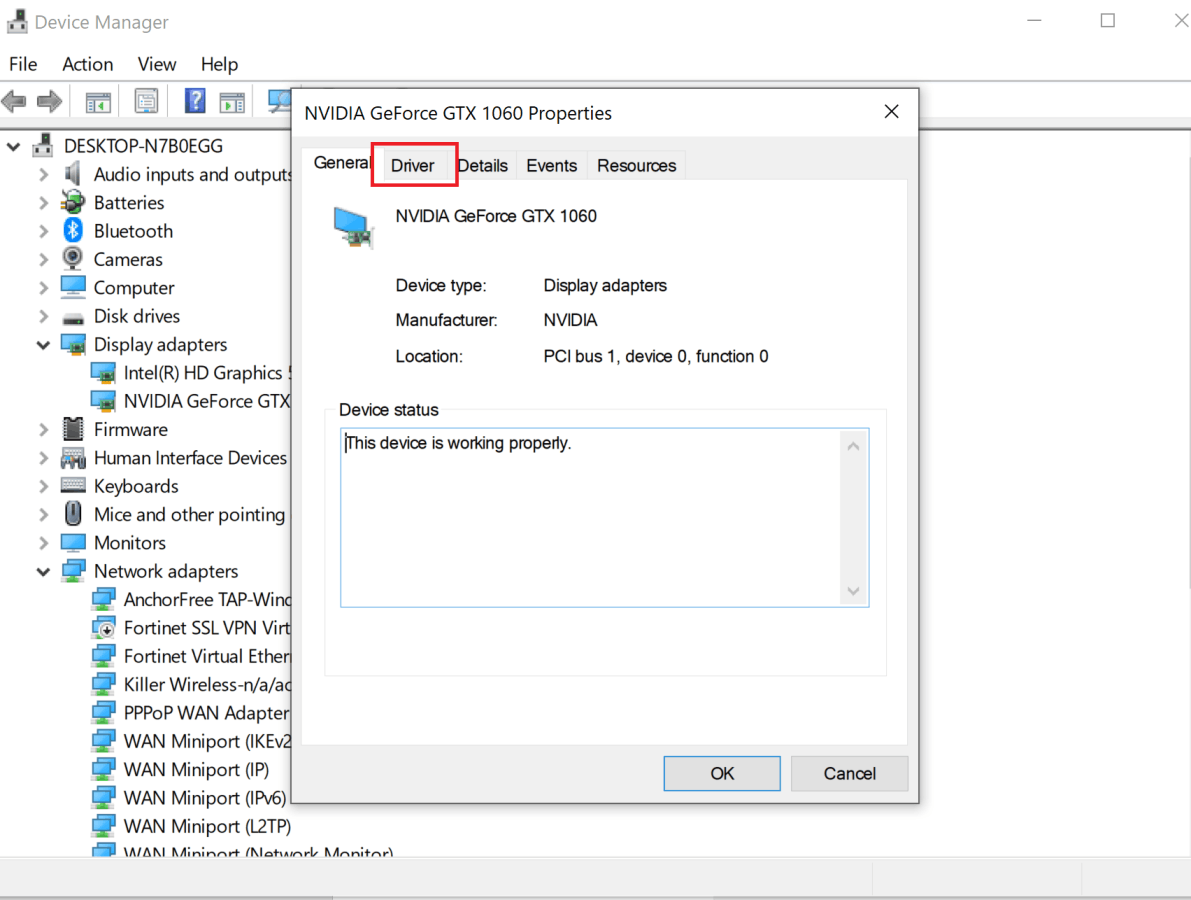
Click on "Roll Back Driver".

Note: If the "Roll Back Driver" button is grayed out, restart your PC and press F9 while booting up to do a system recovery.
Click "OK" to complete the process.


