
Important:
-
Check the Razer Blade's specification if it supports multiple displays.
-
Ensure Windows OS and BIOS are updated. See the following for more details.
Follow the steps to connect multiple monitors with your Razer Thunderbolt™ Dock Chroma.
-
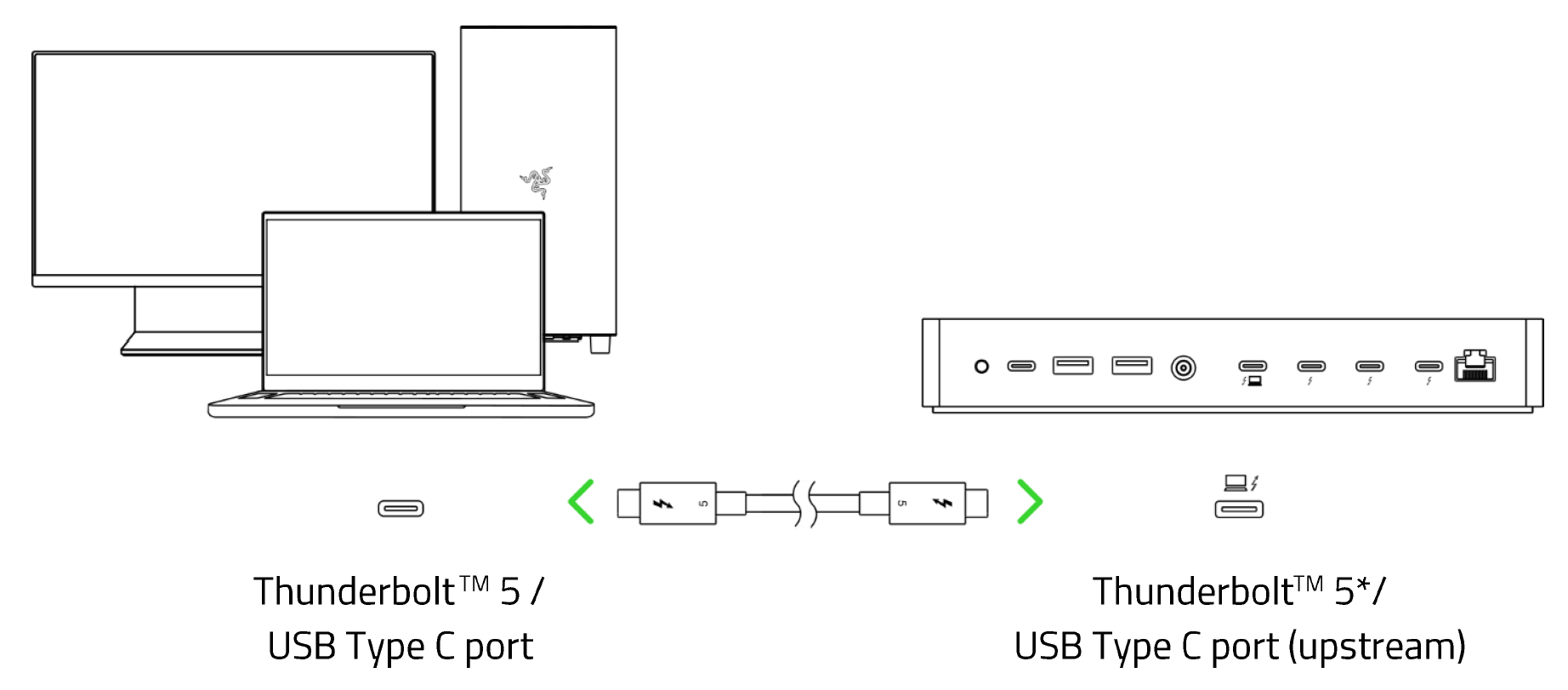
Connect the dock to a Thunderbolt 5 or 4 port using the cable provided.
-
Check the resolution of the monitors and confirm it is within the resolution support. See Refresh rate and resolution monitor specifications for more details.
-
Verify that the cables used are rated correctly to support the Alternate Mode with display port v1.2 and above.
-
Check all cables are connected properly and on the correct port.
-
Check the monitors are working when connected to the system individually.
-
Verify if the dock and the monitors are working fine with another laptop that has a Thunderbolt 5 or 4 port.

