
Important:
-
Check the Razer Blade specifications to confirm that it supports multiple displays.
- Verify the PC specifications to ensure that it supports Thunderbolt 4 or Thunderbolt 5.
- For non-Razer Blade PCs, check the manufacturer's specifications and install all firmware updates provided by the manufacturer.
-
Ensure Windows and the BIOS are up to date. See the following for more details.
- Ensure the Razer Thunderbolt™ Dock Chroma firmware is up to date.
Follow the steps below to connect multiple monitors to your Razer Thunderbolt™ Dock Chroma.
-
Connect the dock to a Thunderbolt 4 or Thunderbolt 5 port using the provided cable.
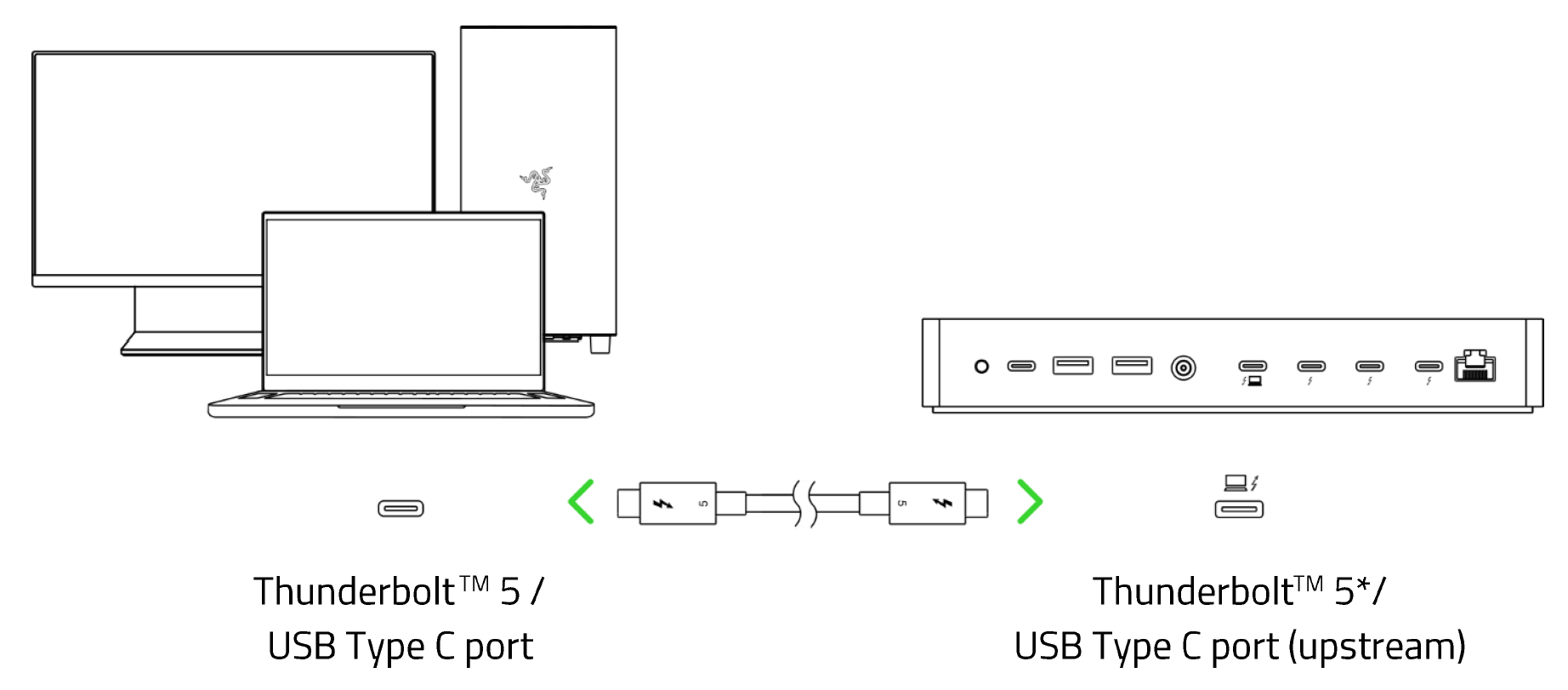
-
Check the resolution of the monitors and confirm that it is within the supported resolution range. See Refresh rate and resolution monitor specifications for more details.
-
Verify that the cables are rated to support DisplayPort Alternate Mode v1.2 or later.
-
Ensure all cables are properly connected to the correct ports.
-
Verify that each monitor works when connected individually to the system.
-
Verify that the dock and monitors work properly with another laptop that has a Thunderbolt 4 or Thunderbolt 5 port.

