
This article provides you the instructions on how to get THX Spatial Audio for PC to work on a Razer Blade.
For the list of Razer Blade models with THX Spatial Audio, see How THX Spatial Audio is integrated and used in Razer products.
See instructions below
Important: All Razer Blades manufactured after 2020 automatically come with THX software and therefore DO NOT require a code for activation.
2024 and newer Razer Blade models
-
Download and install Razer Synapse to enable the THX Spatial Audio feature.
-
Configure THX Spatial Audio via Razer Synapse. See How to configure THX Spatial Audio for PCs for instructions.
2023 and older Razer Blade models
-
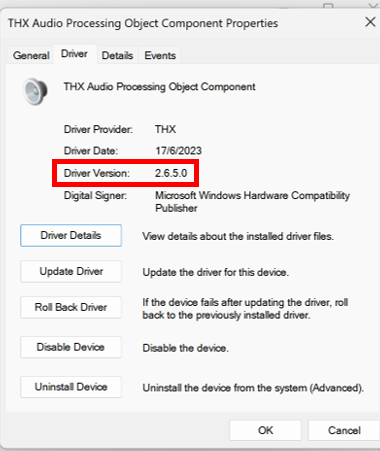
Verify that you have the THX version 2.6.5.0.
-
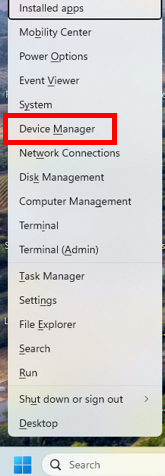
Press the Windows logo and X button on your keyboard.
-
Select “Device Manager”.
-
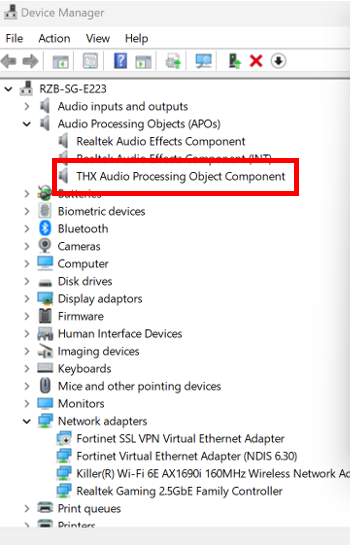
Right-click on the “THX Audio Processing Object Component”.
The Driver Version should display the 2.6.5.0 version.
-
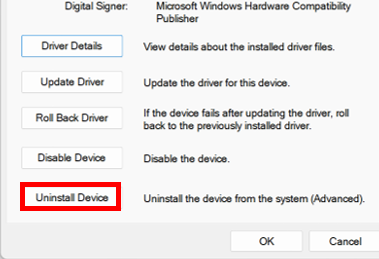
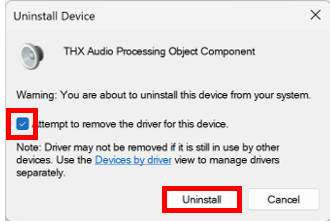
If you have a different version, click “Uninstall Device”.
-
Check “Attempt to remove the driver for this device” > “Uninstall”.
-
-
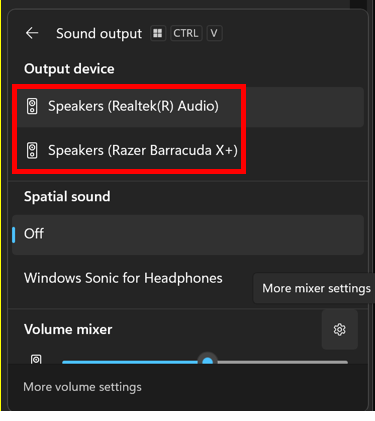
Set the right speaker as output.
-
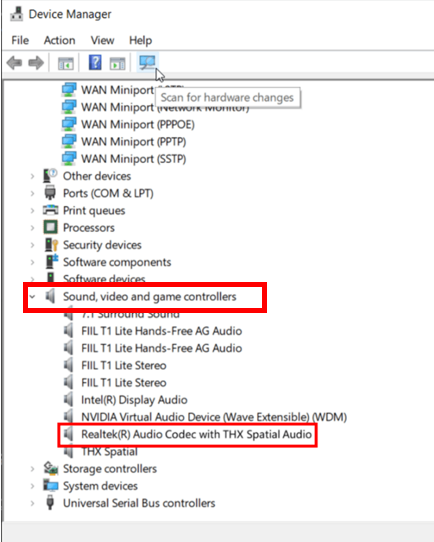
Ensure you have the Realtek(R) Audio Codec with THX Spatial Audio driver.
-
Press the Windows logo and X button on your keyboard.
-
Select “Device Manager”.
-
Click “Sound, video and game controllers” to ensure the Realtek(R) Audio Codec with the THX Spatial Audio is installed.
-
Click on “Scan for hardware changes” if the driver is not found.
-
-
Reinstall the THX Spatial Audio app.
-
Go to Microsoft Store.
-
Click “Get” to download and install the THX Spatial Audio Control.

-
Your Razer Blade can now use THX Spatial Audio.
Related link:

