

Tips to help you get started
- Pair your headset using the Razer Headset Pairing Utility
- Download the Razer Audio app for iOS or Android. For a list of supported products, click here.

Device Layout

- Auto-adjusting headband
- Razer™ HyperSense button
- Sidetone wheel
- Razer SmartSwitch / EQ button
- Plush leatherette ear cushions
- Earcups Powered by Razer Chroma RGB™
- G. Mic diaphragm
- Microphone port
- Charging port
- Power button
- Status indicator
- Volume wheel
- Mic mute switch
Technical Specifications
| Category | Specification |
|---|---|
|
Headphones |
Frequency response:20 Hz – 20 kHz |
|
Impedance: 32 Ω @ 1 kHz |
|
|
Sensitivity: 108 dB |
|
|
Drivers: 50 mm, with Neodymium magnets |
|
|
Inner ear cup diameter: Width 45 mm / Length 65 mm |
|
|
Earcup cushions: Full-ear coverage with cooling Fabric and plush leatherette |
|
|
Connection Type
|
|
|
Battery Life |
Note: The Battery life for Chroma lighting/Haptics (11 Hours) and without Chroma Lighting/Haptics (30 Hours) are based on BT mode only at default settings.
|
|
Color |
White |
|
Compatibility |
PS5, PS4, PC, Devices with Bluetooth audio capacity |
|
Other Features |
|
|
Microphone |
Microphone type: Detachable Razer™ HyperClear Super Cardioid Mic |
|
Frequency response: 100 – 10,000 Hz |
|
|
Signal-to-noise ratio: ≥ 60 dB |
|
|
Sensitivity (@1 kHz): -54 ± 3 dB |
|
|
Pick-up pattern: Unidirectional |
How To
How do I pair my headset using the Razer Headset Pairing Utility?
- Download the pairing utility.
- Run the pairing utility.
- Select your device.
- Follow the on-screen instructions.
See the answer below for more details.
How do I connect the Razer Kaira Pro for PS5 to my compatible device?
Via the included Type-C wireless dongle:
- Plug the dongle into a USB-C port on your PS5, PC, or mobile device.
- If your device does not have a USB-C port, plug the dongle into the included USB-C to USB-A adapter cable.
- Plug the adapter cable into a USB-A port on your PS4, PC, or other USB device.
- Power on your headset. It should automatically connect to the dongle wirelessly.
See the answer below for more details.
How do I adjust the intensity of Razer HyperSense intelligent haptics?
Press the HyperSense button on the right earcup to cycle through the following intensities:
- Low
- Medium
- High
- HyperSense Off
How do I change modes from Bluetooth to 2.4 GHz USB receiver and vice versa?
Double-press the SmartSwitch button to toggle between Hyperspeed Wireless and Bluetooth modes.
You can view the video below for instructions or review a copy of the video transcript.
See the answer below for more details.
How do I adjust the color or brightness effect of Razer Chroma RGB?
How do I optimize audio performance on my Razer headset?
- Remove dirt or debris in audio ports and on the audio jack.
- Properly plug in the audio jack. Do not use hub connections for USB-type headsets.
- Operate wireless headsets within the maximum wireless range.
See the answers below if audio issues persist.
How do I optimize microphone performance on my Razer headset?
- Put the mic diaphragm in front and the air vent facing away from your mouth.
- Turn on mic access on the selected app.
- Set the device as a Default Recording Device.
- Adjust mic levels in Windows settings.
You can view the video below for instructions or review a copy of the video transcript.
See the answer below for more details.
How do I maintain clear audio and avoid feedback on my Razer headset?
- Do not set the sensitivity level to the maximum or use a boost.
- Disable the "Listen to this device" feature.
- Use only one voice chat application while in-game.
See the answer below for more details.
How do I enable game audio while using chat apps with my Razer Bluetooth headset?
- Click on the speaker icon in the system tray.
- Select the headset with “Hands-Free AG Audio” as the playback device.

How do I remove and reattach ear cushions on a Razer headset?
Remove and reassemble the ear cushions on your Razer headset properly to prevent any damage to its parts.
You can view the video below for instructions or review a copy of the video transcript.
See the answer below for detailed instructions.
How do I improve or extend the battery life of my Razer headset?
Do not use the headset while charging to improve or extend its battery life.
How do I clean my Razer headset?
- Use a lint-free, microfiber cloth and gently wet it with a mild soap and water solution.
- Never use solvents such as thinner, benzene, or alcohol to avoid damaging the surface.
See the answer below for more details.
General Information
What are the other functions of the power button?
The power button functions are available when the headset is powered on and connected to your device via Bluetooth. These functions operate based on your device’s current activity (i.e. playing music).
- Play/Pause
- Accept incoming call or end current call
- Put call on-hold and accepting incoming call
- End call and swap to on-hold call
- Reject incoming call
- Swap calls
- Skip track
- Previous track
- Activate Bluetooth pairing mode
What is the use of the wheel on the right earcup?
This is the Sidetone wheel. Rotate the wheel to adjust the volume of your voice that you can hear through the headset. This will help you hear how loud you’re talking so you can adjust and do not disturb others around you.
Is this device supported in Razer Chroma RGB app?
Yes, it is supported but only for iOS. For Android, download the Razer Audio App to configure the Chroma effect.
What devices are compatible with the Razer Kaira Pro for PS5?
The Razer Kaira Pro for PS5 also works with PS4, PC, Mac, and other platforms that have a USB-A or USB-C port. The headset also works on Bluetooth capable devices such as iOS and Android smartphones and tablets.
Razer pairing utilities help you connect compatible wireless headsets, mice, and keyboards to their corresponding wireless dongles. These tools are used to pair a new device, restore a lost connection, manage device pairings, or add compatible peripherals to a Razer Multi-Device HyperSpeed Dongle for a more streamlined wireless setup.
Choose from the list below for help connecting your Razer device to its original or replacement wireless dongle.
Select a utility
How to install and use the Razer Headset Pairing Utility
Applicable Model:
Barracuda Line
BlackShark Line
- Razer BlackShark V2 HyperSpeed | RZ04-0496
- Razer BlackShark V2 Pro | RZ04-03220
- Razer BlackShark V2 Pro (2023) | RZ04-0453
- Razer BlackShark V2 Pro (Xbox Licensed) | RZ04-04530x
- Razer BlackShark V2 Pro for PlayStation | RZ04-04530x
- Razer BlackShark V3 | RZ04-05410x
- Razer BlackShark V3 for Xbox | RZ04-054102
- Razer BlackShark V3 for PlayStation | RZ04-054103
- Razer BlackShark V3 Pro | RZ04-0540x
- Razer BlackShark V3 Pro for Xbox | RZ04-0540x
- Razer BlackShark V3 Pro for PlayStation | RZ04-0540x
- Razer BlackShark V3 X HyperSpeed | RZ04-054201
- Razer BlackShark V3 X HyperSpeed for Xbox | RZ04-054202
- Razer BlackShark V3 X HyperSpeed for PlayStation | RZ04-054204
Hammerhead Line
- Razer Hammerhead HyperSpeed for PlayStation | RZ12-038203
- Razer Hammerhead HyperSpeed for Xbox | RZ12-038202
- Razer Hammerhead HyperSpeed for Meta Quest 3 | RZ12-0382
- Razer Hammerhead Pro HyperSpeed | RZ12-0459
- Razer Hammerhead V3 HyperSpeed | RZ12-0561
- Razer Hammerhead V3 X HyperSpeed for Xbox | RZ12-0562x
Kaira Line
Latest Pairing Utility
- https://rzr.to/5djb0n | April 24, 2026
- Added Razer Hammerhead V3 HyperSpeed
Follow the detailed instructions below to run the pairing utility on your device.
Step-by-step Process
-
Download the pairing utility on your PC.
-
Run the pairing utility.
-
Select your device. Ensure you have the correct dongle for the headset that you’re trying to pair it with.

-
Follow the on-screen instructions.
-
Click "NEXT" or PAIR".

-
Wait for the pairing process to complete.
-
Click "CLOSE" once the pairing process is completed.

Your Razer headset is now paired with your wireless USB dongle.
Related article:
How to install and use the Razer Mouse Pairing Utility
Applicable Model:
Razer mouse
- Razer Basilisk Ultimate | RZ01-03170
- Razer Basilisk X HyperSpeed | RZ01-03150
- Razer Boomslang 20th Anniversary Edition | RZ83-0253
- Razer DeathAdder V2 Pro | RZ01-03350
- Razer DeathAdder V2 X HyperSpeed | RZ01-0413
- Razer DeathAdder V3 Pro (Smooth Touch) | RZ01-04630
- Razer DeathAdder V4 Pro | RZ01-0533
- Razer Naga Pro | RZ01-03420
- Razer Naga V3 Pro | RZ01-0566x
- Razer Orochi V2 | RZ01-03730
- Razer Viper Mini Signature Edition | RZ01-04410
- Razer Viper Ultimate | RZ01-03050
- Razer Viper V3 Pro | RZ01-0512
Pairing Utility v1.00.07_r2
- https://rzr.to/qypdla | March 3, 2026
Follow the detailed instructions below to run the pairing utility on your device.
Step-by-step Process
-
Download the pairing utility on your computer.
-
Run the pairing utility.
-
Select your device.

-
Plug the wireless USB dongle into your PC.
-
Connect your mouse to your PC using the supplied USB cable.
-
Click "PAIR".

-
Wait for the pairing process to complete.
-
Click "CLOSE" once the pairing process is completed.

Your Razer mouse is now paired with your wireless USB dongle.
How to install and use the Razer Keyboard Pairing Utility
Applicable Model:
Pairing Utility v1.02.00_r4
- https://rzr.to/8ovpwz | January 6, 2025
- Added support for Razer BlackWidow V4 Pro 75%.
Follow the detailed instructions below to run the pairing utility on your device.
Step-by-step Process
-
Download the pairing utility on your computer.
-
Run the pairing utility.
-
Click "NEXT" to proceed. Do note that Razer Synapse and other Razer applications will be automatically closed.

-
Plug the wireless USB dongle into your computer.

-
Click "NEXT".
Note: The "NEXT" button will not be available if the wireless USB dongle is not properly connected to your computer.

-
Connect the keyboard to your computer using the supplied USB cable.

-
Click "PAIR" to start the pairing process.
Note: Both the wireless USB dongle and supplied USB cable must be connected to the computer for pairing to work.

-
Click "CLOSE" once the pairing process is completed.

Your Razer keyboard is now paired with your wireless USB dongle.
How to use the Razer USB HyperSpeed Dongle Utility
Applicable Model:
Razer Mouse
Razer USB Hyperspeed Dongle Utility v1.00.16_r1
- https://rzr.to/cbsutq | January 8, 2026
You can view the video below for instructions.
Follow the detailed instructions below to use the Razer USB HyperSpeed Dongle Utility.
Step-by-step Process
-
Download the dongle utility on your computer.
-
Run the dongle utility.
-
Plug the wireless USB dongle into your PC.

-
Click "NEXT" to proceed. Note that Razer Synapse and other Razer applications will be automatically closed.
-
Select your device.

-
Wait for the update to finish. Do not turn off your computer or unplug the dongle while the firmware is still updating.

-
Follow the steps indicated to pair your chosen Razer device. Click "PAIR" to start the pairing process.
Note: Both the wireless USB dongle and the supplied USB cable must be connected to the computer for pairing to work. For devices without a USB port, use Bluetooth connectivity instead.

-
Click "CLOSE" once the pairing process is completed.

Your Razer device is now paired with your wireless USB dongle.
How to add a device to a multi-device dongle
Applicable Model:
Razer Mouse
* The bundled HyperPolling Wireless dongle supports single-device connectivity only and does not support multi-device pairing.
Important:
-
Ensure the device is not connected via USB cable.
-
Remove the additional device’s USB dongle if it’s connected to the system.
-
Keep the device close to the Hyperspeed dongle.
You can view the video below for instructions.
Note: The pairing for your second device is at the 45-second mark of the video.
Follow the detailed instructions below to add a device to a multi-device dongle
Step-by-step Process
-
Launch Razer Synapse 4.
-
Go to your device’s profile.
Note: If your device is not on the latest firmware, you will be prompted for an update.
-
Update your device to the latest firmware.
-
Visit Razer Support to check for firmware updates.
-
Download and install them on your device.
-
-
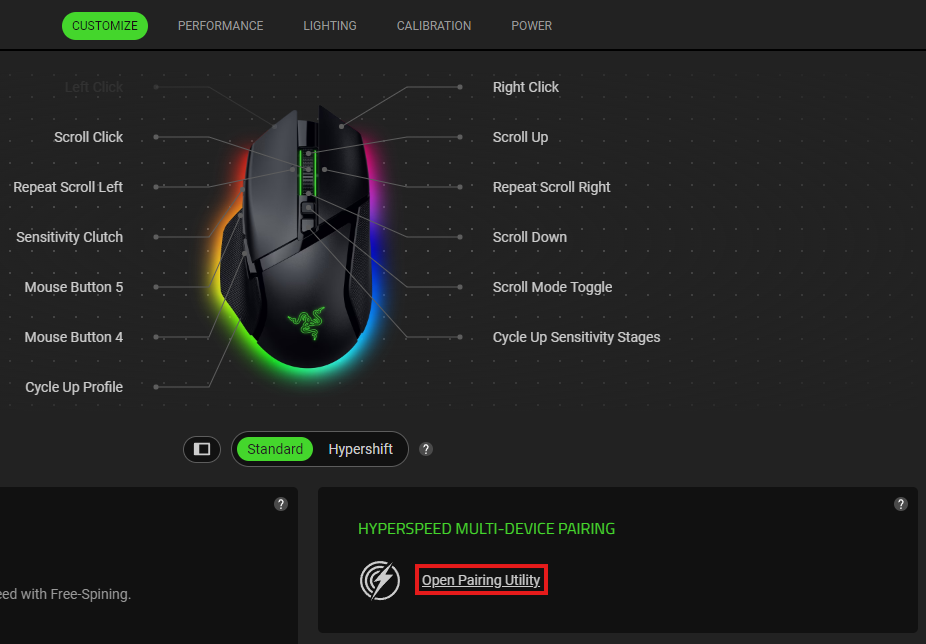
Click on “Open Pairing Utility”.
-
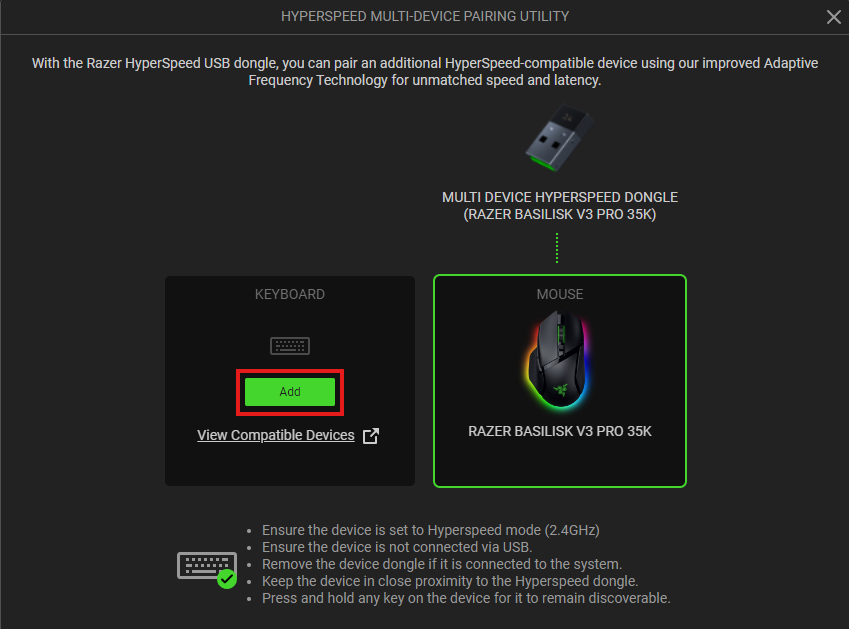
Click the "ADD" button to start scanning for a device.
-
Set the compatible device switch to Hyperspeed (2.4G) mode.
-
Press and hold any key on the device you want to pair to keep it discoverable.
-
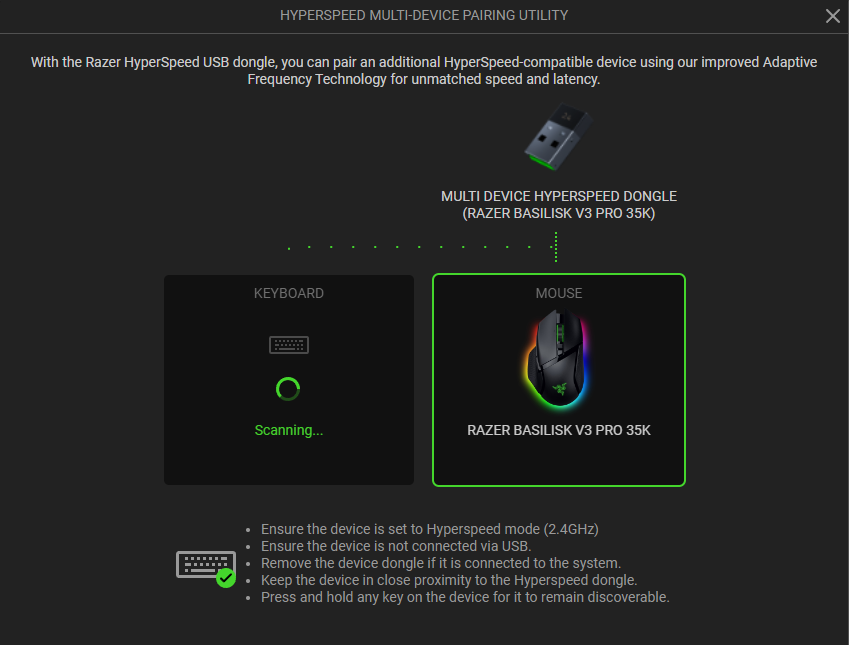
Wait while scanning is in progress.
-
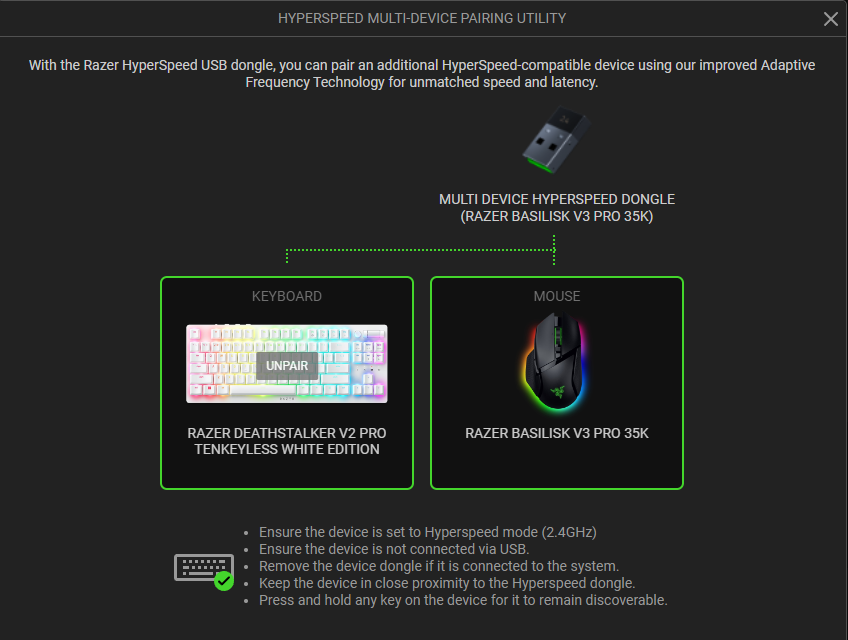
Device will automatically be paired.
How to add a Razer Hyperspeed device to a multi-device dongle
If you have a Razer HyperSpeed Wireless device that uses a Razer HyperSpeed Multi-Device Dongle, you no longer require separate dongles for each peripheral as this can now support a keyboard and mouse at the same time.
To unlock this functionality, download the firmware updater for your supported device below.
- Razer DeathAdder V2 Pro Firmware Updater
- Razer Naga Pro Firmware Updater
- Razer BlackWidow V3 Pro Firmware Updater
You can connect one keyboard and one mouse with each Razer HyperSpeed Multi-Device Dongle.
Each device can only connect to one dongle at a time. All Razer HyperSpeed Multi-Device Dongles are interchangeable, and you can set the dongle pairing via Razer Synapse.
| Documentation | Language |
|---|---|
| User Guide (English) | English |
| User Guide (Spanish) | español |
| User Guide (French) | français |
| User Guide (German) | Deutsche |
| User Guide (Portuguese-Brazilian) | português |
| User Guide (Russian) | русский |
| User Guide (Traditional Chinese) | 繁體中文 |
| User Guide (Simplified Chinese) | 简体中文 |
| User Guide (Korean) | 한국어 |
| User Guide (Japanese) | 日本語 |
Please see our warranty policy for a complete review of our warranty policy.
You are eligible for Limited Warranty support for the following periods of time commencing upon the date of retail purchase of your Product (Warranty Period).
| Product | Warranty Period | |
|---|---|---|
| Razer Laptops | ||
| 2021 and Older Models | 1 yeara | |
| 2022 and Newer Models | 1 yeara 2-year limited battery warrantya |
|
| Razer Phone and Phone Accessories | 1 year | |
| Razer Edge Gaming Handhelds | 1 yearb | |
| Razer Mice | 2 years | |
| Razer Viper Mini Signature Edition | 3 years | |
| Razer Keyboards and Keypads | 2 yearsc | |
| Razer Huntsman Signature Edition | 5 years | |
| Razer Headsets, Earphones and Earbuds | 2 yearsc | |
| Razer Wireless Mouse and Mat Bundles | 2 yearsc | |
| Razer Mouse Mats | 1 yeard | |
| Razer Speaker Systems and Broadcaster Devices | 1 year | |
| Razer Controllers and Chargers | 1 year | |
| Razer Routers (except Singtel) | 1 year | |
| Razer Routers (Singtel) | 2 years | |
| Razer Monitors | 1 year | |
| Smart Watches and Eyewear | 2 years | |
| Razer Case Fans | 2 years | |
| Razer Liquid Cooling | 2 years | |
| Razer Katana Power Supplies | 5 years | |
| Razer Fan and RGB Controllers | 2 years | |
| Razer Cases | 1 year | |
| Razer System Accessories | 1 year | |
| Razer Laptop Cooling Pad | 2 years | |
| Razer Docks | 1 year | |
| Razer USB C Dock | 2 years | |
| Wearable Air Purifiers | 1 year | |
| Razer Gaming Accessories | 1 yeard | |
| Razer Rechargeable Batteries for Wireless Devices | 1 yeare | |
| Razer Iskur | 3 years | |
| Razer Iskur V2 | 3 years | |
| Razer Enki Line | 3 years | |
| Razer Fujin Line | Mesh Backing and Seat Pan | 1 year |
| Chair Frame, Mechanisms and Armrests | 5 years | |
| Razer Fujin Pro Headrest | 5 years | |
| Razer Fujin Headrest | Frame – 3 years Mesh – 1 year |
|
| Razer Soma Line | Mechanisms & Moving Parts | 3 years |
| Electronic Parts | 2 years | |
| Razer Chair Accessories | 1 year | |
All new Products will have the Warranty Periods listed above, subject to applicable local law. Certain "end of life", sell out or discontinued Products may have a shorter Warranty Period; this will be clearly marked at the time of purchase and the given Warranty Period will be stated at that time. Refurbished Products purchased from Razer.com will have the lesser of a 1 year warranty period or the warranty period as stated above. Refurbished products not purchased from Razer.com will have a 90 day warranty period. If you are uncertain whether your Product is eligible for Limited Warranty support, please contact our support team for clarification.
Please note that third-party products may be covered by the product manufacturer's warranty and these warranty terms are exclusively provided by the product manufacturer. Razer does not offer a warranty for third-party products. If you need product or warranty support with your third-party product, please contact the product manufacturer. Please consult the product documentation provided by the product manufacturer for details.
If you are uncertain whether your Product is eligible for Limited Warranty support, please contact our support team for clarification.
Warranty Footnotes
- [a] If you are a customer outside of the U.S. and have validly purchased a Razer Extended Warranty for your product, the Warranty Period shall be extended for another one (1) year period, to be a total of two (2) years commencing upon the date of retail purchase of your Razer Product. The Razer Extended Warranty does not apply to batteries. Aside from the change to Warranty Period, the Razer Extended Warranty does not alter any other terms and conditions of the Limited Warranty.
- [b] Replacement parts and/or services are available for a minimum of 3 years after the end of production of the product; additional charges may apply.
- [c] Products purchased prior to October 1st, 2018 maintain the original 1 year warranty (keyboards with mechanical switches maintain original 2 year warranty).
- [d] Warranty period for Razer Firefly HyperFlux is 2 years.
- [e] Products purchased prior to October 1st, 2018 maintain the original 6 month warranty.
- [f] Limited Warranty: The Razer Iskur is free from defects in workmanship, materials and construction for three years from the date of purchase. In the event that a defect is found, the manufacturer will either repair or replace the defective item, at its discretion. Exclusions and Limitations: This Limited Warranty does not cover cosmetic damage, minor cosmetic abnormalities and normal wear and tear, including without limitation scratches, dents, discoloration and tears in the head pillow, seat cushion, PU leather, Armrest and stitches of the upholstery.

