Follow the instructions below on how to resolve the issue of Chroma lighting not working on the Razer Thunderbolt™ Dock Chroma.
Important: The steps below will work with the Razer Thunderbolt™ Dock Chroma but not with the Razer Thunderbolt™ Dock Mercury.
-
Ensure the Razer Thunderbolt™ Dock Chroma is connected to the laptop or PC's Thunderbolt™ 5 or Thunderbolt™ 4 port for the lighting to work.
-
Open Razer Synapse.
-
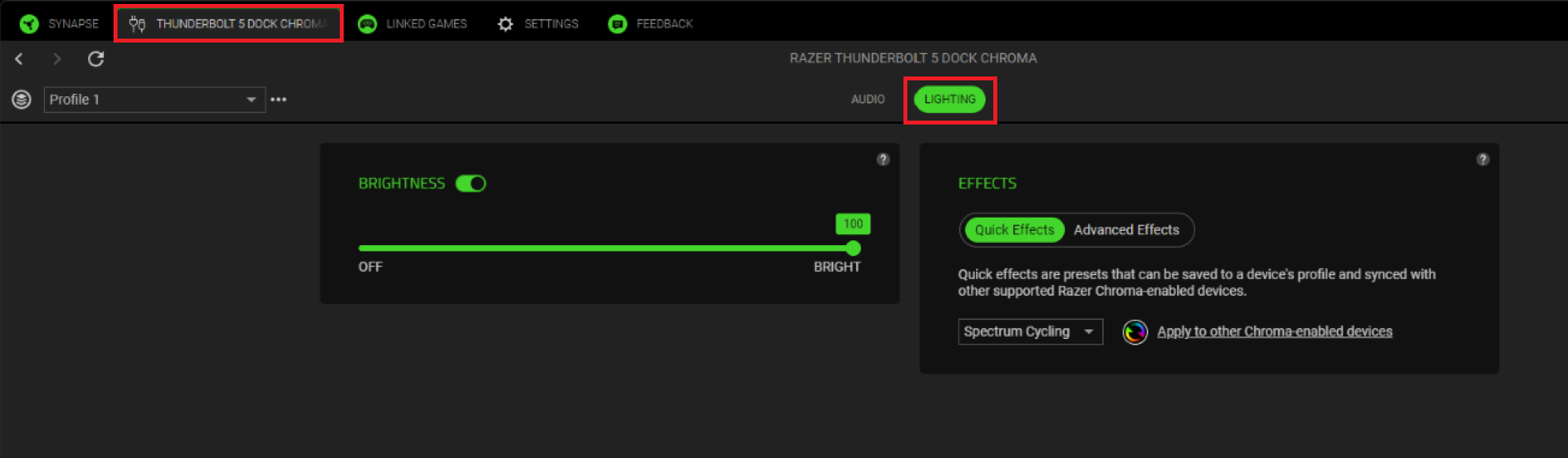
Go to "THUNDERBOLT DOCK CHROMA" > "LIGHTING".
-
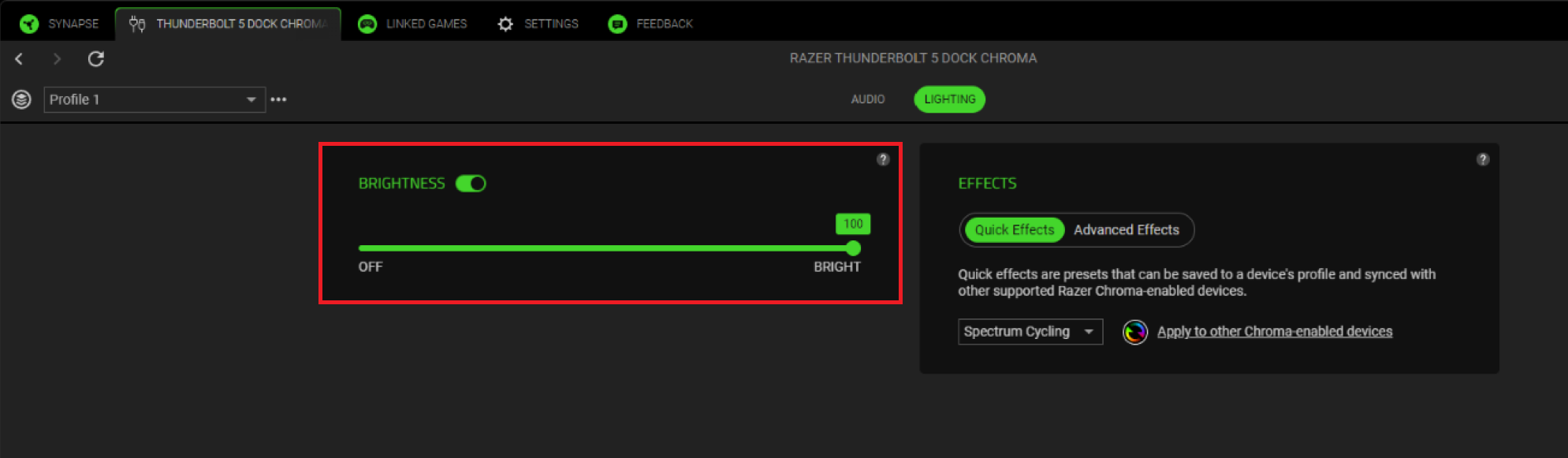
Toggle “BRIGHTNESS” on.
-
Adjust the slider to your preferred brightness.
-
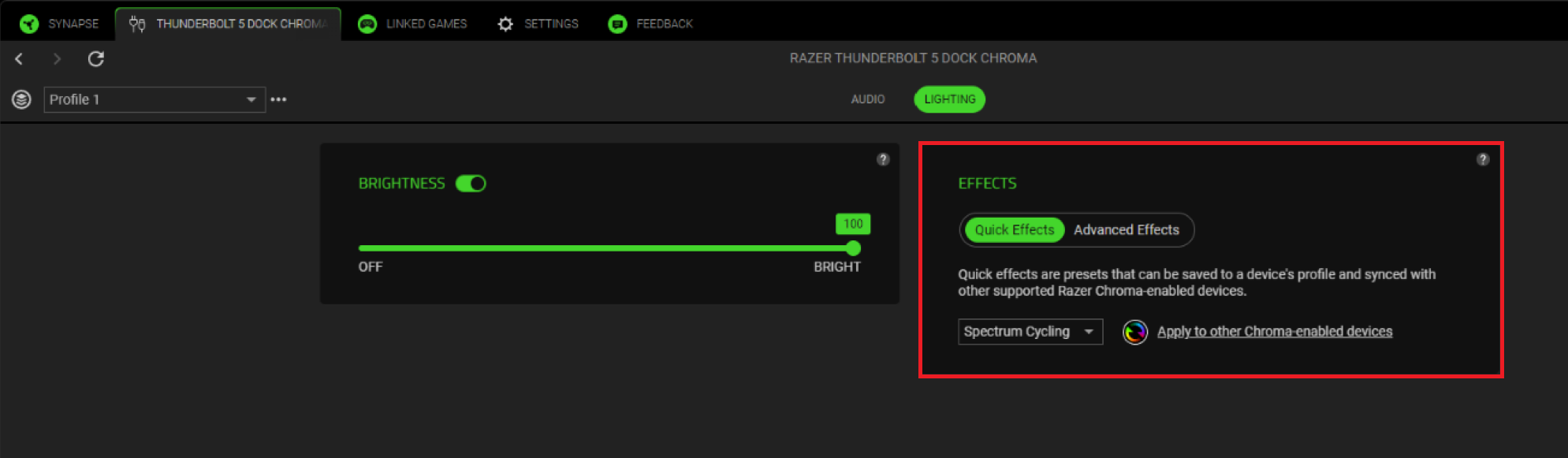
Select your preferred lighting effects.