The Razer Phone Cooler Chroma keeps your smartphone cool during long gaming sessions. Pair it with the Phone Cooler app to customize its Chroma lighting, fan speed, and settings.
Follow the detailed instructions below to set up, pair, and customize your Razer Phone Cooler Chroma.
Select preferred action
Set up on an iOS device with MagSafe
Peel off the protective film on the back of the cooling fan.
Note: Some phone cases are made of heat-insulating material which can weaken the connection of MagSafe-compatible accessories.
Remove your phone case or any attached accessory before using the cooling fan to ensure optimum cooling and magnetic connection.
Place the cooling fan’s magnetic surface at the back of your smartphone.

Connect the cooling fan to a compatible USB power adapter using the USB Type-C to USB Type-A power cable.
Note: USB power adapter is purchased separately.

Switch the cooling fan on.

The cooling fan will begin dissipating heat away from your smartphone.
Set up on an Android or iOS device without MagSafe
Peel off the protective film on the back of the cooling fan.
Pull out the retractable phone clamp.
Place your smartphone in and adjust the cooling fan’s position as desired.
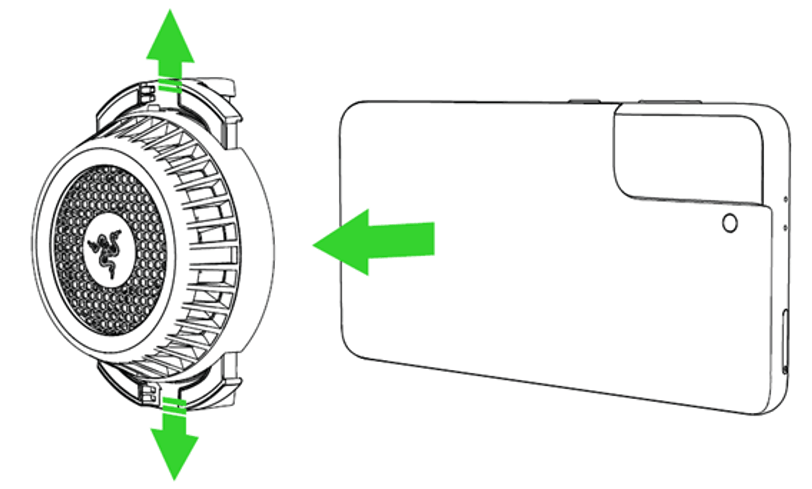
Remove your phone case or any attached accessory before using the cooling fan to ensure optimum cooling.
Note: Some phone cases are made of heat-insulating material.
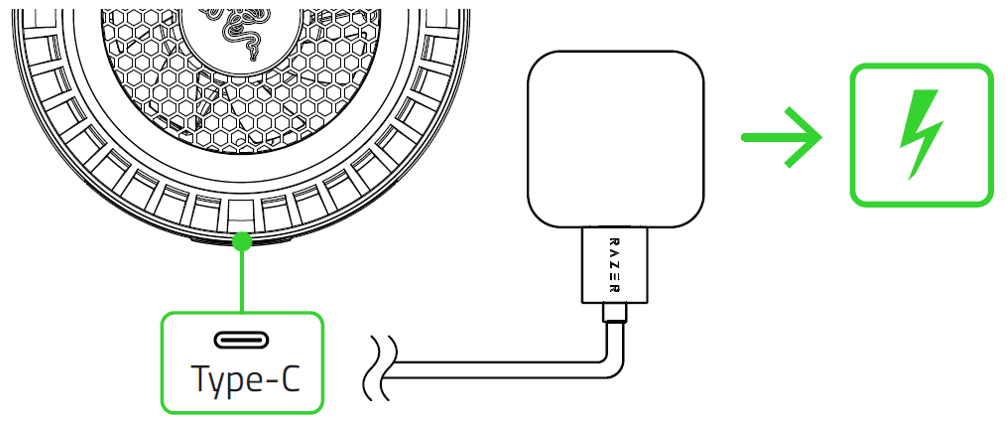
Connect the cooling fan to a compatible USB power adapter using the USB Type-C power cable.
Note: USB power adapter is purchased separately.
Switch the cooling fan on.
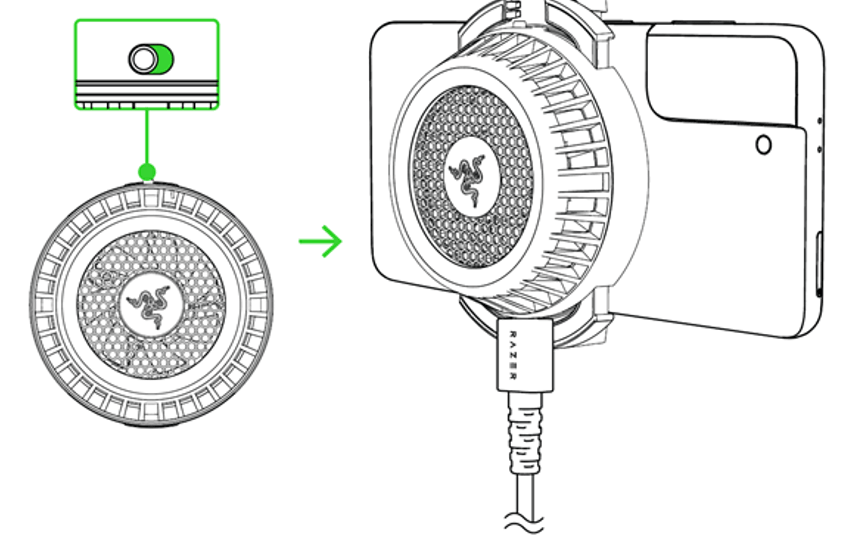
The cooling fan will begin dissipating heat away from your smartphone.
Pair with smartphone
Set up the Razer Phone Cooler Chroma on your smartphone. See How to set up your Razer Phone Cooler Chroma for more details.
Download the Phone Cooler mobile app on your smartphone.
Ensure that the Razer Phone Cooler Chroma is plugged in and switched on.
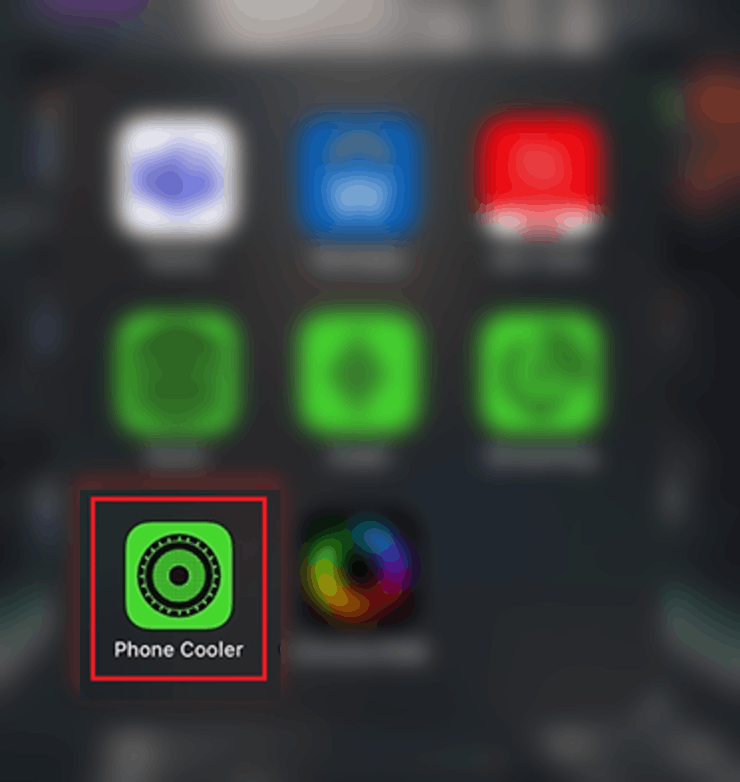
Launch the Phone Cooler app.
Tap "SEARCH".
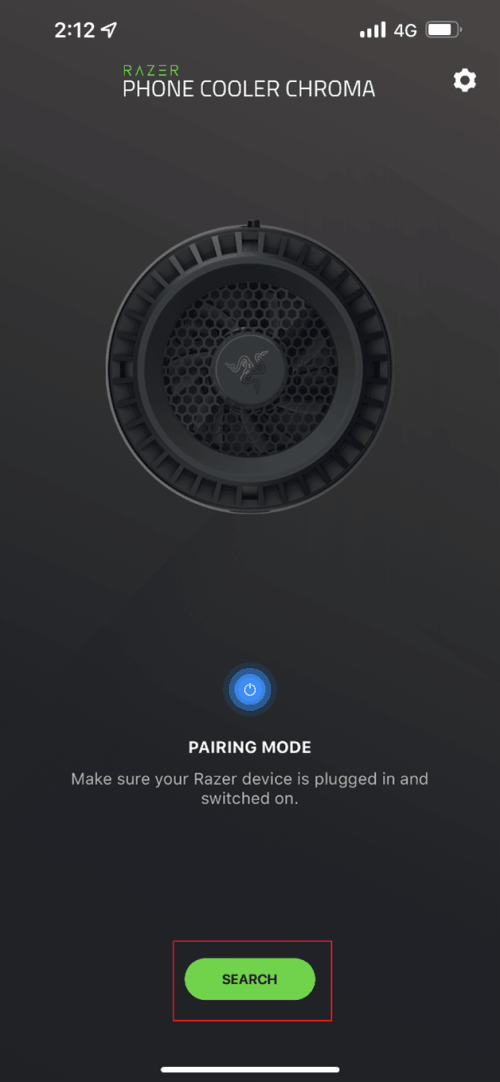
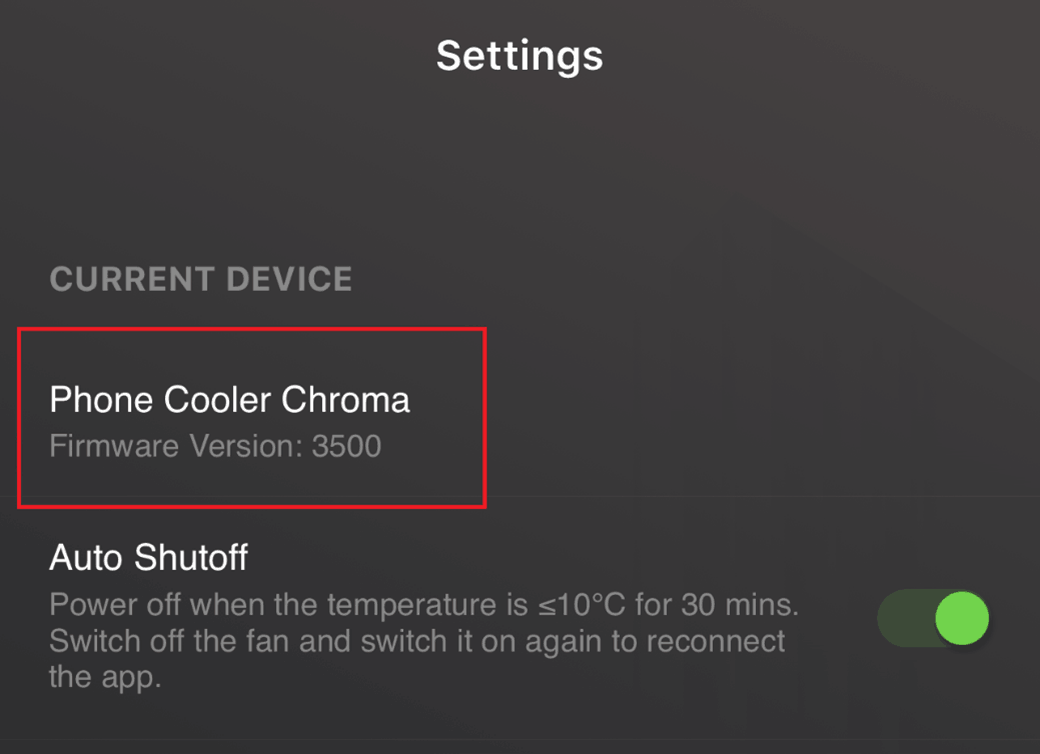
Your device will start searching for the Razer Phone Cooler Chroma. Once paired successfully, Phone Cooler Chroma will appear in the CURRENT DEVICE section under Settings.
Unpair from smartphone
Ensure that the Razer Phone Cooler Chroma is plugged in to your phone and switched on.
Launch the Phone Cooler app.
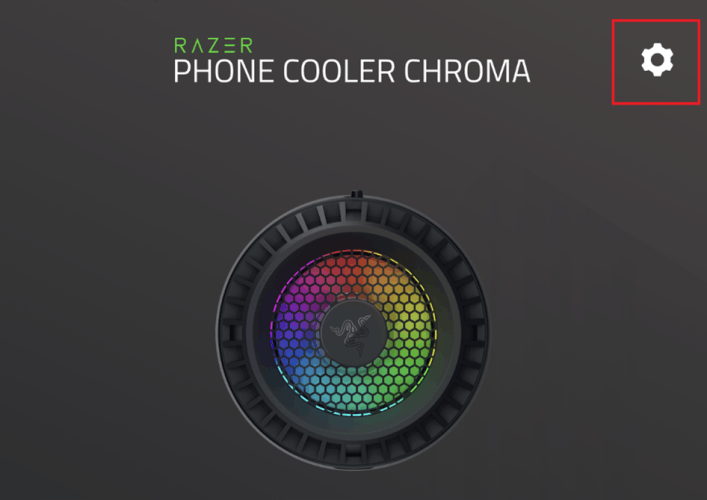
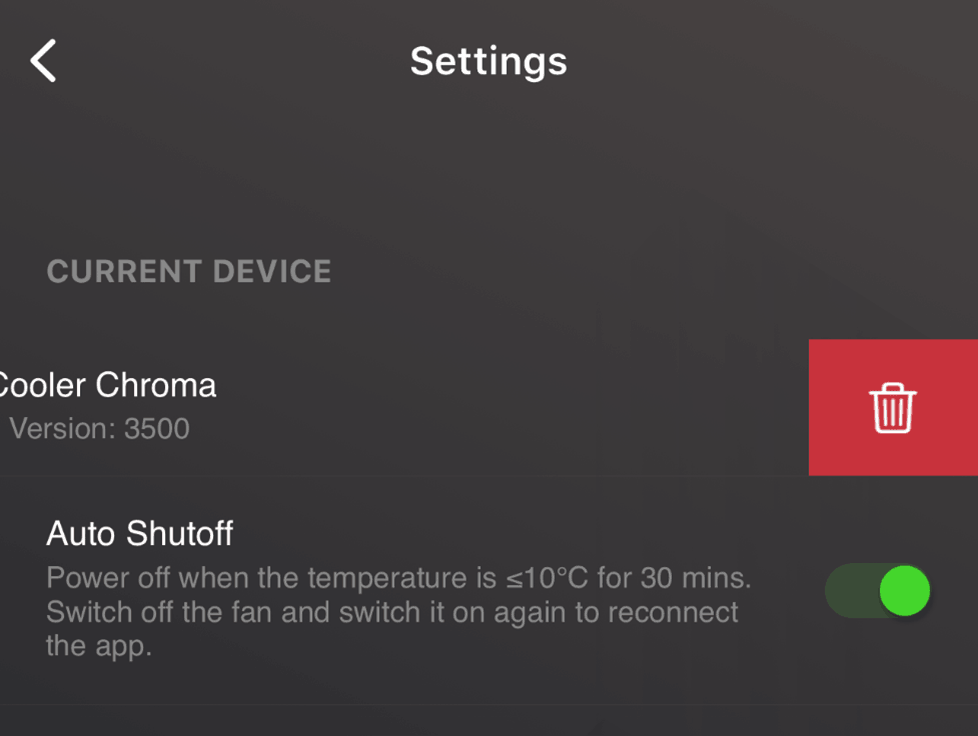
Tap the “Settings” icon.
Slide “Phone Cooler Chroma” to the left.
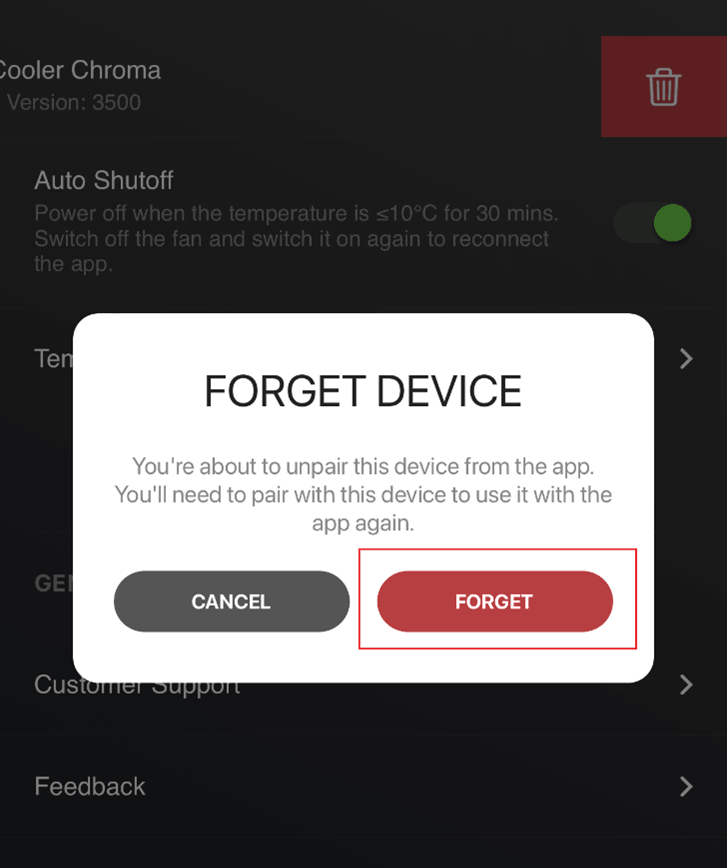
Tap “FORGET”.
Open the Phone Cooler app
Set up your Razer Phone Cooler Chroma.
Pair the Razer Phone Cooler Chroma with your smartphone.
Launch the Phone Cooler app.

Customize Chroma lighting effect
Tap “Chroma Effect”.

Slide left or right to choose an effect.

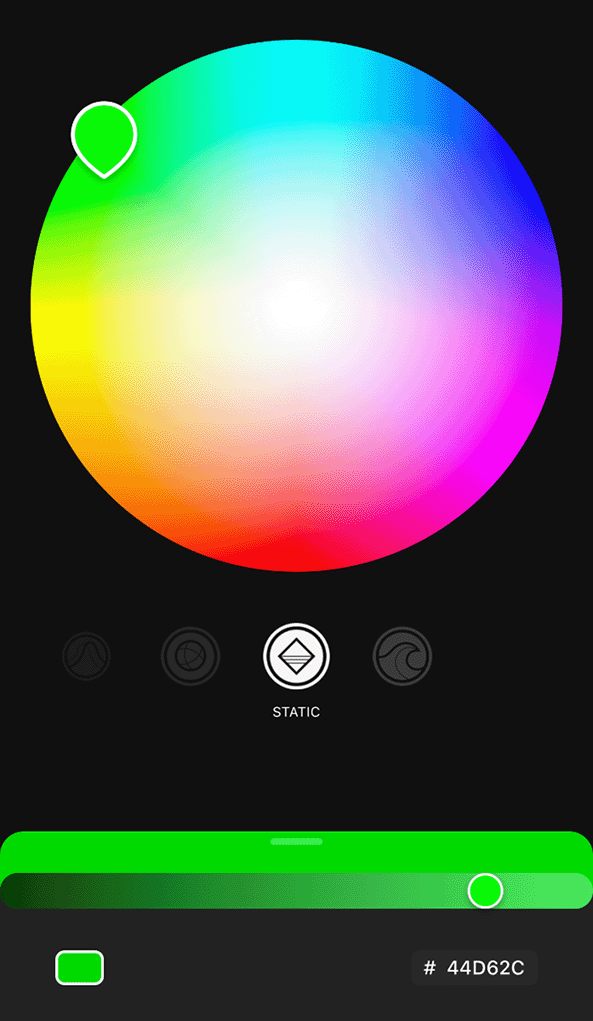
Choose a color way.
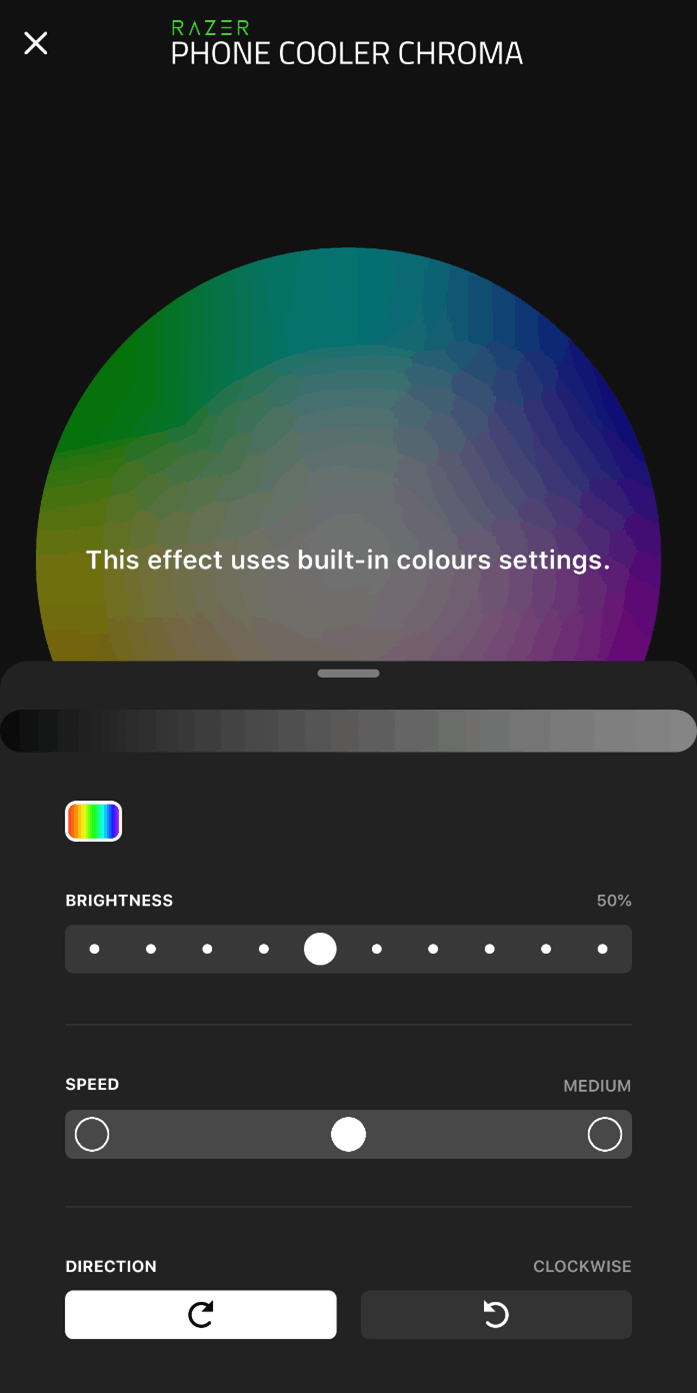
Customize brightness, speed, or effect direction.
Set fan speed
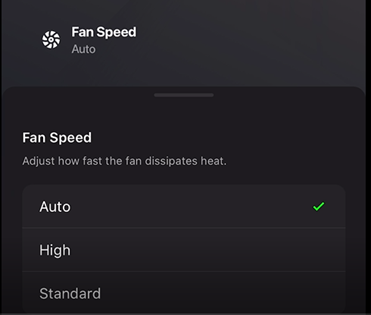
Tap "Fan Speed".

Choose Auto, High, or Standard fan speed.
Set a temperature unit
Tap the “Settings” icon.
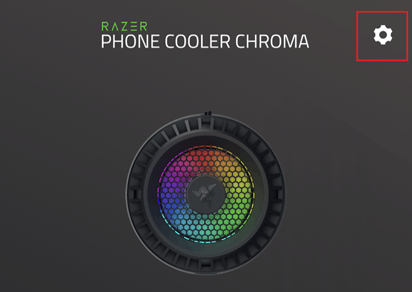
Choose either Celsius or Fahrenheit.

Set auto shutoff
Tap the “Settings” icon.
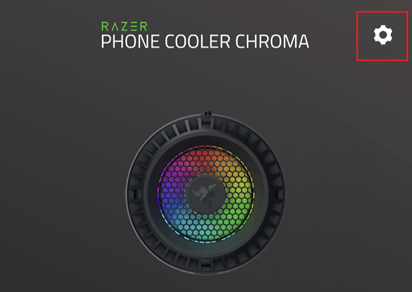
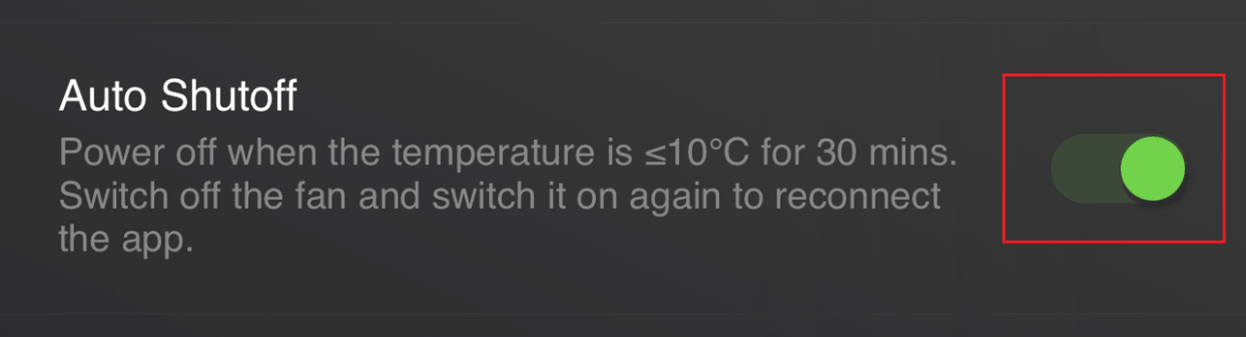
Toggle “Auto Shutoff” switch on or off to enable or disable auto shutoff respectively.