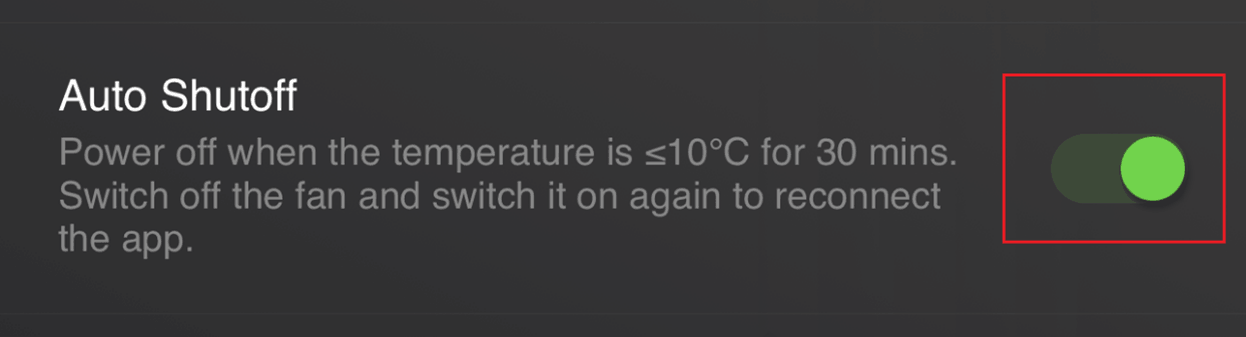
Customize the Razer Phone Cooler Chroma’s lighting effects, change, fan speed, set temperature unit, and enable or disable auto shutoff through the mobile app.
See the step by step instructions below
-
Set up your Razer Phone Cooler Chroma.
-
Pair the Razer Phone Chroma with your smartphone.
-
Launch the Phone Cooler app.

Customize Chroma lighting effect
-
Tap “Chroma Effect”.

-
Slide left or right to choose an effect.

-
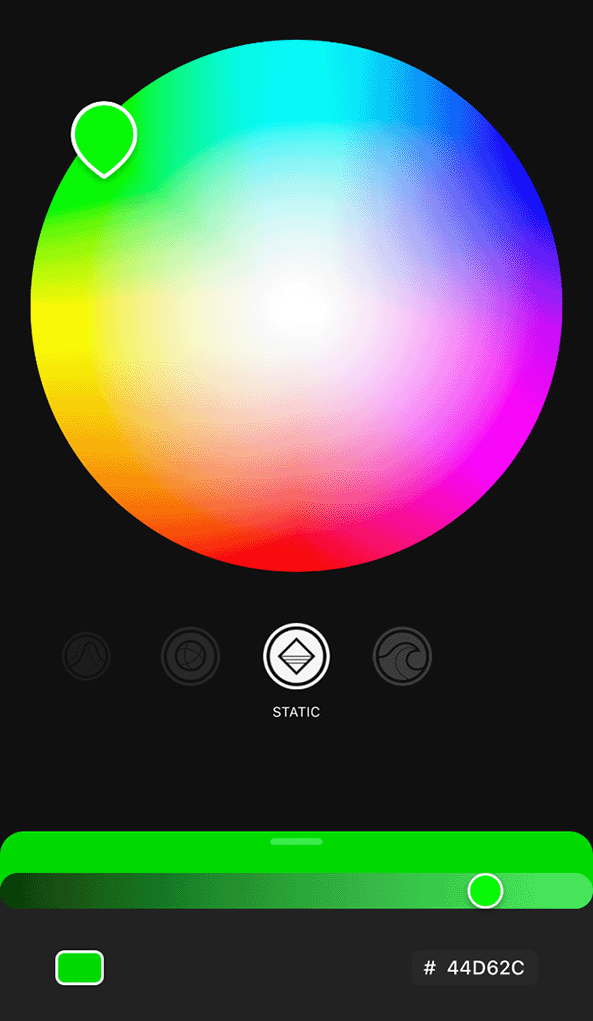
Choose a color way.
-
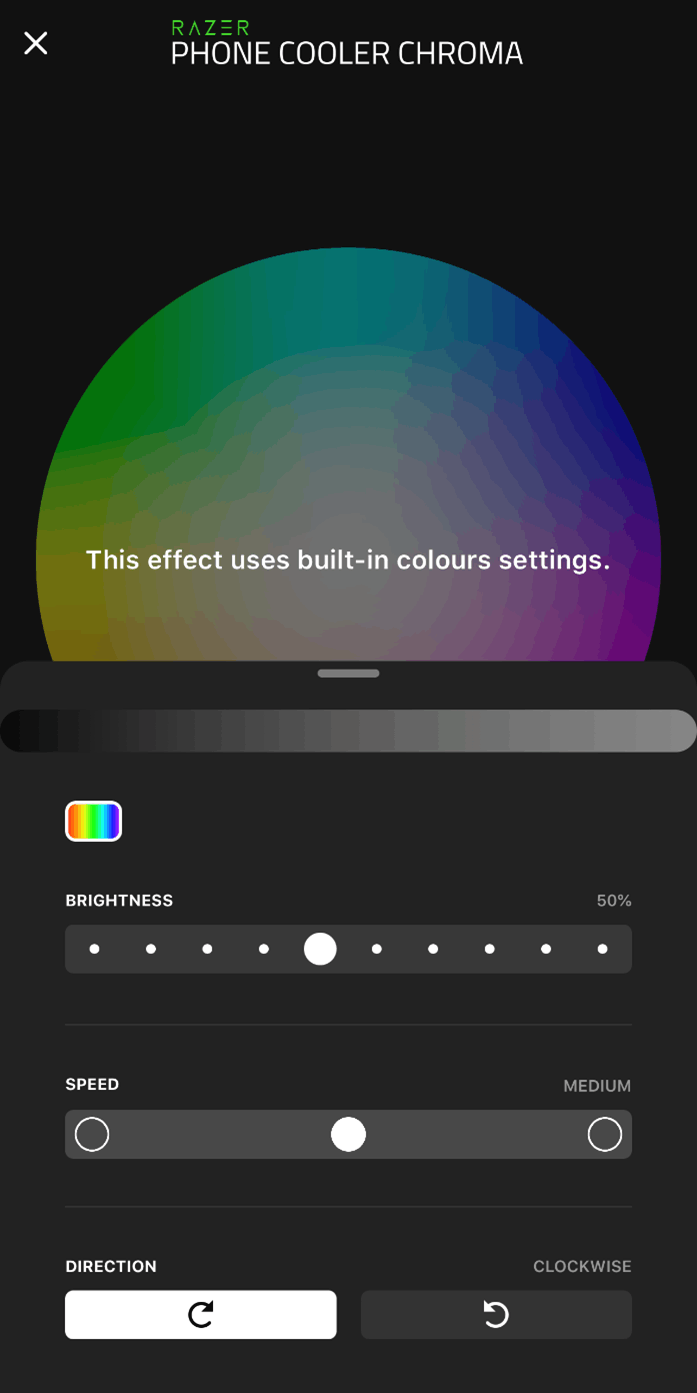
Customize brightness, speed, or effect direction.
Set fan speed
-
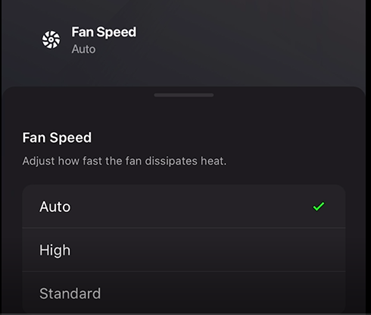
Tap "Fan Speed".

-
Choose Auto, High, or Standard fan speed.
Set a temperature unit
-
Tap the “Settings” icon.
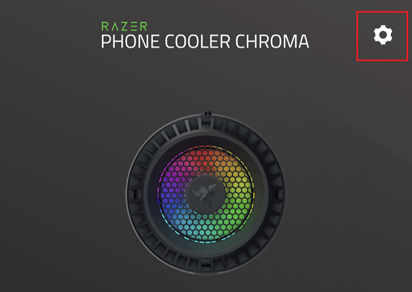
-
Choose either Celsius or Fahrenheit.

Set auto shutoff
-
Tap the “Settings” icon.
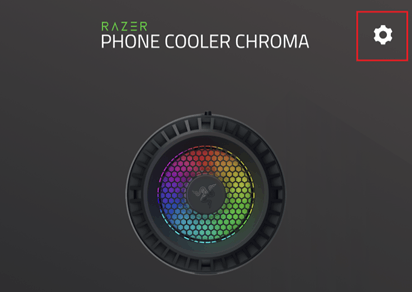
-
Toggle “Auto Shutoff” switch on or off to enable or disable auto shutoff respectively.