
The Razer Head Cushion Chroma utilizes Bluetooth wireless technology to establish a connection with supported Windows and mobile devices, enabling synchronized Chroma RGB lighting customization and device integration.
Follow the detailed instructions below to pair the Razer Head Cushion Chroma to a PC or mobile device.
Select an action
Pair the Razer Head Cushion to a PC
-
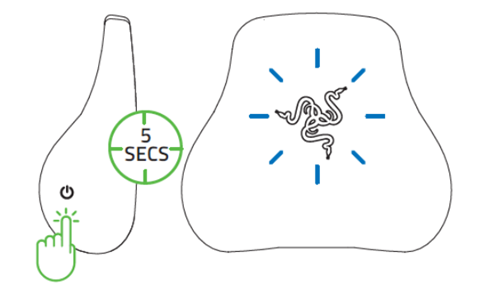
Press and hold the multifunction button.
-
If the Razer Head Cushion is powered off:
-
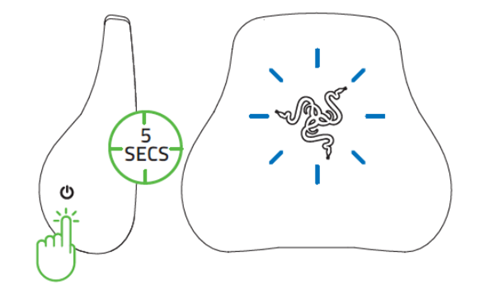
Press and hold the multifunction button for at least five seconds or until the Razer THS logo starts blinking blue.
-
-
If the Razer Head Cushion is powered on:
-
Press the multifunction button and then press and hold for at least five seconds or until the Razer THS logo starts blinking blue.
-
-
-
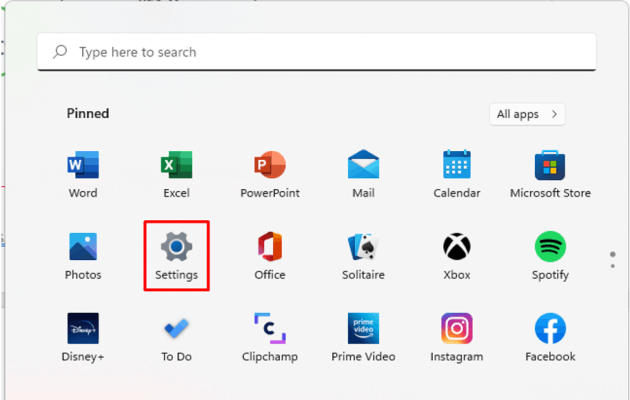
Click “Start” > “Settings” on your PC.
-
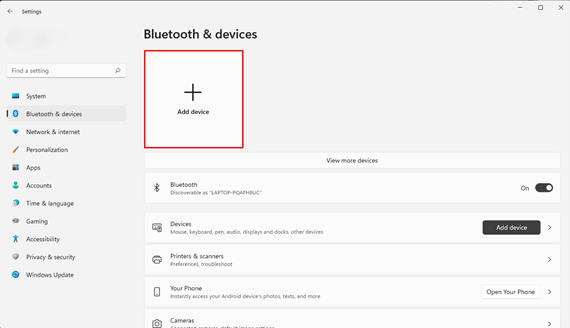
Select “Bluetooth & devices” then click on “Add device”.
-
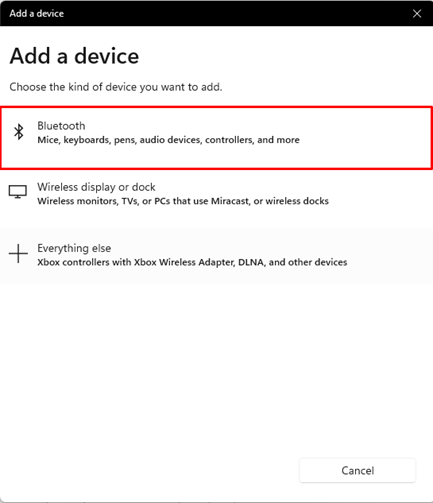
Click “Bluetooth”.
-
Click the Razer Head Cushion Chroma to pair the device to the PC.
Once successfully paired with your PC, the Razer THS logo will return to its previous lighting.
Note: Your Razer Head Cushion Chroma can connect to only one PC or mobile device at a time.
Pair the Razer Head Cushion to a mobile device
-
Press and hold the multifunction button.
-
If the Razer Head Cushion is powered off, press and hold the multifunction button for at least five seconds or until the Razer THS logo starts blinking blue.
-
If the Razer Head Cushion is powered on, press the multifunction button and then press and hold for at least five seconds or until the Razer THS logo starts blinking blue.
-
-
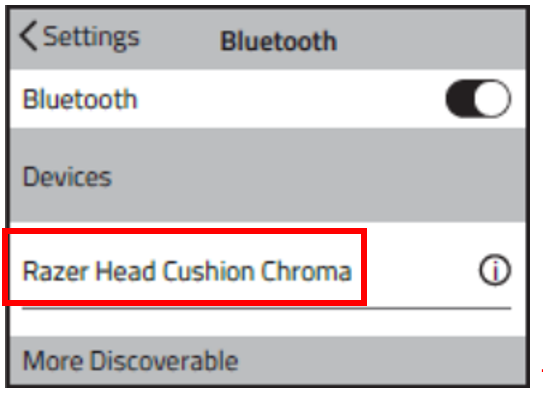
Tap “Settings” on your phone.
-
Make sure Bluetooth is turned on.
-
Tap “Razer Head Cushion Chroma” to pair with your mobile phone.
-
iOS
-
Android

-
-
Wait for the pairing to complete.
Once successfully paired with your PC, the Razer THS logo will return to its previous lighting.
Note: Your Razer Head Cushion Chroma can connect to only one PC or mobile device at a time.

