

Tips to help you get started
Make your Gamer Room truly shine with Razer Aether Lights. Powered by Razer Chroma™ RGB, customize and control them all from one convenient app to create the perfect setting for any scenario.

Device Layout
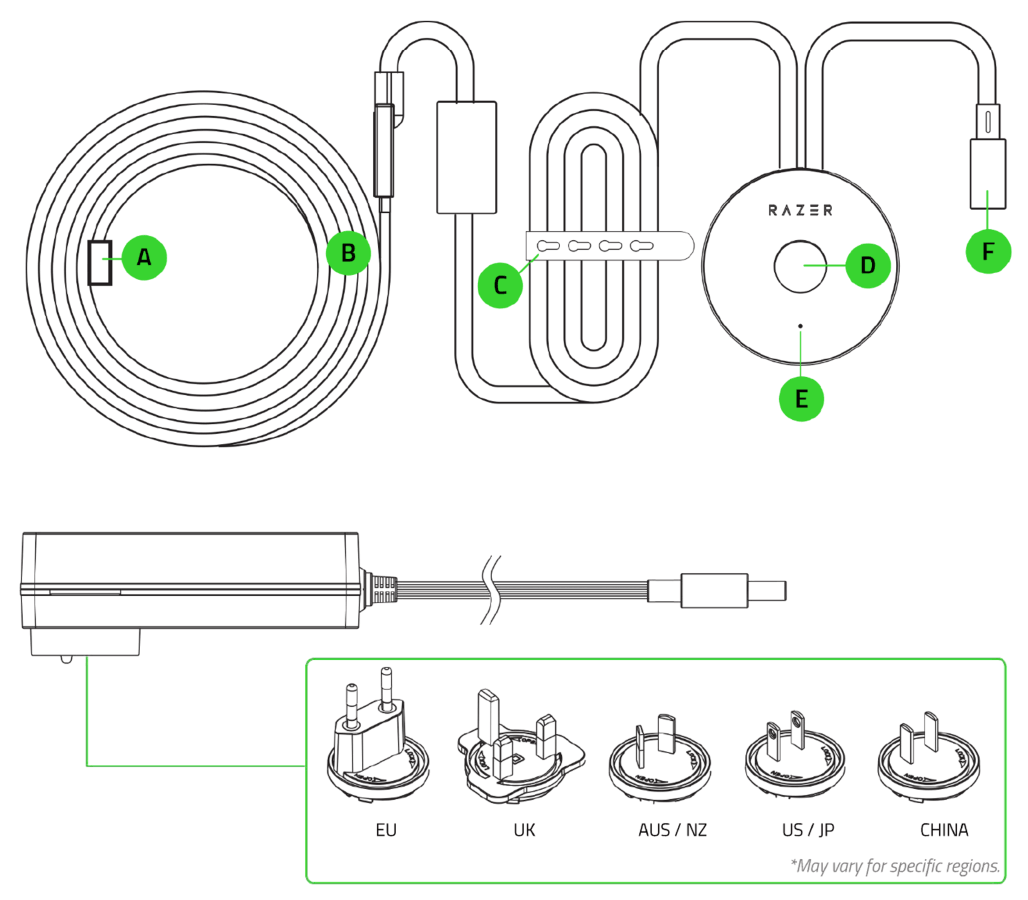
- Extender port
- 2 m light strip
- Cable tie
- Multi-function button
- Status indicator
- Power port
Full Technical Specifications
| Category | Specification | |
|---|---|---|
|
Length |
2 m |
|
|
Extension capability |
Up to 10 m total via 8 1 m extension kits |
|
|
RGB Lighting |
Razer Chroma RGB |
|
|
LED Lifetime |
25,000 hours |
|
|
Lighting Module |
|
|
|
Rated Power |
39 W |
|
|
Input Voltage |
13 V |
|
|
LED Strip (2 m) |
|
|
|
Rated Power |
8 W |
|
|
Input Voltage |
13 V |
|
|
LED Strip (1m) |
|
|
|
Rated Power |
4 W |
|
|
Input Voltage |
13 V |
|
|
Connection Protocol |
802.11b/g/n 2.4 GHz |
|
|
Voice Assistant |
Amazon Alexa, Google Assistant |
|
|
Pairing |
|
|
|
Power Adapter |
|
|
|
Input |
100 - 240 Vac - 50/60 Hz 1.5 A |
|
|
Output |
13 Vdc 4 A (52 W) |
|
How To
How do I pair my Razer Aether Light Strip with my Gamer Room App?
- Download and launch the Razer Gamer Room App on your iOS or Android device and sign in with your Razer ID.
- Create a “home” in the app.
- Power on your Razer Aether Light Strip.
- Tap on "Add your first device" on the main page or "Add a Device" from the menu button and scan the QR code on your Razer Aether Light Strip.
- Allow and enable location access when prompted so the app can find your Gamer room device during the setup.
- Make sure your phone is connected to your preferred network that you want to add your device to.
- Follow the onscreen instructions and scan the Matter QR code to complete the pairing of your Light Strip to your account.
- Once the setup is complete, your Razer Aether Light Strip will appear on the app’s main page whenever launching the app.
See the answer below for more details.
How do I pair my Razer Aether Light Strip with the Razer Synapse?
- Download and install Razer Synapse on your PC or laptop. For existing users, make sure to update Razer Synapse to its latest version.
- Ensure your Razer Aether Light Strip is already set up on your network from the Razer Gamer Room app, and your PC is connected to the same network as the Razer Aether Light Strip.
- Power on your Razer Aether Light Strip.
- On Razer Synapse, click on "Add WiFi Device" and follow the onscreen instructions.
- Update when prompted and wait for Razer Synapse to set up the Gamer Room device. The Razer Synapse Dashboard will now show the Gamer Room device on the Devices list.
See the answer below for more details.
How do I reactivate pairing mode?
Pairing mode is required when setting up the Razer Aether Light Strip from the Razer Gamer Room app. It activates when you power on the device and deactivates after 5 minutes if the device remains unpaired.
To reactivate pairing mode, follow the instructions in the master guide.
How do I reset the Razer Aether Light Strip?
- Switch off the power supply of the Razer Aether Light Strip.
- Press and hold the multi-function button, then switch on the power supply and continue holding the multi-function button for four seconds.
- Launch the Razer Gamer Room App to connect the Razer Aether Light Strip to a new mobile device.
See the answer below for more details.
How do I reconnect my device to the Razer Gamer Room App?
- Log in to either Apple Home (For iOS) or Google Home (For Android).
- Quit the Razer Gamer Room App and restart your mobile phone.
- Reactivate the pairing mode on your Razer device.
- Ensure that you are connected to the Wi-Fi and Bluetooth is activated.
- Ensure that the location settings permission is enabled for the app.
- Launch the app and follow the onscreen instructions in pairing your Razer device.
How do I reconnect my device to the Razer Synapse?
- Ensure both system and device are connected to the same network.
- Check if your device is turned on.
- Check if your router is functioning correctly and your Razer device is within the router’s effective range.
How do I check the connection status of my device in the Razer Gamer Room App?
- Check if the light switch is turned on.
- Check if your router is functioning correctly and your device is within the router’s effective range.
- Close and restart the app.
How do I configure my supported devices?
- On the Razer Aether Light Strip tile, tap on the power toggle to power it on or off.
- Tap on the Razer Aether Light Strip tile to access its device page for more functionality.
- Set your preferred white light temperature or your custom Chroma effect.
- Set up Routines to automate your device habits.
How do I get my light strip extender to light up when connected to the main light strip?
- Power off the Razer Aether Light Strip before connecting the extender.
- Align the pins of the main light strip and the light strip extender properly.
General Information
What is the firmware update process for my supported devices?
Your Gamer Room device will receive automatic updates from Razer while connected to your Wi-Fi network.
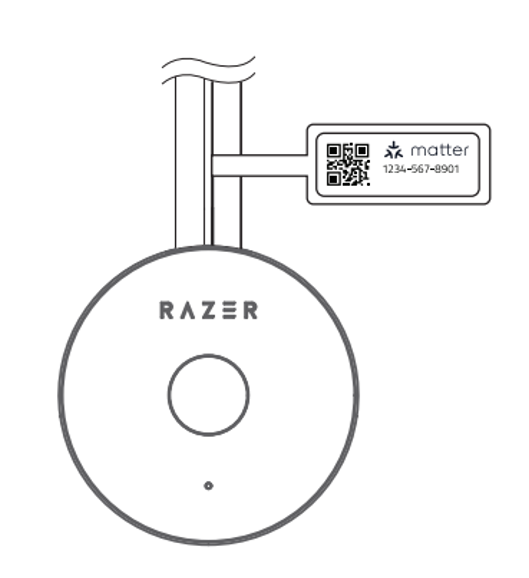
Where is the Matter QR sticker located on my Razer Aether Light Strip?
The Matter QR code is found on the cable near the light strip's power button.
Why does my Razer Aether Light Strip change effects when I lock my PC or exit Synapse?
The Razer Aether Light Strip functions in two modes for your home and gaming needs:
- If Synapse Override has been enabled on Razer Synapse, the Razer Aether Light Strip will be part of your Chroma setup where it will share coordinated effects with your Razer PC peripherals.
- When Razer Synapse is suspended, the lamp will return to its default mode and use your last saved lighting settings.
Does the Aether Light Strip work with third-party apps like Google Home, Alexa, and the like?
The Aether Light Strip works with most third-party apps that support Matter, however, there is a limitation to the functionality. For example, you will not be able to set Chroma effects.
The Aether Light Strip is integrated with Alexa and Google Assistant. Therefore, you can follow the in-app instructions to pair your Razer ID account with Alexa or Google account. You will then be able to utilize the voice assistants to control your device.
How many light strip extenders does the Razer Aether Light Strip support?
The Razer Aether Light Strip supports up to eight Razer Aether Light Strip extenders for a total length of 10 m.
| Documentation | Language |
|---|---|
| User Guide (English) | English |
| User Guide (Spanish) | español |
| User Guide (French) | français |
| User Guide (German) | Deutsche |
| User Guide (Portuguese-Brazilian) | português |
| User Guide (Russian) | русский |
| User Guide (Traditional Chinese) | 繁體中文 |
| User Guide (Simplified Chinese) | 简体中文 |
| User Guide (Korean) | 한국어 |
| User Guide (Japanese) | 日本語 |
Please see our warranty policy for a complete review of our warranty policy.
You are eligible for Limited Warranty support for the following periods of time commencing upon the date of retail purchase of your Product (Warranty Period).
| Product | Warranty Period | |
|---|---|---|
| Razer Laptops | ||
| 2021 and Older Models | 1 yeara | |
| 2022 and Newer Models | 1 yeara 2-year limited battery warrantya |
|
| Razer Phone and Phone Accessories | 1 year | |
| Razer Edge Gaming Handhelds | 1 yearb | |
| Razer Mice | 2 years | |
| Razer Viper Mini Signature Edition | 3 years | |
| Razer Keyboards and Keypads | 2 yearsc | |
| Razer Huntsman Signature Edition | 5 years | |
| Razer Headsets, Earphones and Earbuds | 2 yearsc | |
| Razer Wireless Mouse and Mat Bundles | 2 yearsc | |
| Razer Mouse Mats | 1 yeard | |
| Razer Speaker Systems and Broadcaster Devices | 1 year | |
| Razer Controllers and Chargers | 1 year | |
| Razer Routers (except Singtel) | 1 year | |
| Razer Routers (Singtel) | 2 years | |
| Razer Monitors | 1 year | |
| Smart Watches and Eyewear | 2 years | |
| Razer Case Fans | 2 years | |
| Razer Liquid Cooling | 2 years | |
| Razer Katana Power Supplies | 5 years | |
| Razer Fan and RGB Controllers | 2 years | |
| Razer Cases | 1 year | |
| Razer System Accessories | 1 year | |
| Razer Laptop Cooling Pad | 2 years | |
| Razer Docks | 1 year | |
| Razer USB C Dock | 2 years | |
| Wearable Air Purifiers | 1 year | |
| Razer Gaming Accessories | 1 yeard | |
| Razer Rechargeable Batteries for Wireless Devices | 1 yeare | |
| Razer Iskur | 3 years | |
| Razer Iskur V2 | 3 years | |
| Razer Enki Line | 3 years | |
| Razer Fujin Line | Mesh Backing and Seat Pan | 1 year |
| Chair Frame, Mechanisms and Armrests | 5 years | |
| Razer Fujin Pro Headrest | 5 years | |
| Razer Fujin Headrest | Frame – 3 years Mesh – 1 year |
|
| Razer Soma Line | Mechanisms & Moving Parts | 3 years |
| Electronic Parts | 2 years | |
| Razer Chair Accessories | 1 year | |
All new Products will have the Warranty Periods listed above, subject to applicable local law. Certain "end of life", sell out or discontinued Products may have a shorter Warranty Period; this will be clearly marked at the time of purchase and the given Warranty Period will be stated at that time. Refurbished Products purchased from Razer.com will have the lesser of a 1 year warranty period or the warranty period as stated above. Refurbished products not purchased from Razer.com will have a 90 day warranty period. If you are uncertain whether your Product is eligible for Limited Warranty support, please contact our support team for clarification.
Please note that third-party products may be covered by the product manufacturer's warranty and these warranty terms are exclusively provided by the product manufacturer. Razer does not offer a warranty for third-party products. If you need product or warranty support with your third-party product, please contact the product manufacturer. Please consult the product documentation provided by the product manufacturer for details.
If you are uncertain whether your Product is eligible for Limited Warranty support, please contact our support team for clarification.
Warranty Footnotes
- [a] If you are a customer outside of the U.S. and have validly purchased a Razer Extended Warranty for your product, the Warranty Period shall be extended for another one (1) year period, to be a total of two (2) years commencing upon the date of retail purchase of your Razer Product. The Razer Extended Warranty does not apply to batteries. Aside from the change to Warranty Period, the Razer Extended Warranty does not alter any other terms and conditions of the Limited Warranty.
- [b] Replacement parts and/or services are available for a minimum of 3 years after the end of production of the product; additional charges may apply.
- [c] Products purchased prior to October 1st, 2018 maintain the original 1 year warranty (keyboards with mechanical switches maintain original 2 year warranty).
- [d] Warranty period for Razer Firefly HyperFlux is 2 years.
- [e] Products purchased prior to October 1st, 2018 maintain the original 6 month warranty.
- [f] Limited Warranty: The Razer Iskur is free from defects in workmanship, materials and construction for three years from the date of purchase. In the event that a defect is found, the manufacturer will either repair or replace the defective item, at its discretion. Exclusions and Limitations: This Limited Warranty does not cover cosmetic damage, minor cosmetic abnormalities and normal wear and tear, including without limitation scratches, dents, discoloration and tears in the head pillow, seat cushion, PU leather, Armrest and stitches of the upholstery.

