How to customize the Razer Key Light Chroma

| Answer ID: 5911
This answer will show you how to customize the Razer Key Light Chroma.

Effective February 3, 2026, Razer Synapse 3 will no longer receive updates or support cloud services. After this date, cloud syncing of configurations across PCs using the same Razer ID will be disabled.

Note: Your installed devices will continue to be configurable in Razer Synapse 3. However, if you uninstall these devices completely, you will need to upgrade to Razer Synapse 4 to continue customization.

Download Razer Synapse 4 and migrate your existing Razer Synapse 3 profiles using the Profile Migration Tool to retain access to your configurations. See How to migrate your Razer Synapse 3 Profile to Razer Synapse 4 for instructions.


Before you begin, download and install the latest version of Razer Streaming App or the Razer Synapse.
Note: It is recommended to use the Razer Streaming App to customize the Razer Key Light Chroma.


Important:

  • Make sure your PC or mobile device is in the same Wi-Fi network when customizing the Razer Key Light Chroma.

  • If your router is with Delivery Traffic Indication Message or DTIM, change the default DTIM value which is three to one. This is to ensure timely message delivery to connected devices. Refer to your router’s manual for a guide in changing DTIM values.

Select preferred method

Via the Razer Streaming App

  1. Ensure you have already installed the Razer Streaming App on your mobile device.

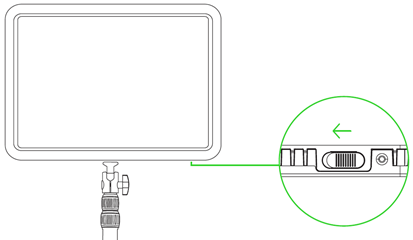
  2. Switch on the Razer Key Light Chroma.

    Razer Key Light Chroma diagram

  3. Press and hold the reset button for three seconds to activate pairing mode.

    Note: The Razer Key Light Chroma will flash in blue to indicate that the pairing mode is active.
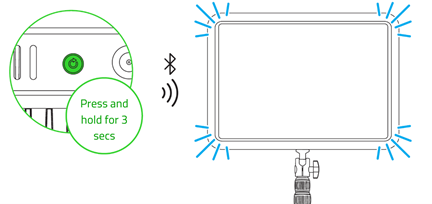
    Razer Key Light Chroma diagram

  4. Launch the app and follow the onscreen instructions.

    The Razer Key Light Chroma will light up in solid white to indicate that it is now connected to your network.

    Razer Key Light Chroma diagram


  5. Tap on “Razer Key Light”.

  6. To adjust brightness or warmth:

    1. Ensure “Brightness” is toggled on.

    2. Tap on the property to adjust.

    3. Drag the slider to your preferred level.

      Razer Streaming App screen showing how to adjust brightness

  7. To add or customize a Chroma effect:

    1. Ensure “Chroma Effect” is toggled on.

    2. Tap on “Chroma Effect”.

    3. Select your preferred effect and color.

      Razer Streaming App Chroma properties screen

    4. Adjust the properties to your liking.

Via Razer Synapse 4

  1. Switch on the Razer Key Light Chroma.

    Razer Key Light Chroma diagram

  2. Press and hold the reset button for three seconds to activate pairing mode.

    Note: The Razer Key Light Chroma will flash in blue to indicate that the pairing mode is active.

    Razer Key Light Chroma diagram

  3. Open Razer Synapse 4.

  4. Click on “ADD WIFI DEVICE” from the Razer Synapse dashboard.
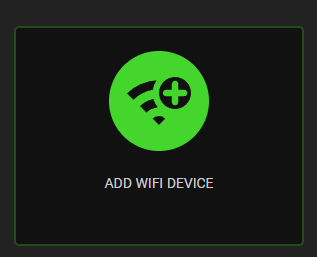
    Razer Synapse 3 pane

  5. Click on the Razer Key Light Chroma once it appears.
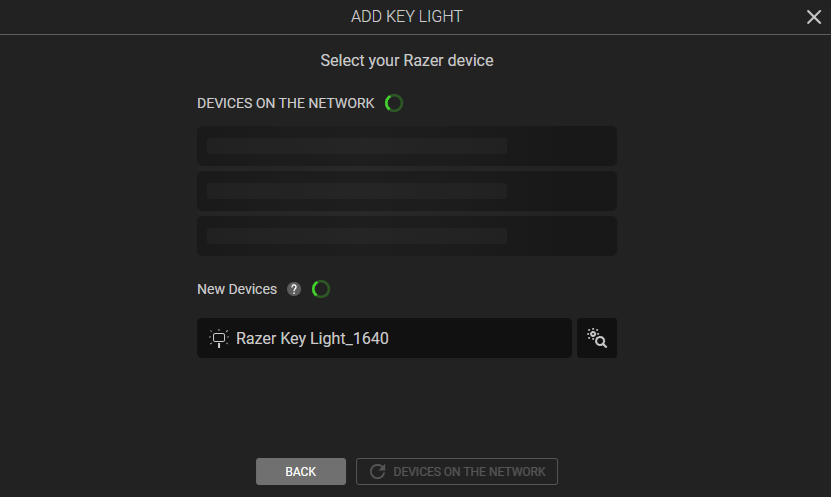
    Razer Synapse 3 pane

  6. Select the WiFi network that you want to connect to and enter the password. Ensure that you are connecting to a 2.4 GHz network.

  7. Once done, you can either add another device or go straight into customizing the lighting on your Razer Key Light.
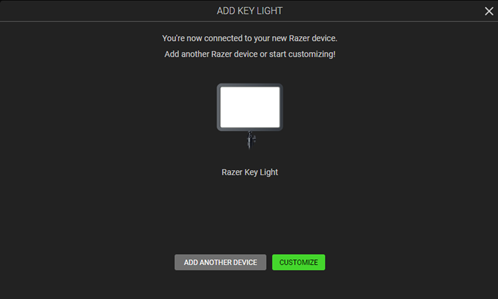
    Razer Synapse 3 pane

    Razer Synapse 3 pane

Via Razer Synapse 3

  1. Switch on the Razer Key Light Chroma.

    Razer Key Light Chroma diagram

  2. Press and hold the reset button for three seconds to activate pairing mode.

    Note: The Razer Key Light Chroma will flash in blue to indicate that the pairing mode is active.

    Razer Key Light Chroma diagram

  3. Open Razer Synapse 3.

  4. Click on your avatar.

  5. Select “Add Other WiFi Device” and follow the onscreen instructions.

    Razer Synapse 3 pane

  6. Update when prompted.

  7. Wait for Razer Synapse 3 to set up the Razer Key Light Chroma. The Razer Key Light Chroma will then appear in the “DASHBOARD”.

    Razer Synapse 3 pane


  8. Select “Razer Key Light Chroma” from the list of devices or go to “STREAMING”.

    Razer Synapse 3 pane

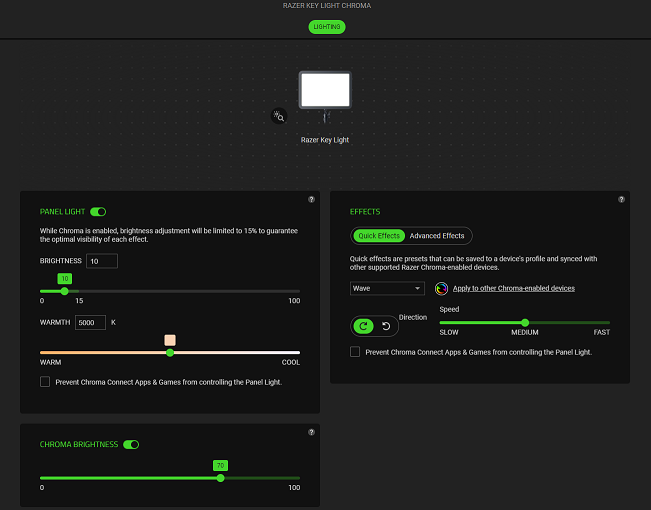
  9. Adjust the panel light properties or Chroma brightness by dragging the slider to your preferred level.

    Razer Synapse 3 pane showing how to adjust light properties and Chroma brightness

  10. To add or customize Chroma effects, see How to add lighting effects on Razer Synapse 3 Chroma Studio or How to customize a Chroma effect on Razer Synapse 3.

Is this answer helpful?