
Manage all your profiles and link them to your games and applications through the Profiles tab on the Razer Synapse.
Select preferred method
Devices
Navigate to LINKED GAMES > DEVICES to view which games are linked to each device's profiles or which Chroma Effect is linked to specific games.
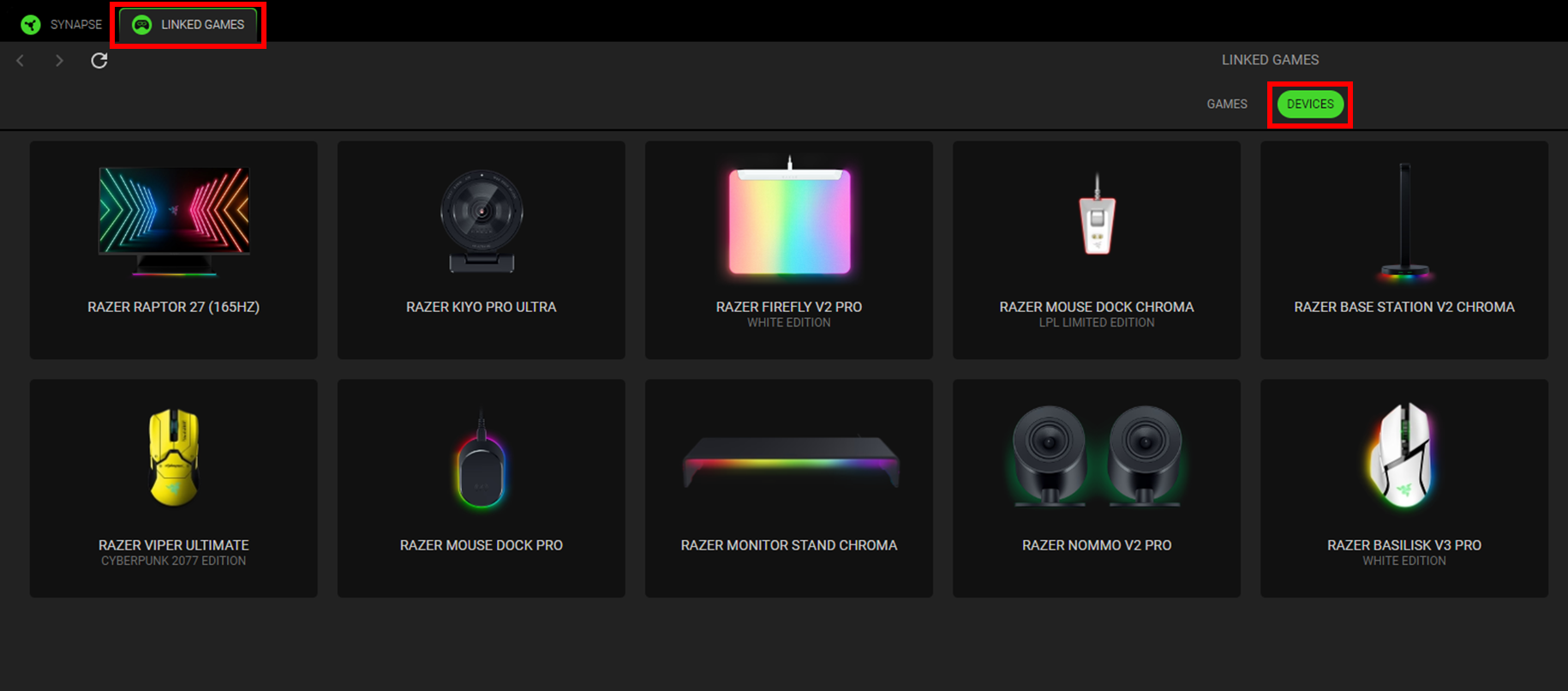
This section allows you to:
-
Import Profiles from your computer or the cloud through the import
 button.
 -
Create new profiles within the selected device using the add
 button.
 -
Rename, duplicate, export, or delete a profile by pressing the Miscellaneous
 button.
Note: Each profile can be set to automatically activate when you run an application using the Linked Games option.
Linked Games
The Linked Games subtab allows you to do the following:
- Add games.
- View devices that are linked to games.
- Search for added games.
- Sort games based on alphabetical order, last played, or most played.
Note: Added games will still be listed here even if it is not linked to a Razer device.
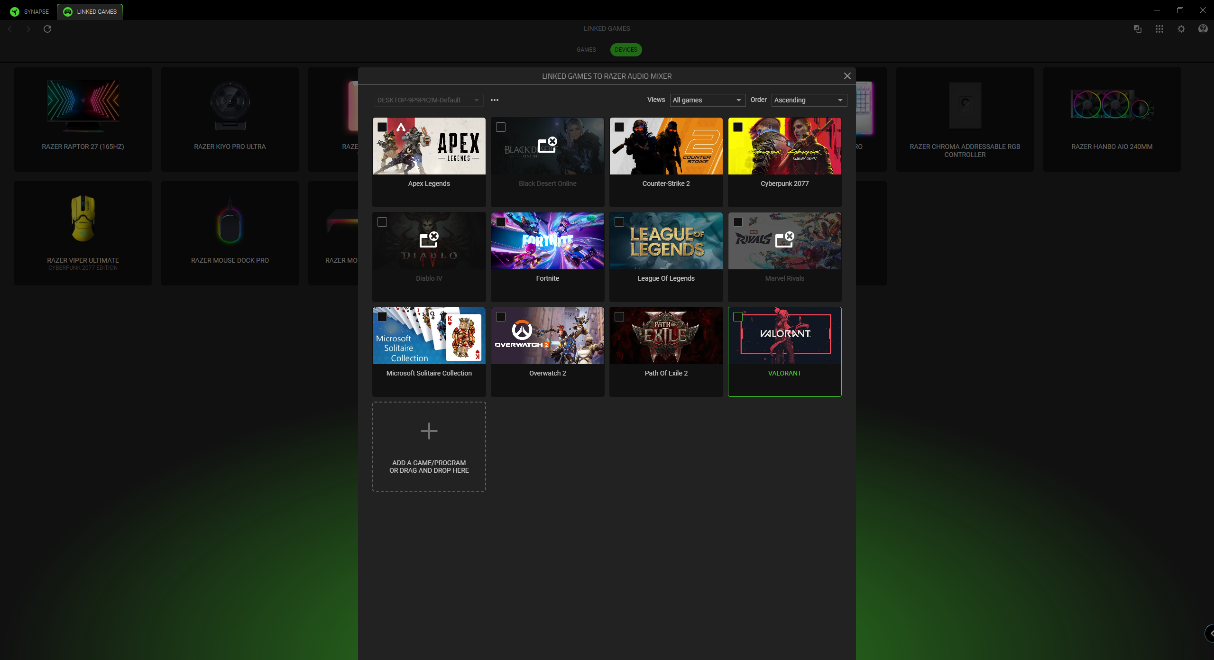
To link games to connected Razer devices or Chroma Effects:
- Click on any game from the list.
- Click “Select a device and its profile to launch automatically during gameplay" to select the Razer device or Chroma Effect it will link with.
- Once linked, click on the Miscellaneous button of the corresponding Chroma Effect or device to select a specific Chroma Effect or profile.

