
Configure microphone connection, set, or customize a mic equalizer preset, adjust other features such as background noise suppression and microphone input modulation through Razer Synapse.
Select a feature to configure
MIC
Mic setup
-
Set the Razer Audio Mixer to use the XLR mic input port or the microphone port for mic input and set its sensitivity when capturing sound using the mic gain slider.
-
Click on the percentage/decibel toggle to change how the mic gain is displayed.
Phantom Power (48 V)
Available only on XLR microphone connection, enable this feature to transmit additional phantom power to your XLR microphone.

Important:
-
Before using this feature, check if your XLR microphone supports 48 V phantom power to avoid damaging your device.
-
Turn this feature off when not required.
Mic Monitor
Turn on this feature to monitor a connected microphone's raw audio input through a headset with an additional option to increase or decrease the audio monitoring volume.
Noise Gate
-
Control the amount of microphone input to cut out background noise and completely isolate your voice.
-
Adjust the slider to set a threshold and reduce (or mute) any sound that registers below it.

Expanding Noise Gate will allow you to tweak its properties in detail:
-
Threshold: Determines when the Noise Gate will activate. If the sound is below the threshold, the noise gate will activate, and the sound will be reduced or muted.
-
Reduction: Sets how much sound will be reduced or muted if the microphone input registers below the threshold.
-
Attack time: Determines how quickly the Noise Gate will activate if the mic input registers below the threshold.
-
Release time: Sets how fast mic input will be reduced or muted.
Mic equalizer
-
Select any of the available mic equalizer presets which best fit your mic needs.
-
Expand the Mic Equalizer to manually adjust any preset in detail, automatically setting it as a Custom preset.

Compressor
-
Set the device to modulate the amount of microphone input and reduce its volume when it gets too loud.
-
Adjust the slider to set a threshold and lower (or mute) any sound that registers above it.

Expanding the Compressor will allow you to tweak its properties in detail:
-
Threshold: Determines when the Compressor will engage. If the sound is above the threshold, the compressor will activate, and the sound will be reduced or muted.
-
Soft knee width: Sets how noticeable the volume reduction will be.
-
Ratio: Sets the intensity of the compression.
-
Gain: Increases the volume of the processed output to maintain its definition even after compression.
-
Attack time: Determines how quickly the compression will engage if the mic input registers above the threshold.
-
Release time: Sets how fast the mic input will be compressed.
EFFECTS
Use the Effects subtab to apply effects on the microphone or Line In input.
-
Click on the percentage/decibel toggle to change how the mic gain is displayed.
Preset list
Stores all your presets.
To add, rename, duplicate, export, or delete a preset:
-
Press the preset's corresponding Miscellaneous
 button.
To assign a shortcut to any preset:
-
Click on the "Preset" shortcut key field.
-
Key in your preferred shortcut on the active preset.
Voice changer
Enable to apply a voice effect on the microphone in real-time using any of the voice changer presets.
Echo & Reverb
Toggle to apply a simulated environment on the microphone input using any of the Environment Presets. Customizing any preset changes the Environment Preset to Custom.
-
Room size: Controls how long the reverb will exist in the simulated environment.
-
Decay time: Sets how long the echo will be heard before it subsides.
-
Gain: Sets how loud the echo will be.
-
Delay: Determines how quickly the echo will begin.
Key shifter
Turn on to adjust the pitch and tempo of any audio input on the Line In port using the slider.
Vocal fading
Enable to use the slider to isolate or minimize the volume on any voice detected on the Line In port.
LIGHTING
The Lighting subtab enables you to customize your Razer device's light settings.
Effects
Apply the following lighting effects across various zones on your device:
| Name | Description | How to set up | |
 |
Breathing* |
The lighting will fade in and out of the selected colors |
No further customization required |
|
|
Fire* |
The LEDs will light up in warm colors to mimic the motion of flames |
No further customization required |
|
|
Spectrum cycling* |
The lighting will cycle between 16.8 million colors indefinitely |
No further customization required |
|
|
Static |
The LEDs will remain lit in the selected color |
Select a color |
|
|
Wave* |
The lighting will scroll in the direction selected |
Select either left-to-right or right-to-left wave direction |
|
|
Wheel |
The lighting will rotate in the direction selected with a default spectrum of colors |
Select either counterclockwise or clockwise wheel direction |



* Only available on specific device zones.
Razer wordmark
Apply any of the available lighting effects on the Razer wordmark logo or turn off its lighting by toggling the option off.

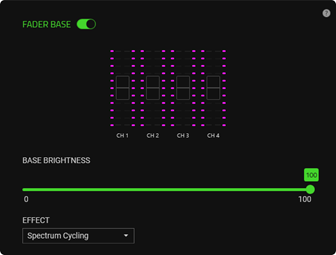
Fader base
-
Toggle this option to customize the base lighting of the channel fader markings.
-
Use the base brightness slider to increase or decrease the luminance of the base lighting and apply any of the available lighting effects for this zone.
Channel mute
When enabled, you can change the color of each channel mute button when active and set a color for all channel mute buttons when muted or disable channel mute button lighting.

Microphone mute
Set a color on the microphone mute button when muted and not muted or turn off its lighting by toggling the option off.

Channel number
Customize the lighting of the channel numbers on the device or turn off its lighting by toggling the option off.

Fader foreground
Toggle this option to customize the foreground lighting of the channel faders according to fader mode.

Fader mode
Determines how the lighting effect will display on all channel faders.
-
Volume level: The current volume of an assigned channel will be used as a foreground display of the corresponding channel fader.
-
Input meter: The channel faders will light up according to the audio level of their assigned channel.
-
Dynamic: The channel faders will use the input meter mode when audio plays on their assigned channel and switch to volume level mode when there's no audio.
Razer wordmark
Enable to change the color of the Bleep button when active or inactive. You can also use the brightness slider to adjust the luminance of the bleep button when active.


