
Input devices such as microphones are used for better quality audio during online calls.
Follow the steps below to check if your computer detects your microphone.
Windows 10
-
Right-click the volume icon in the taskbar and select "Open Sound settings".

-
Check the microphone that is currently in use under "Input". If it is not the right microphone, click the drop-down menu and select the microphone you want to use.

-
Speak into your microphone to test it. If the blue bar is moving, your microphone is working properly.

Windows 11
-
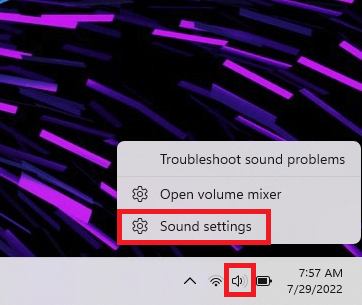
Right-click the volume icon in the taskbar and select "Sound settings".
-
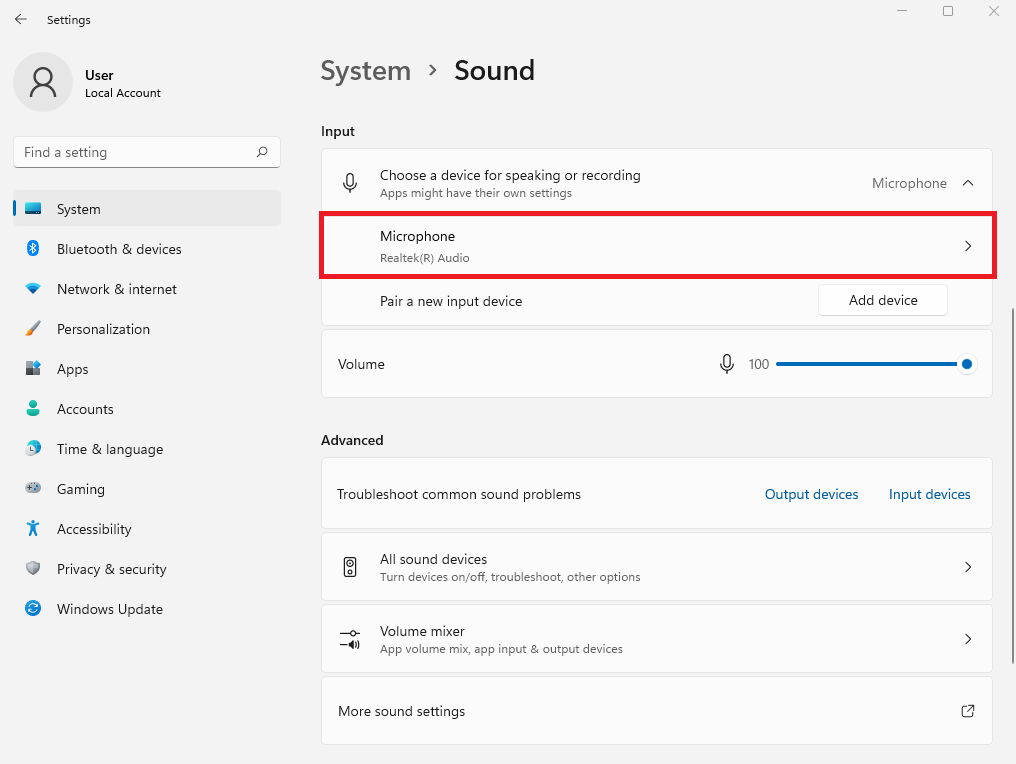
Select the microphone you want to test under “Input”.
-
Click “Start test”.

-
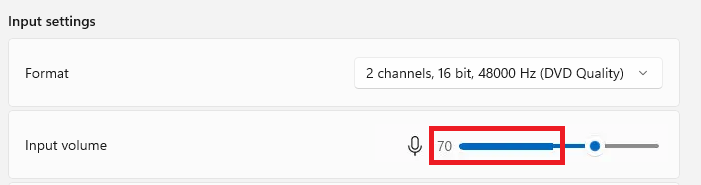
Speak into your microphone to test it. If the blue bar next to “Input volume” is moving, your microphone is working properly.
-
Click “Stop test”.
The result is found before the “Start test” button. The ideal result is approximately 75% of the total volume. If it is below 50%, adjust the “Input volume” slider.


