
When Razer Audio Mixer appears on the DASHBOARD of Razer Synapse, but no function is working inside the configurator, check the drivers and reinstall to resolve this issue.
Step-by-step process on how to fix Razer Audio Mixer issue with Razer Synapse
-
Check if all virtual drivers have been detected and installed by Windows properly.
-
Enter “Device Manager” from the Windows search bar.
-
Click “Audio inputs and outputs”.

-
Select “Game (Razer Audio Mixer)”.

-
Select “View” > “Device by connection”. A total of nine audio inputs or outputs will be displayed.

There is an existing driver installation issue if you see the following under Razer Audio Mixer:
- Exclamation mark
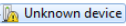
- Question mark

- The total number of channels is less than nine
-
-
Recover the missing drivers by doing either of the following:
-
Connect the Razer Audio Mixer directly to the computer, not through any USB hub.
-
Connect the Razer Audio Mixer to another computer.
-
Perform a clean reinstallation of Razer Synapse. See How to re-install Razer Synapse on Windows for more details.
-

