
System File Checker (SFC.exe) is a Windows built-in utility that scans and repairs corrupted files when the operating system crashes.
-
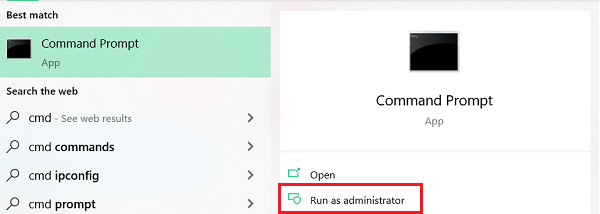
Click on “Start” > type “cmd” > “Run as administrator”.
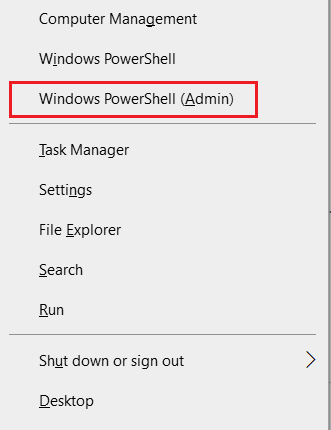
Alternatively, press the “Windows” and “X” keys to select “Command Prompt (Admin)” or “Windows PowerShell (Admin)”.
-
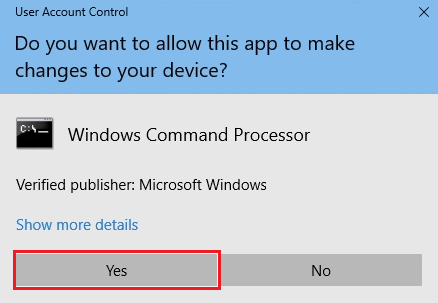
Click “Yes” on the User Account Control prompt.
-
Type “DISM.exe /Online /Cleanup-image /Restorehealth” and press “Enter” to run the Deployment Image Servicing and Management (DISM) tool.
Note: DISM uses Windows Update to obtain the files that need to be restored. If this is not working, type “DISM.exe /Online /Cleanup-Image /RestoreHealth /Source:C:\RepairSource\Windows /LimitAccess” and replace “C:\RepairSource\Windows” with the exact location of the repair source. Then, press “Enter”. This command will utilize any of the following:
-
an existing Windows installation as a repair source
-
a Windows folder from a network share or removable storage device as a file source
-
-
Type “sfc /scannow” and press “Enter” to scan and restore corrupted files.
Corrupted files are restored with a cached copy in a compressed folder at “%WinDir%\System32\dllcache”, where “%WinDir%” is a Windows operating system folder.
Note: Do not close the command prompt. Results will be available once the process is complete at 100%.
“Windows Resource Protection did not find any integrity violations.”
-
None of the system files is missing or corrupted.
“Windows Resource Protection found corrupt files and successfully repaired them. Details are included in the CBS.log %WinDir%\Logs\CBS\CBS.log.”
-
A problem was detected and fixed. Check the CBS.log file for details.
“Windows Resource Protection could not perform the requested operation.”
-
A problem was detected. Perform the scan in safe mode to continue and make sure the “PendingRenames” and “PendingDeletes” folders are in “%WinDir%\WinSxS\Temp”.
“Windows Resource Protection found corrupt files but was unable to fix some of them. Details are included in the CBS.log %WinDir%\Logs\CBS\CBS.log.”
-
Manually replace a corrupted file with a good copy. Check the CBS.log file for details.

