Applicable Models
Firmware v1.05.00_r2
- https://rzr.to/3goh14 | September 26, 2024
- General bug fixes
STEP-BY-STEP PROCESS
-
If you are using a laptop, ensure it is plugged into a wall outlet and not running on battery before proceeding.
-
Save any open documents on your computer and close all other programs before attempting the update.
-
Download the latest firmware updater.
-
Run the updater. If you have already closed all running applications, click "NEXT" to proceed.

-
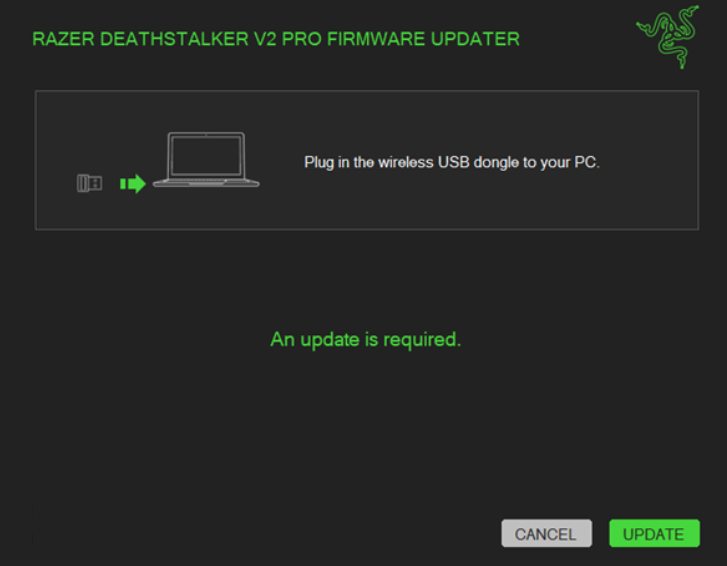
Connect the wireless USB dongle to your PC and click "UPDATE".
-
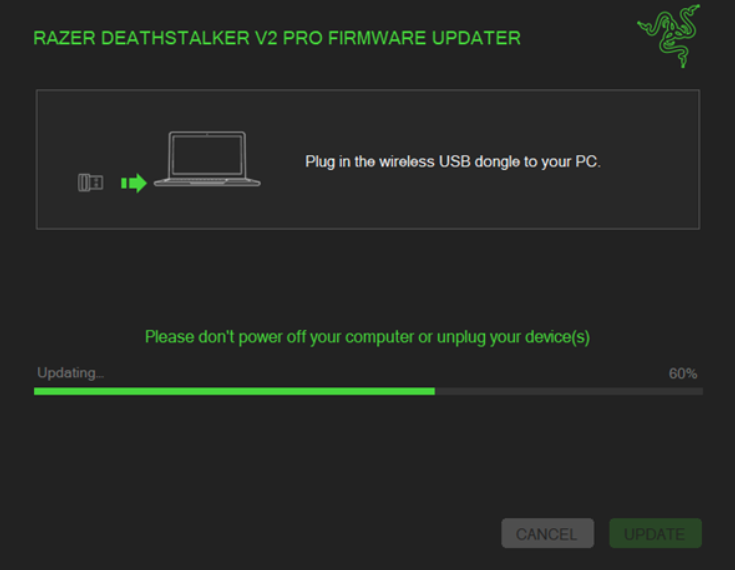
Wait for the update process to complete.
-
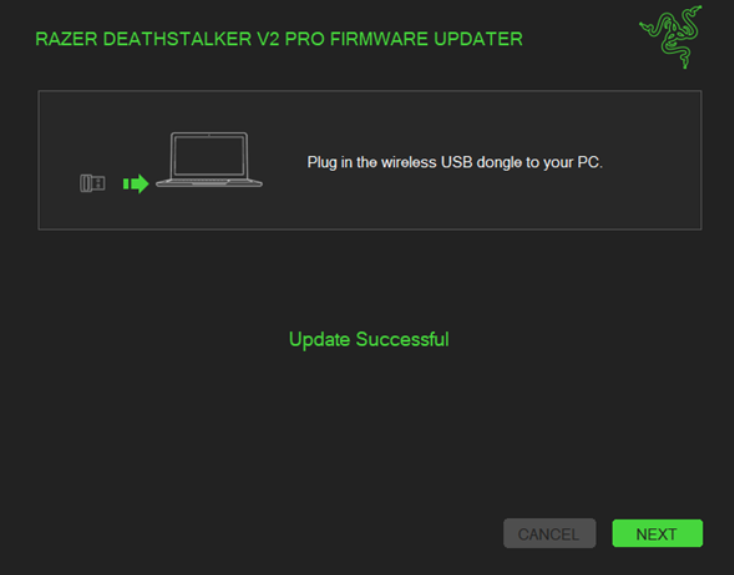
Once the update has been successful, click "NEXT".
-
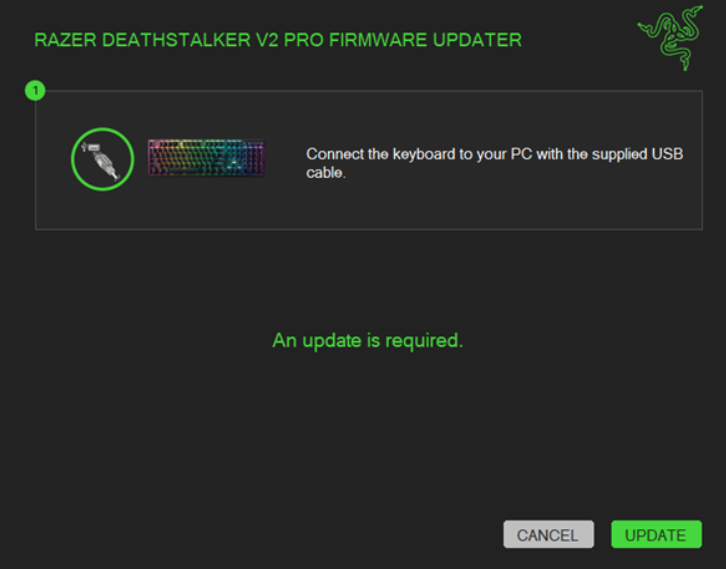
Connect the keyboard to your PC and click "UPDATE".
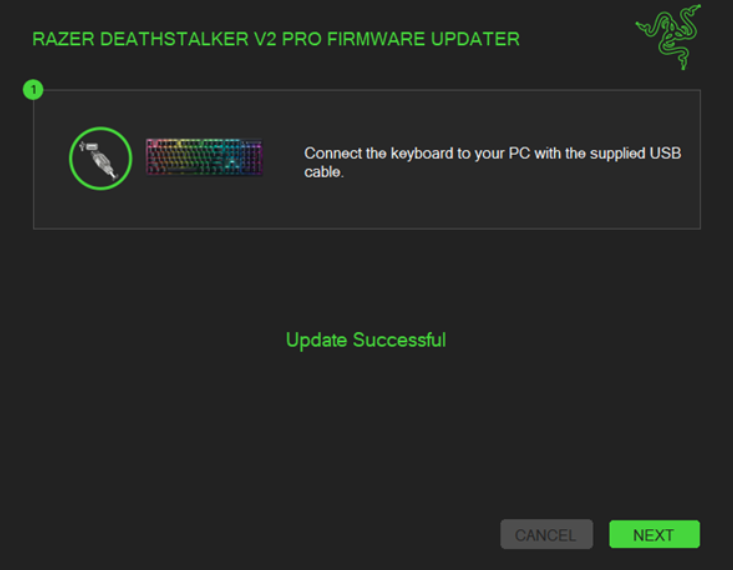
- Wait for the confirmation that the update has been successful and then click "NEXT".
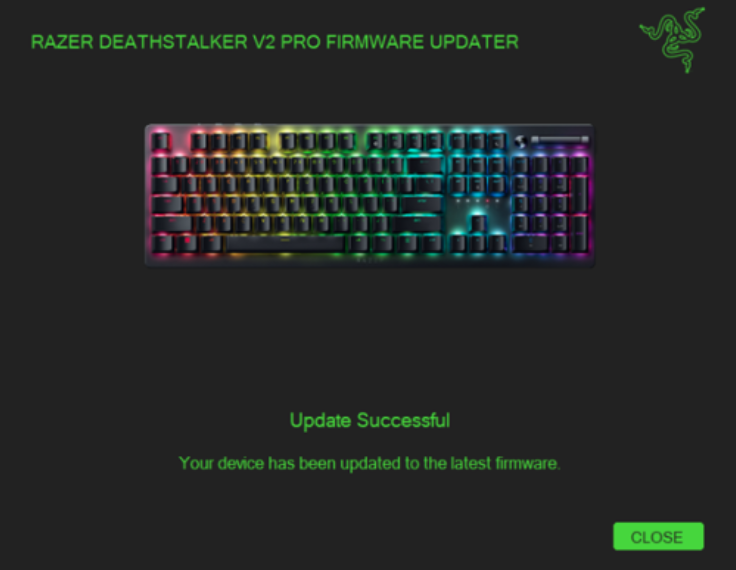
- Click "CLOSE" to exit the installer.