
The following are probable causes why the Razer Blade keeps on waking from sleep:
-
Devices or peripherals that are configured to wake the system
-
Running apps or programs
-
Wake timers
Perform the steps below to find out what causes your Razer Blade to wake from any sleep state.
-
Run “Command Prompt” as administrator.
-
Type any of the following command-line options:
-
powercfg /lastwake – shows what woke your Razer Blade from the last sleep transition

-
powercfg /waketimers – shows active wake timers

-
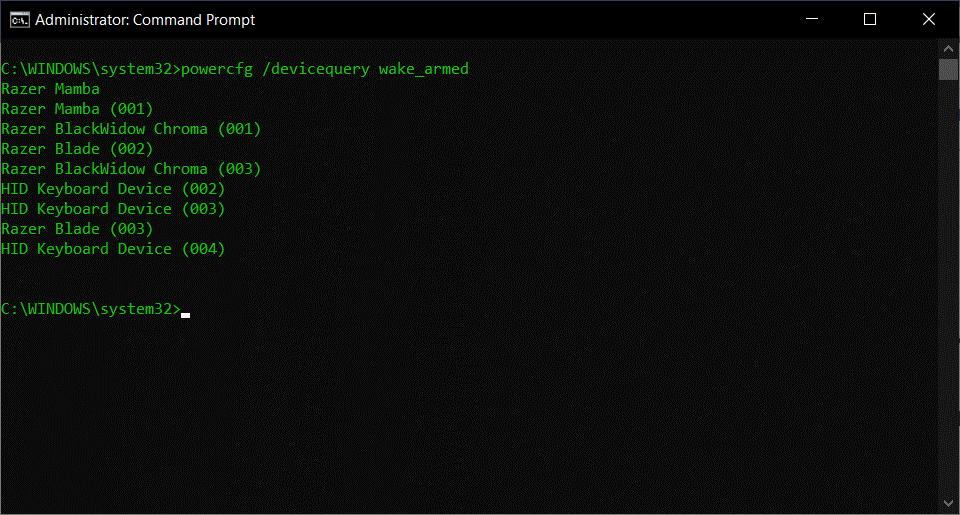
powercfg /devicequery wake_armed – shows devices that are configured to wake the system from any sleep state
-
powercfg /requests – shows application and driver Power Requests

-
Below are different options to prevent your Razer Blade from waking up from sleep.
Select preferred action
Prevent wake timers from waking your Razer Blade
-
Go to Settings > System > Power & sleep.
-
Click on “Additional power settings” under “Related settings”.
-
Select “Balanced (recommended)” power plan then click “Change plan settings”.
-
Click on “Change advanced power settings”.
-
Expand “Sleep” then “Allow wake timers”.
-
Select “Disable” for both “On battery” and “Plugged in”.
-
Click “Apply” then “OK”.
Prevent devices from waking your Razer Blade
-
Open “Device Manager”.
-
Expand the suspected device’s category.
-
Right-click on the suspected device then select “Properties”.
-
Go to the “Power Management” tab.
-
Uncheck "Allow this device to wake the computer" then click “OK”.
Prevent network adapters from waking your Razer Blade
-
Open “Device Manager”.
-
Expand “Network adapters”.
-
Right-click on your network adapter then select “Properties”.
-
Go to the “Power Management” tab.
-
Uncheck "Allow this device to wake the computer" then click “OK”.
-
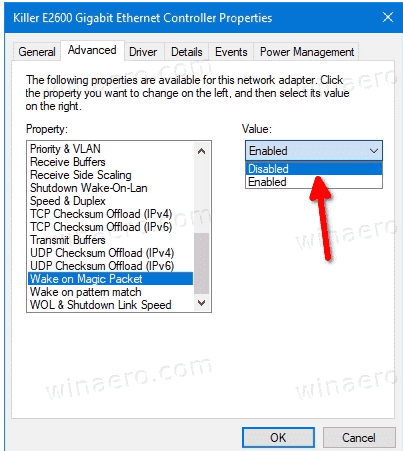
Go to the “Advanced” tab.
-
Disable "Wake on Magic Packet" under Property then click “OK”.
Prevent an app or program from stopping your Razer Blade to go into sleep mode
Close the app or program that is keeping your Razer Blade from sleeping. Force quit the app or program if unresponsive or frozen:
-
Open “Task Manager”.
-
Go to the “Processes” tab.
-
Locate the app or program that is unresponsive.
-
Right-click on the unresponsive app or program then select “End task”.

