
Applicable model:
Firmware Updater v1.07.00.1043_r1
- https://rzr.to/WVQtlE | May 3, 2023
- Modify LED driver to fix LED static noise issue when showing all white.
STEP-BY-STEP PROCESS
Before you start
-
If using a laptop, ensure it is plugged into a wall outlet. Do not let it run on battery alone.
-
Save any open documents on your computer.
-
Close all other programs.
-
Download the latest firmware.
Update Process
-
Run the updater.
-
Click "Yes" if the User Account Control window pops up to proceed.
-
Click "NEXT" to proceed. The updater will close all running Razer applications.

-
Plug in and turn on the soundbar.

-
Connect the soundbar directly to your PC using the Type-C to Type-A cable.
-
Press and hold the Bluetooth button for two seconds.
Note: The Source button will blink blue to indicate that the soundbar is in pairing mode.

-
Click "Add Bluetooth or other device" on the Windows Bluetooth Settings.
-
Select Razer Leviathan V2 and wait until the soundbar pairs with your device.
Note: When paired sucessfully, the Source button will change to static blue.
-
Click "UPDATE".

-
Wait until the update process is complete. Do not interrupt.

-
Click "NEXT" once the Bluetooth update is complete.
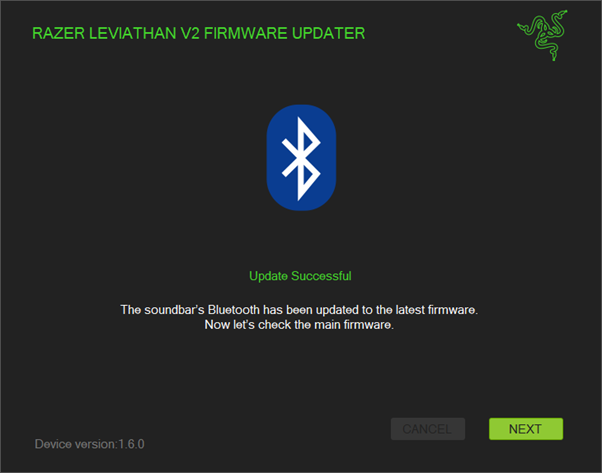
-
Switch to PC mode by pressing the Source button.
Note: The Source button will turn green when the soundbar is in PC mode.

-
Click "UPDATE".

-
Wait until the update process is complete. Do not interrupt.

-
Turn on your soundbar and click "UPDATE".

-
Click "CLOSE" once the update is complete.
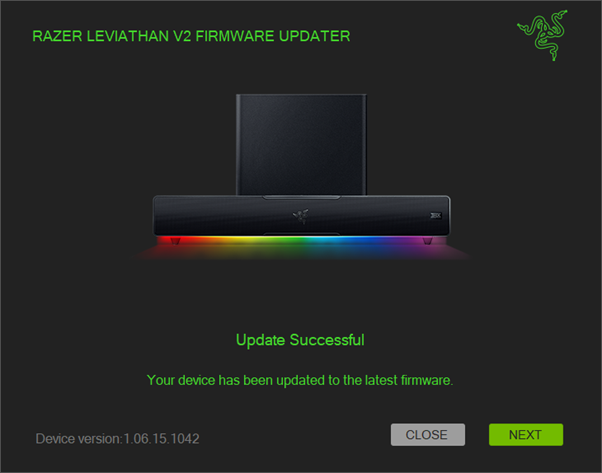
Note: Click "NEXT" for more information about the update.


