
Applicable Model:
Firmware Updater v1.07.00.1043_r1
- https://rzr.to/WVQtlE | May 3, 2023
- Modify LED driver to fix LED static noise issue when showing all white.
Follow the detailed instructions below to run the updater on your device.
Step-by-step Process
Before you start
If using a laptop, ensure it is plugged into a wall outlet. Do not let it run on battery alone.
Save any open documents on your computer.
Close all other programs.
Download the latest firmware.
Update process
Run the updater.
Click "Yes" if the User Account Control window pops up to proceed.
-
Click "NEXT" to proceed. The updater will close all running Razer applications.

-
Plug in and turn on the soundbar.

Connect the soundbar directly to your PC using the Type-C to Type-A cable.
-
Press and hold the Bluetooth button for two seconds.
Note: The Source button will blink blue to indicate that the soundbar is in pairing mode.

Click "Add Bluetooth or other device" on the Windows Bluetooth Settings.
-
Select Razer Leviathan V2 and wait until the soundbar pairs with your device.
Note: When paired sucessfully, the Source button will change to static blue.
-
Click "UPDATE".

-
Wait until the update process is complete. Do not interrupt.

-
Click "NEXT" once the Bluetooth update is complete.
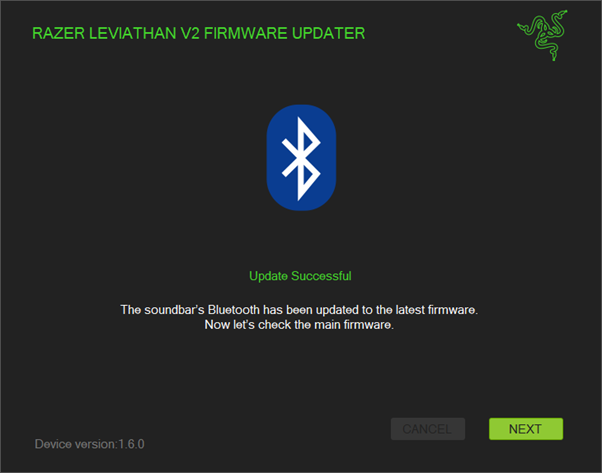
-
Switch to PC mode by pressing the Source button.
Note: The Source button will turn green when the soundbar is in PC mode.

-
Click "UPDATE".

-
Wait until the update process is complete. Do not interrupt.

-
Turn on your soundbar and click "UPDATE".

-
Click "CLOSE" once the update is complete.
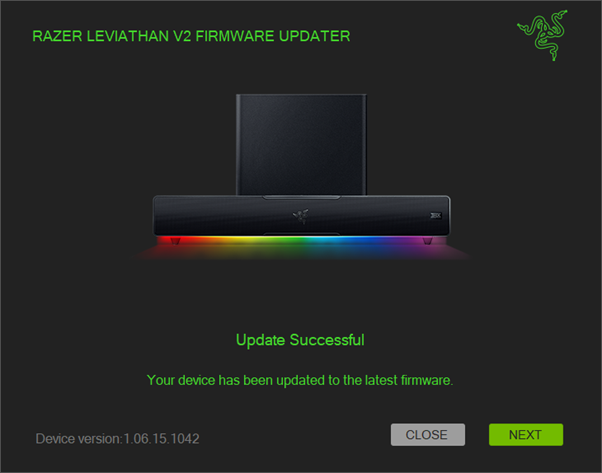
Note: Click "NEXT" for more information about the update.


