
Supported devices:
- Razer Blade 16” (2026) | RZ09-0581x
- Razer Blade 18” (2025) | RZ09-0529x
- Razer Blade 16” (2025) | RZ09-0528x
- Razer Blade 14” (2025) | RZ09-0530x
- Razer Blade 18” (2024) | RZ09-0509x
- Razer Blade 16” (2024) | RZ09-0510x
- Razer Blade 14” (2024) | RZ09-0508x
- Razer Blade 18” (2023) | RZ09-0484x
- Razer Blade 16" (2023) | RZ09-0483x
- Razer Blade 15" (2023) | RZ09-0485x
- Razer Blade 14" (2023) | RZ09-0482x
- Razer Blade 17" (2022) | RZ09-0423x
- Razer Blade 15" (2022) | RZ09-0421x
- Razer Blade 14" (2022) | RZ09-0427x
BitLocker protects your data from any attempts of unauthorized access. This feature has two types: device encryption and drive encryption.
Follow the steps below to enable drive encryption on your Razer Blade. For instructions on enabling device encryption, see the answer below.
Note: Drive encryption is available on Windows 10, 11 Pro, Enterprise, and Education devices.
Select preferred action
Enable drive encryption
- Press the "Windows" key or click "Start".
- Search for "BitLocker".
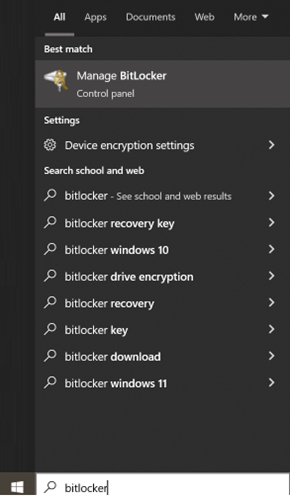
- Select “Manage BitLocker”.
- Select “Turn on BitLocker” and follow the onscreen instructions.
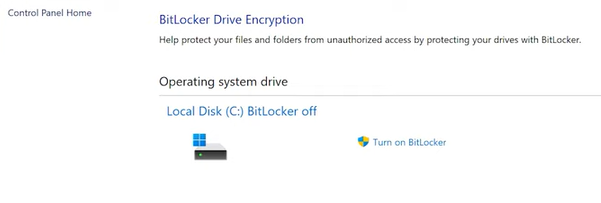
Once enabled, a prompt asking for your recovery key will appear if Windows detects an unauthorized user accessing your drive.
Find the recovery keys
- Sign in to your Microsoft account.
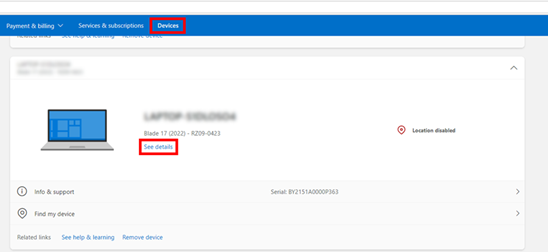
- Go to “Devices”.
- Click on “See details”.
- Click on “Manage recovery keys”.
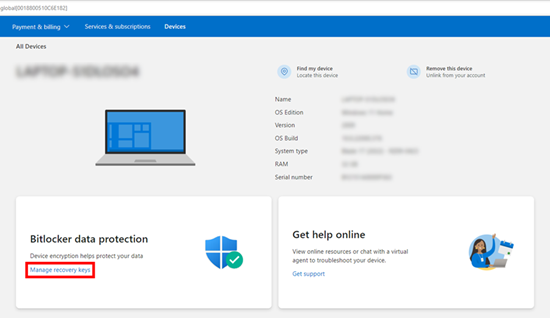
- Find the recovery key from the list.

Access the encrypted drive
- Open an encrypted drive.
- Input the 48-digit recovery key in the dialog box.
- Click on “Unlock”.
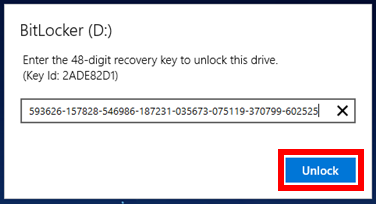
You can now access the stored data in your drive. For more information about recovery key, see the following Windows support pages:

