
If you encounter a few issues or difficulties when connecting multiple monitors on your Razer Blade, the most probable causes are the following:
-
Damaged or malfunctioning cable
-
Connected peripherals causing conflict on the display
-
Software issues
-
Wrong refresh rate
-
Outdated display drivers
You can view the video below for instructions or review a copy of the video transcript.
Check the options below for workarounds and troubleshooting steps.
What issue do you have with your monitor?
Second monitor is not displaying
An additional monitor that has power but not displaying properly is caused by several possible reasons. Choose a resolution below to resolve this issue.
Isolate the issue
- Ensure the external monitor is plugged in to a power source.
- Ensure the external monitor is turned on.
- Connect external monitor to a different computer.
Verify cable connections
- Unplug the cable from both the monitor and the Razer Blade.
- Securely plug both ends again.
Remove other peripheral devices
- Use the onscreen display (OSD) buttons on your monitor to check the channels.
- Choose the correct input from your Razer Blade.
- Use another adapter if you are using one.
Change connection cable
Use new compatible cables in case the old ones have physical damage or issues, such as bent pins, exposed wire, a short, and so on.
Update drivers
Ensure that your Razer Blade has the latest graphics drivers installed. See How to get the latest software and driver updates from Windows for more details.
Force Windows to detect your monitor
- Right-click on the Desktop and click “Display Settings”.
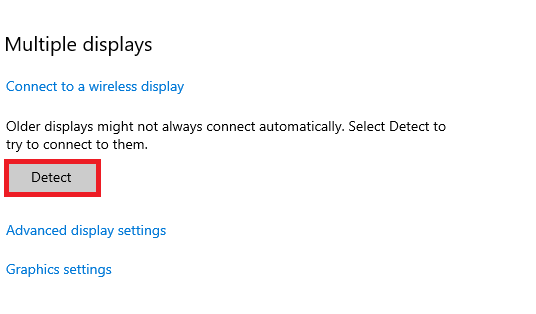
- Click the “Detect” button under Multiple Displays to connect to your external monitor.
Incorrect or differing resolutions
Incorrect or differing resolutions can cause the following issues:
- Blank screen
- Screen flickers
- Image not clear
A new monitor that is not displaying correctly can be caused by incorrect settings from an older display. Match your primary monitor’s display settings to resolve this issue.
- Right-click on your Desktop then click “Display Settings”.
- Click on the secondary display.
- In the Scale and Layout section, click the "Display Resolution" drop-down list.
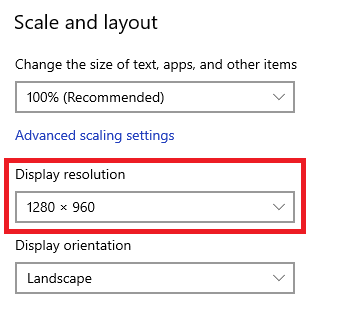
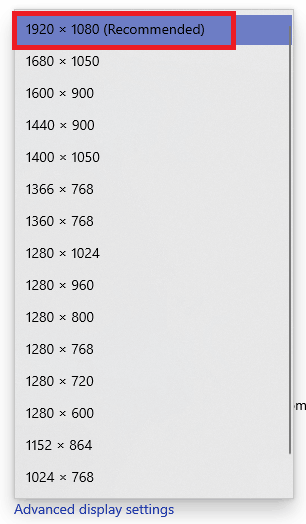
- Choose the recommended display resolution.
- Click "Keep Changes".

Incorrect refresh rate
Incorrect refresh rate can cause the following issues:
- Blank screen
- Screen flickers
- Image not clear
- "No Signal' error
Manually adjust the refresh rate in Windows to resolve these issues.
- Right-click on your Desktop then click “Display Settings”.
- Click on “Advanced display settings” under Multiple Displays.

- Click “Choose Display” drop-down list then click on the monitor that is having issues.
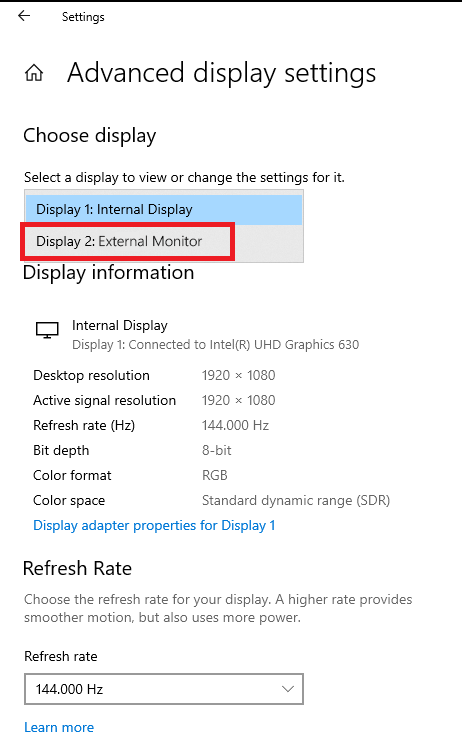
- Choose a refresh rate from the "Refresh rate" drop-down list.
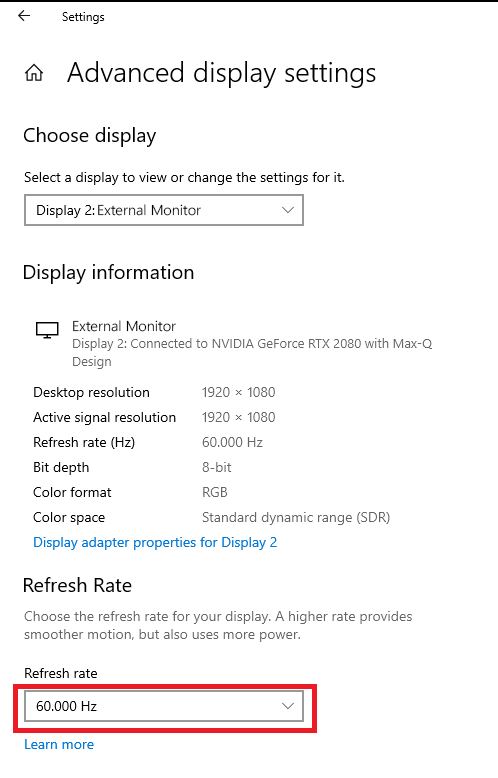
- Click "Keep changes".

Other monitors have incorrect aspect ratio
This issue is usually caused by resolution settings or display orientation.
Review resolution settings
- Ensure that your Razer Blade’s resolution settings match with the monitor.
- Use the settings recommended by Windows.
Switch cables
Use new compatible cables in case the old ones have physical damage or issues, such as bent pins, exposed wire, a short, and so on.
Check display or orientation
- Right-click on your Desktop then click “Display Settings”.
- Select “Portrait” from the Display Orientation drop-down list.
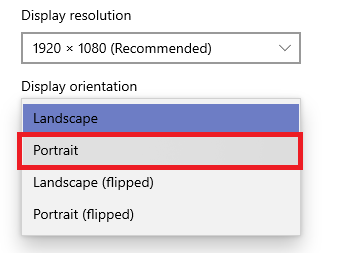
- Switch it back to “Landscape”.
Duplicate or extended images
Change the duplicate setting to extend the display on the second monitor.
- Press the Windows key + P on your keyboard.
- Select “Extend”.

Color inconsistency in monitors
When one monitor displays poor color accuracy or color saturation, there is currently no easy fix for this issue.
- Calibrate your monitor with the assistance of a professional.
- Replace your monitor with the same brand and model as the rest of your monitors.
Third monitor cannot connect
This issue is usually caused by resolution settings or display orientation.
- Unplug each monitor and properly re-plug.
- Ensure “Extend these displays” is chosen in the Multiple Displays.
- Ensure that your Razer Blade has the latest graphics drivers installed. See How to get the latest software and driver updates from Windows for more details.
Distortion and artifacts on other monitors
If your additional monitor has distortion or artifact issues but not the first one, the most probable cause is a hardware defect. Choose from the following options to resolve this issue.
- Make sure all the ports on your monitor and the Razer Blade are clean and dust-free.
- Use a new cable for the additional monitor.
- Shorten the cable length.
- Connect without using converters or adapters.
Additional monitors suddenly stop working
There are several factors that can cause this issue. Choose a workaround below to resolve it.
- Make sure your cables are properly connected.
- Press Windows + Ctrl + Shift + B on your keyboard to refresh your Windows.
- Restart your Razer Blade and all your connected monitors.
- Roll back the display drivers.
- Right-click on the Windows icon then click “Device Manager”.
- Collapse “Display adapters”.
- Click on your display adapter then click “Properties”.

- Click on the “Driver” tab.
- Click “Roll Back Driver”.
Incorrect image alignment on different-sized monitors
Monitors with different size and resolutions sometimes encounter this issue. Adjust your monitor’s resolution scaling to resolve this issue.
USB-C port cannot project to an external display
If you are trying to connect an external monitor to the USB-C port of your Razer Blade but the display is not working, do not switch the system to Discrete GPU only. Perform the steps below to resolve your issue.
Razer Blade with Dedicated GPU Only
For a list of Razer Blade models that have a "Dedicated GPU only" GPU mode, click Which Razer Blade models have a "Dedicated GPU only" GPU mode?
- Launch Razer Synapse.
- Select your Razer Blade.
- Go to “SYSTEM” then click “DISPLAY”.
- Select the “NVIDIA Optimus” radio button under the GPU MODE section.
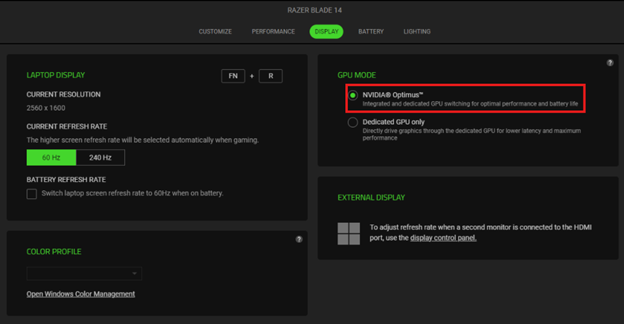
- Restart your Razer Blade.
Razer Blade with NVIDIA Advanced Optimus
For a list of Razer Blade models that support NVIDIA Advanced Optimus, click How to enable NVIDIA Advanced Optimus in Razer Blade laptops.
- Click on the NVIDIA Control Panel on your system tray.
- Expand "3D Settings" on the left menu.
- Click "Manage Display mode".
- Choose “Automatic Select” under Display Mode.
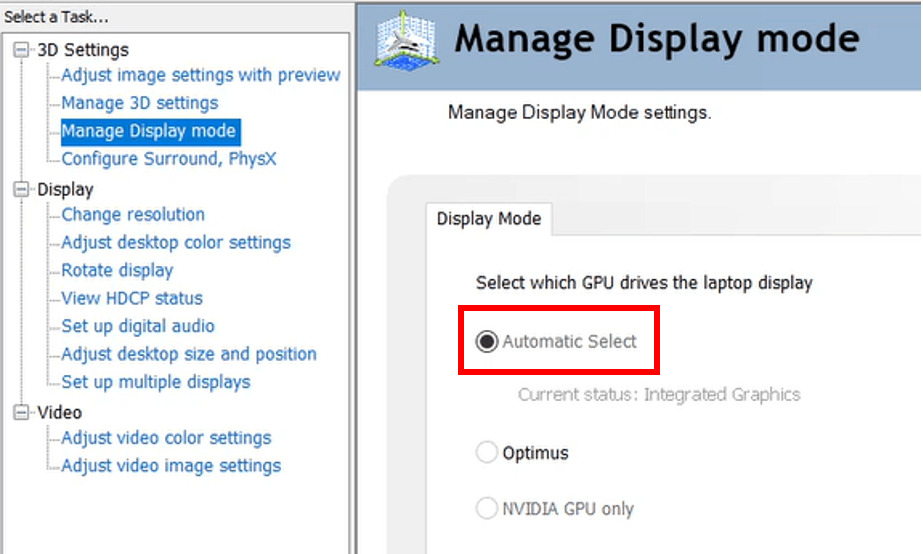
- Restart your Razer Blade.

