
Applicable Products
Firmware Updater v2.01.00_r1
- https://rzr.to/f811dk | November 1, 2024
- Improved connectivity performance
STEP-BY STEP-PROCESS
-
If you are using a laptop, ensure it is plugged into a wall outlet and not running on battery before proceeding.
-
Save all files and close all programs.
-
Download the latest firmware updater.
Note: This firmware updater will update both the Razer Mouse Dock Pro and its compatible mouse that supports the 8000 Hz polling rate.
-
Run the downloaded firmware then click "NEXT" to proceed.

-
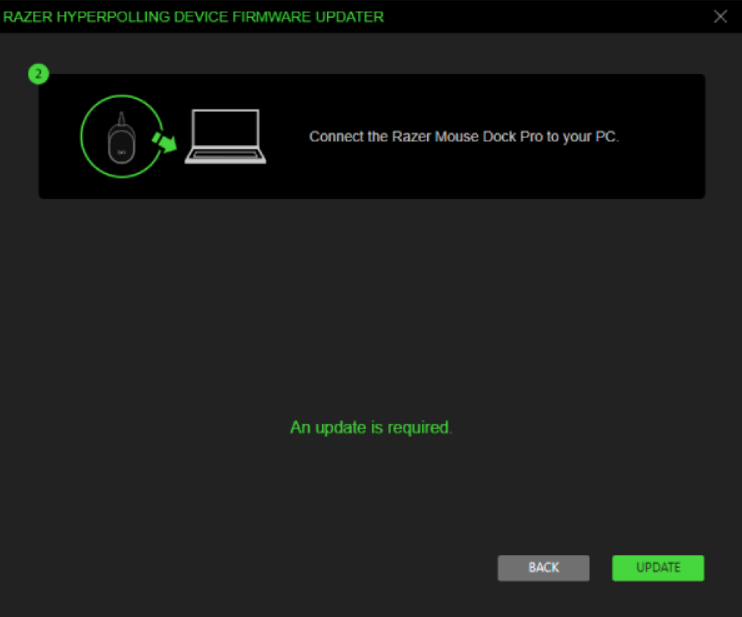
Connect the Razer Mouse Dock Pro to your PC and click “UPDATE”.
-
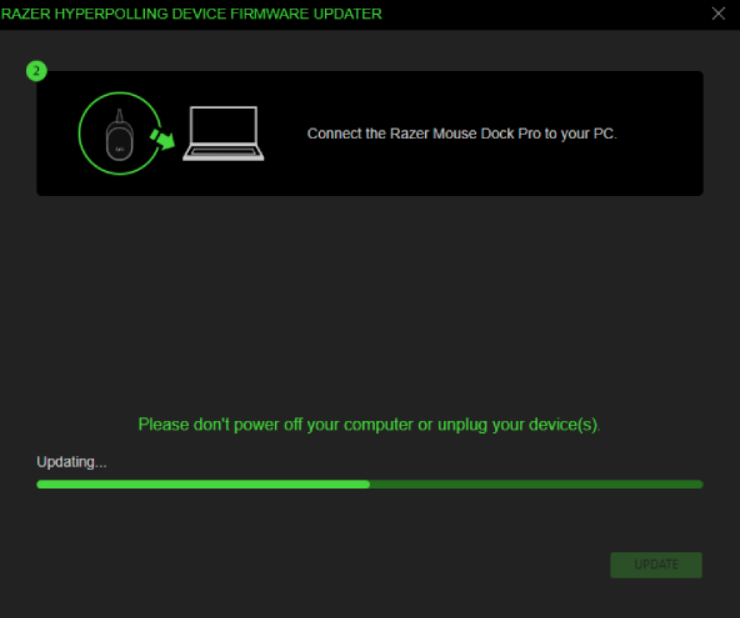
Wait for the update process to complete. Do not interrupt.
-
Once the update is successful, click “NEXT” if you do not wish to update a different dongle or dock.
Note: You may close the updater here if you do not wish to update the firmware for your mouse.

-
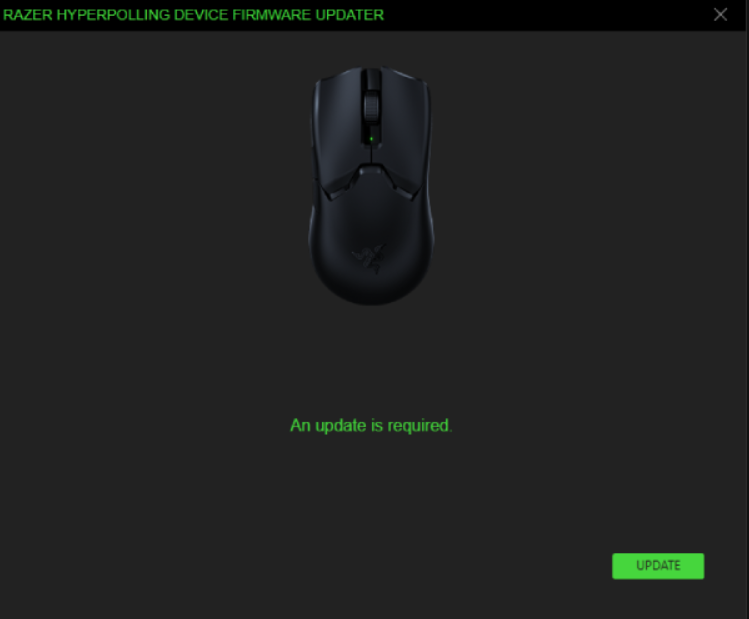
Connect your Razer mouse to your PC.
-
Click “UPDATE”.
-
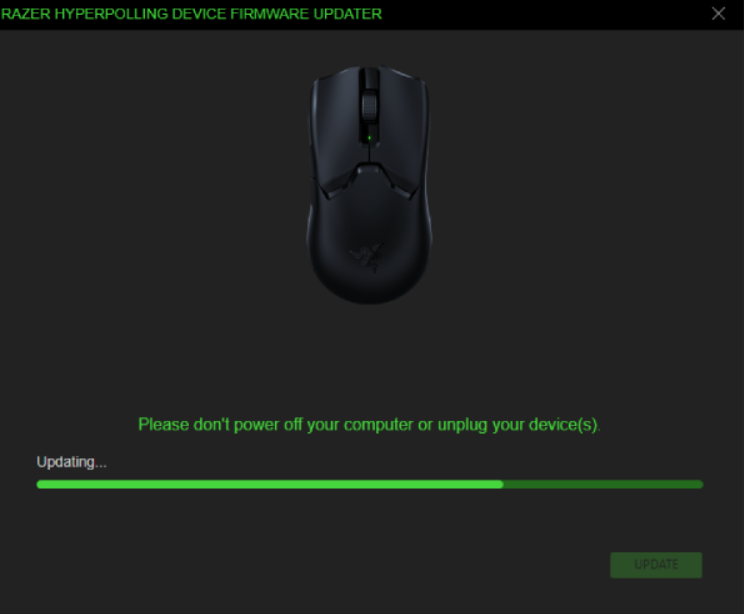
Wait for the update process to complete. Do not interrupt.
-
Once the update is successful, click “NEXT” if you do not wish to update a different mouse.

-
Click “EXIT”.


