
HiddenH2
Applicable models:
Customizing your mouse controls can significantly improve efficiency, comfort, and performance, especially for gaming or productivity-focused workflows. This article explains how to remap keys or buttons on the Razer Naga V2 mouse using Razer Synapse, allowing users to assign new functions, shortcuts, or macros that better suit their needs. It also covers important considerations regarding Razer Synapse version support to help ensure a smooth customization experience.
Follow the detailed instructions below on how to remap keys or buttons on your Razer Naga V2 mouse.
-
Launch Razer Synapse 4.
-
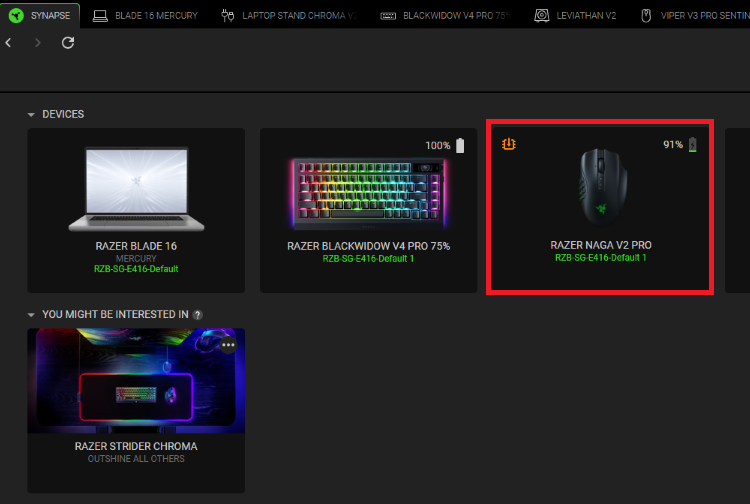
Select your mouse from the DASHBOARD.
-
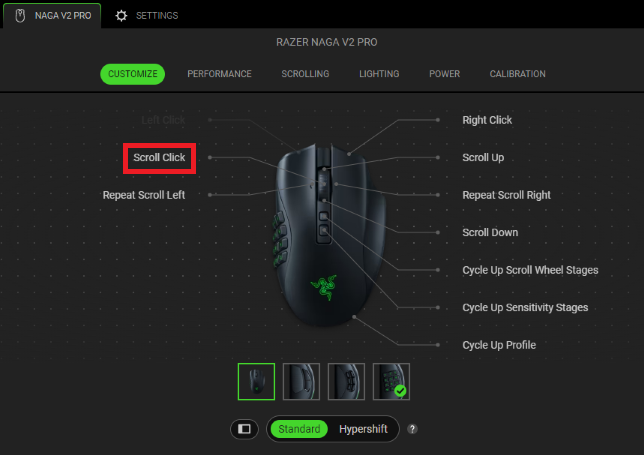
Select a button you want to remap.
-
Select a function to assign to the key or button you want to remap.
Note: Include modifiers to bind shortcut keys or control how many times the action will be performed when the key or button is held down.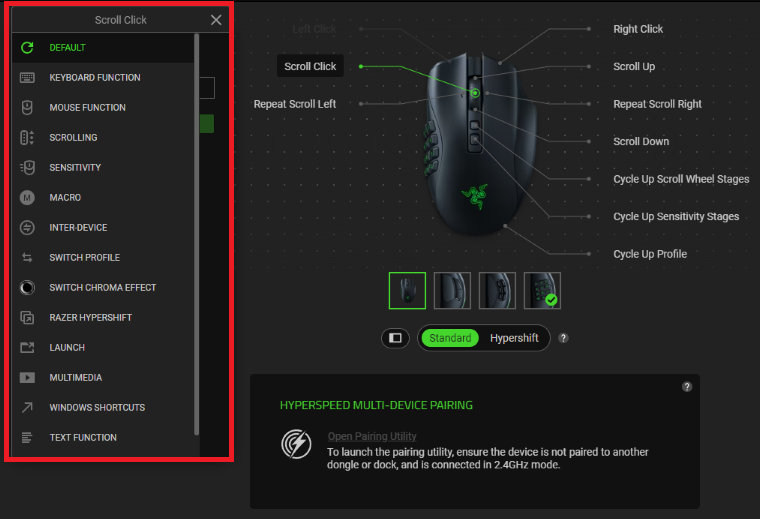
-
Click “SAVE” to complete the process.
Note: Keep Razer Synapse running in the background to use this function.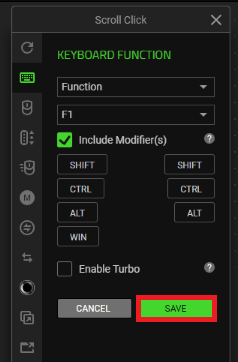
The remapped button is displayed after the shortcut on your device layout.

