
Pairing mode is required when setting up the Razer Aether Lamp Pro.
Note: Reset the Razer Aether Lamp Pro if it is currently paired with a device. See How to reset the Razer Aether Lamp Pro for instructions. The status indicator will blink blue to show that the device is in pairing mode.
Follow the detailed instructions below to pair the Razer Aether Lamp Pro on your device.
Select an action
Pair using Razer Gamer Room App
-
Download and launch the Razer Gamer Room App on your iOS or Android device and sign into your Razer ID.
-
Create a “home” in the Razer Gamer Room App.
-
Power on the Razer Aether Lamp Pro.
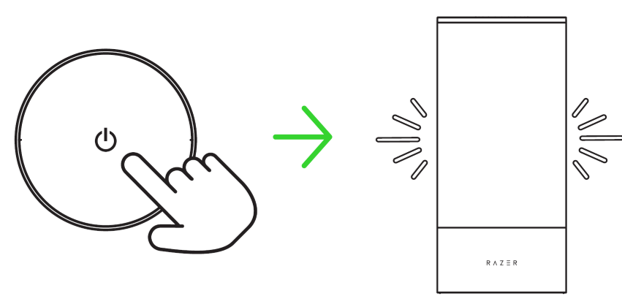
Note: Pairing mode activates when the Razer Aether Lamp Pro is powered on and deactivates when it is unpaired for 5 minutes. To reactivate pairing mode, switch it off then turn it back on.
-
Tap on "Add your first device" on the main page or "Add a Device" from the menu button and scan the QR code on your Razer Aether Lamp Pro.
-
Allow and enable the location access when prompted.
-
Make sure your phone is connected to your preferred network where you want to add your device.
-
Follow the onscreen instructions and scan the Matter QR code to complete the pairing of your Razer Aether Lamp Pro to your account.
Once the setup is complete, the Razer Aether Lamp Pro will appear on the Razer Gamer Room App’s main page whenever launching the app.
Pair using Razer Synapse
- Download and install Razer Synapse on your PC. For existing users, make sure to update Razer Synapse to its latest version.
-
Ensure your Razer Aether Lamp Pro is already set up on your network from the Razer Gamer Room App, and your PC is connected to the same network as the Razer Aether Lamp Pro.
Note: Registering for a Razer ID account is recommended. You have the option to continue as a guest; however, you will not be able to store any of your settings on the cloud.
-
Press the power button to power on the Razer Aether Lamp Pro.
-
On Razer Synapse, click “Add WiFi Device”, choose “Gamer Room Devices”, select your device, and follow the onscreen instructions.
-
Update when prompted and wait for Razer Synapse to set up the Razer Aether Lamp Pro. The Razer Synapse Dashboard will now show the Razer Aether Lamp Pro on the Devices list.

