
This is an expected behavior not just from Razer devices but with any device with a USB connector. When a USB dongle or device is removed from a system when in sleep mode, the control unit inside it will reset. Once the device is re-plugged, it will not be recognized unless the system is awake. This is a common behavior even among Razer laptops since its first model.
Microsoft is aware of some Windows systems being unable to properly awake from system hibernation. Fortunately, there are multiple ways to avoid this. Below are a few options that you can choose from.
Note: Before performing the following workarounds, ensure your Blade’s BIOS and Embedded Controllers (EC) are updated to the latest version and observe if this solves the issue.
You can view the video below for instructions or review a copy of the video transcript.
Select an option
Disable Hibernation
Prevent your computer from going to hibernation or sleep and getting stuck by disabling this feature.
-
Press the Windows key + X on your keyboard.
-
Select "Command Prompt (Admin)" from the menu that appears.

Note: If you do not see the Command Prompt on the menu, go to Settings > Personalization > Taskbar and toggle off “Replace Command Prompt with Windows Powershell in the menu when I right-click the start button or press Windows key + X.
-
Click “Yes” to allow the app to make changes to your computer.
-
Type "powercfg/h off" and press "Enter".
-
Restart your computer.
Disable Fast Startup Feature
Disable the Fast Startup feature, a type of hybrid shutdown that like Hibernation, and save a snapshot of your system’s drivers and files to a kernel in your hard drive. This kernel is then reloaded for faster boot times. Its main difference with Hibernation is that it saves to the kernel only after you log out, and thus does not save other apps.
The Fast Startup feature is usually harmless but has occasionally seen as causing documented cases of errors in startup and Windows Updates installations.
-
Go to Control Panel > System and Security > Power Options to disable Fast Startup, .
-
Click “Choose what the power buttons do”.

-
Click “Change settings that are currently unavailable”.

-
Uncheck “Turn on fast startup (recommended)”.

Note: Disabling hibernation via Command Prompt will also turn off this feature.
Change Power Settings
Another way to get around this is to tell the computer to never enter sleep mode.
-
Go to your "Start" menu and "Control Panel".
-
Go to "Power Options" and click on “Change when to turn off the display”.
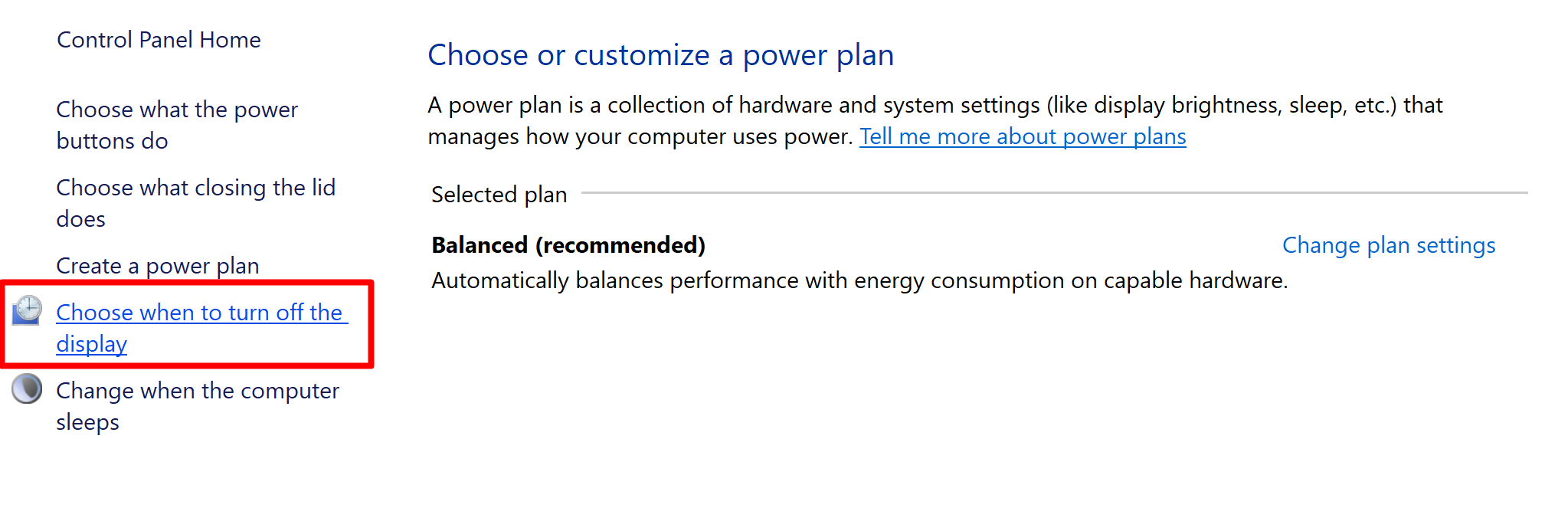
-
Change the timing according to your preference for “Turn off the display” and “Put the computer to sleep:” Changes here will affect battery performance.

-
Click “Save changes” and reboot your computer.
Run the Windows Power Management Troubleshooter
-
Type "troubleshooting" in the Windows search box and press "Enter".
-
Select "Troubleshooting" (control panel) from the list of search results.
-
Click "System and Security".
-
Click "Power".
-
Click "Next" to run the power management troubleshooter.
-
Click "Close" when the troubleshooter completes.
-
Restart your computer.

