If you experience poor or distorted audio quality on your Razer Nari headset when THX Spatial Audio is enabled, this guide provides troubleshooting steps and recommended settings to help restore optimal audio performance.
Follow the detailed instructions below to fix bad audio quality on a Razer Nari headset when THX is enabled or turned on.
-
Plug in your Razer Nari Headset to your system via USB cable.
-
Expand the system tray by clicking the arrow found on the lower right side of your desktop.
-
Right-click on the Razer Central icon and click “Check for Updates.”

If the issue persists, perform the following:
-
Connect your Razer Nari to your laptop or desktop computer via USB dongle or USB cable.
-
Launch Razer Synapse.
-
Select the Razer Nari from the "DASHBOARD".
-
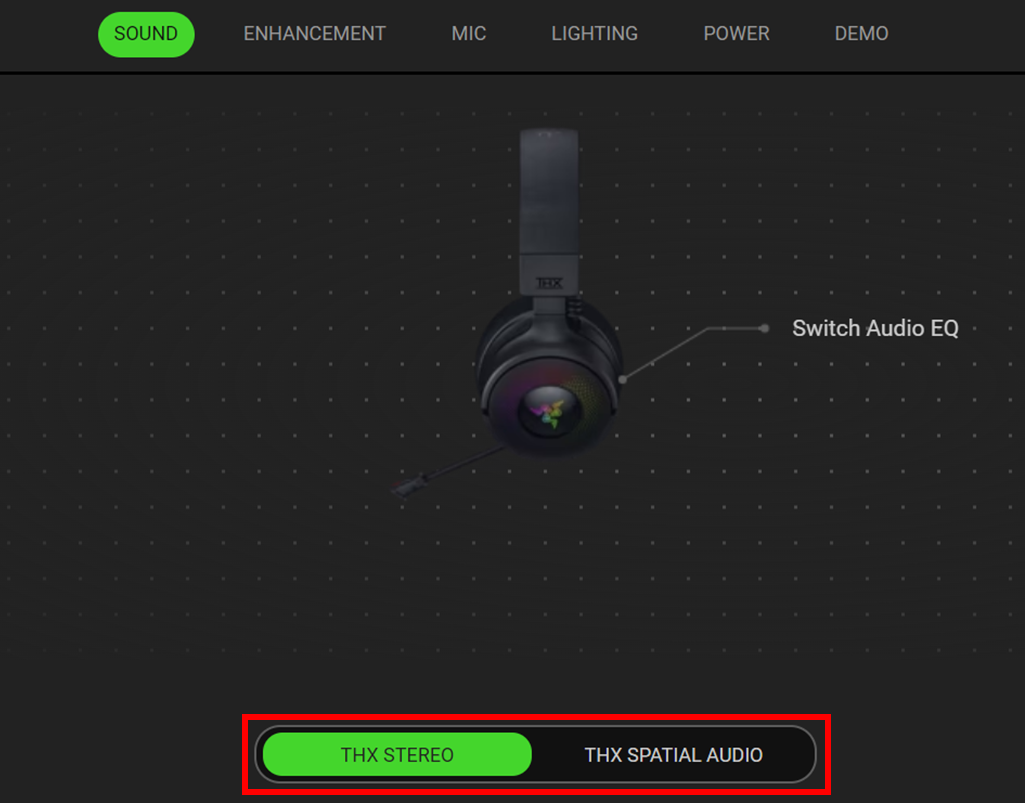
Navigate to the "SOUND" tab.
-
Toggle "THX SPATIAL AUDIO" off to "STEREO".