
Razer keyboard lighting can be controlled using a software compatible with your device. Install Razer Synapse first before proceeding to the steps outlined below. See How to install or upgrade Razer Synapse for details.
Follow the detailed instructions below to adjust the lighting brightness on a Razer keyboard.
Select Razer Synapse version
Razer Synapse 4
-
Launch Razer Synapse 4.
-
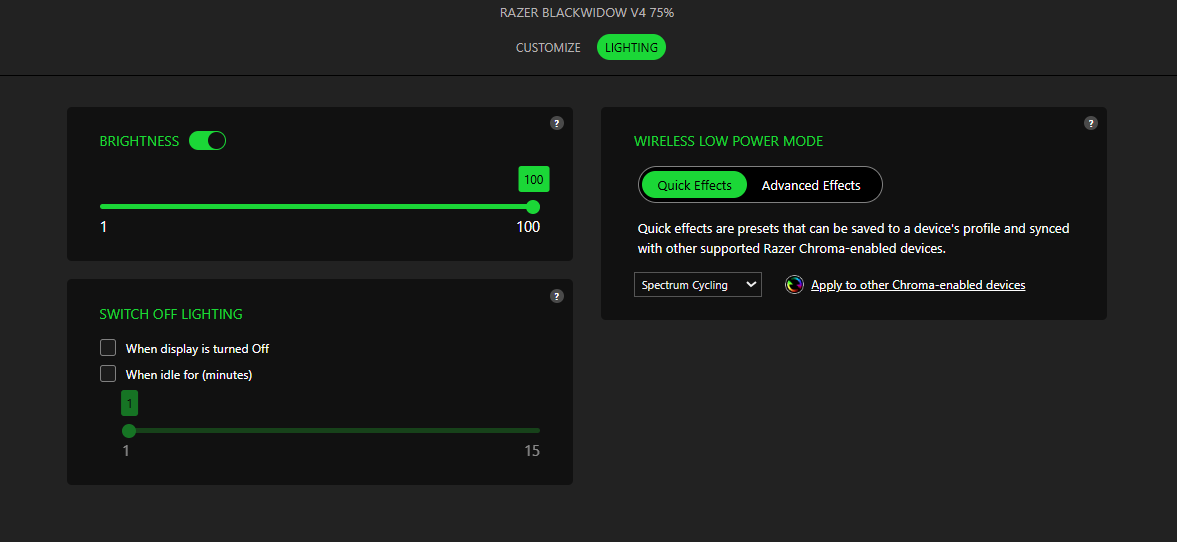
Go to "LIGHTING".
-
Move the slider under BRIGHTNESS to your desired brightness level.
Razer Synapse 2
-
Launch Razer Synapse 2.
-
Go to Keyboard > Lighting.
-
Move the slider under KEYBOARD BRIGHTNESS, to your desired brightness level.


