
Razer Stream Controller | RZ20-04350 Support
Razer Stream Controller X | RZ20-0479 Support
Set up the Razer Stream Controller/ Stream Controller X to your computer
-
Connect the Razer Stream Controller/ Stream Controller X through the stand and to your computer.

-
Place the faceplate onto the Razer Stream Controller/ Stream Controller X, and then into the stand.

-
Download and install the latest Loupedeck Software from Loupedeck.com.
-
Download and install Razer Synapse to access additional features.
Set up the Razer Stream Controller / Stream Controller X on Razer Synapse
- Internet connection is required for installation, updates, and cloud-based features.
- Registering for a Razer ID account is recommended but optional.
- All listed features are subject to change based on the current software version, connected devices, and supported apps and software.
Here is a step-by-step process on how to configure the Razer Stream Controller on Razer Synapse.
- Launch Razer Synapse.
- Select the Razer Stream Controller from the “DASHBOARD”.

- Navigate to the “HOME” tab.
- Click on “LAUNCH LOUPEDECK” to launch or download the Loupedeck Software and change the controller’s application profile using Razer Synapse.
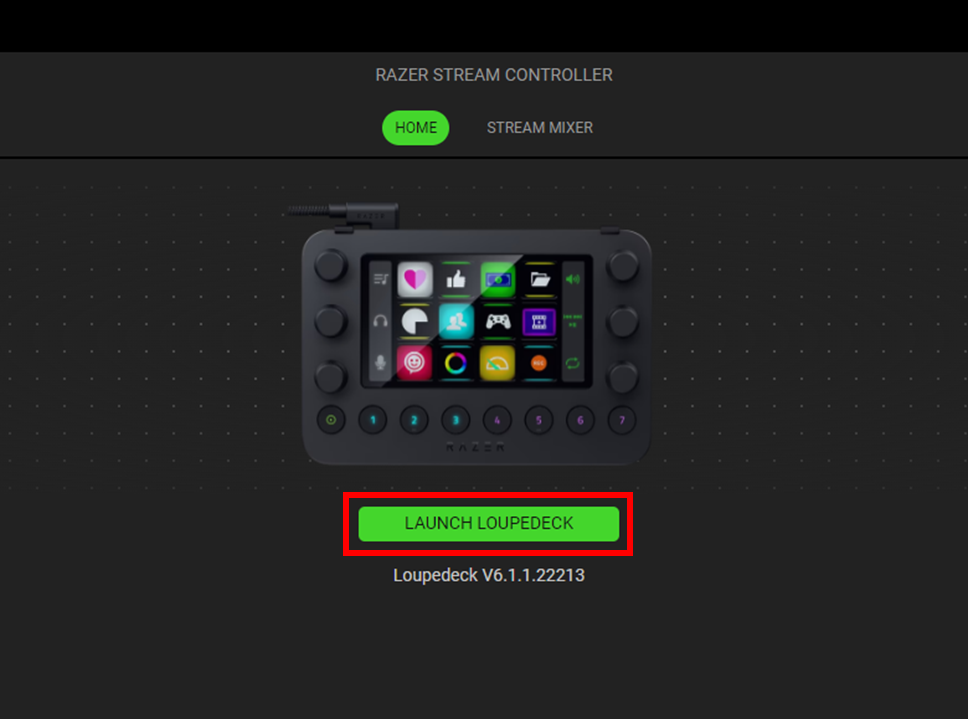
Note: A profile is a pre-configured workspace designed to make the controller immediately usable and compatible with the supported application that you are using.
- Install the Loupedeck Software to take control of the Razer Stream Controller’s profiles through Razer Synapse.
- Turn the Dynamic Mode OFF on the Loupedeck Software for the Razer Synapse app to have control over the controller’s profiles.
- Install the plugin works for application-specific profiles.
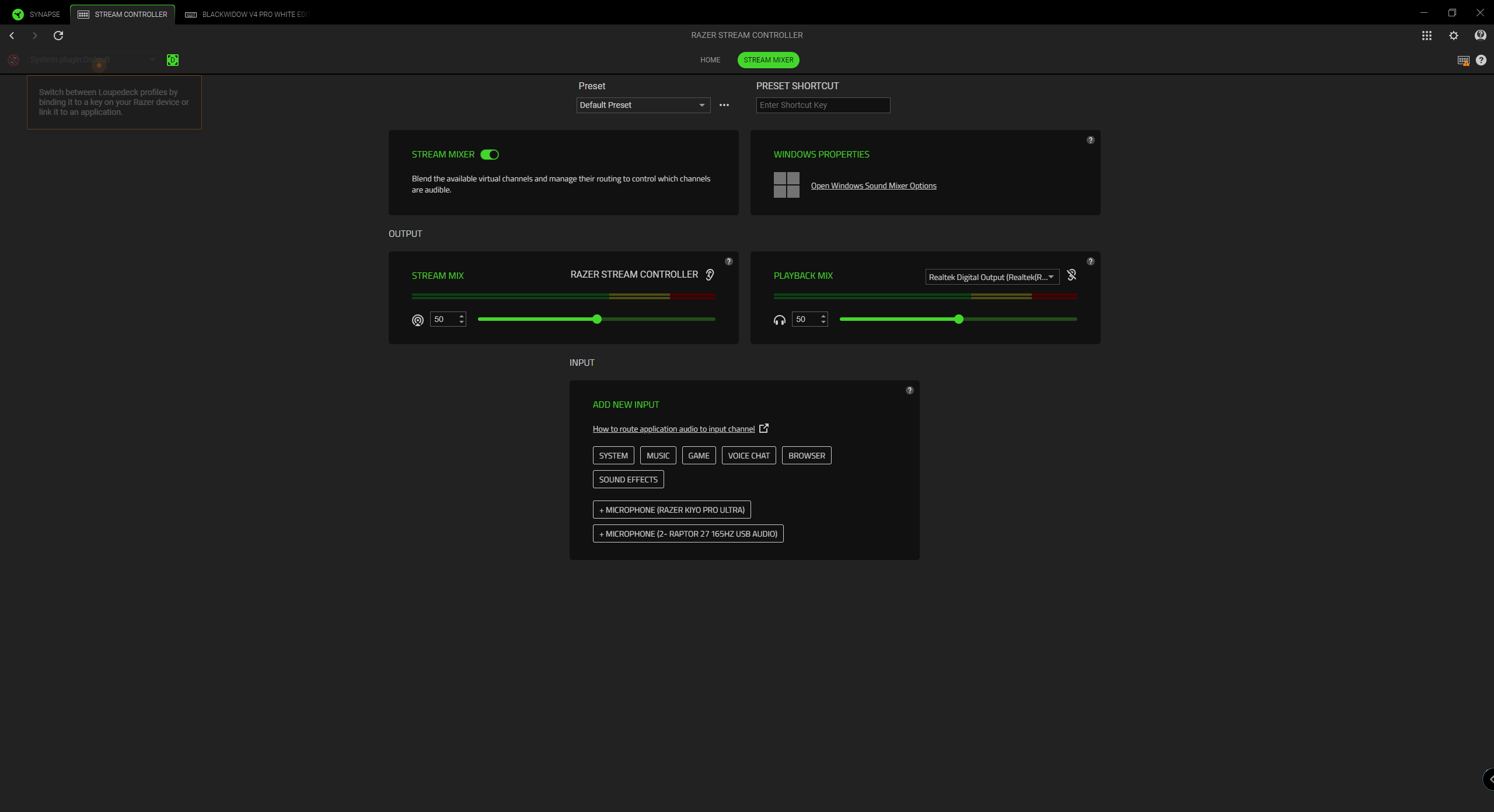
- Navigate to the “STREAM MIXER” tab to configure the Stream Mix and Playback Mix.
- Click “PROFILES” to manage all your profiles and link them to your games and applications.
- Click the “DEVICES” tab to view which games are linked to each device’s profiles or which Chroma Effect is linked to specific games.
- Click “LINKED GAMES” to do the following:
- Add games, view devices linked to games, or search for added games. See How to link to connected Razer devices or Chroma Effects on Razer Synapse for more details.
- Sort games based on alphabetical order, last played, or most played
Note: Added games will still be listed even if they are not linked to a Razer device.
Set up the Razer Stream Controller/ Stream Controller X with OBS Studio
-
Log in to your Loupedeck account.
-
Start OBS Studio.

-
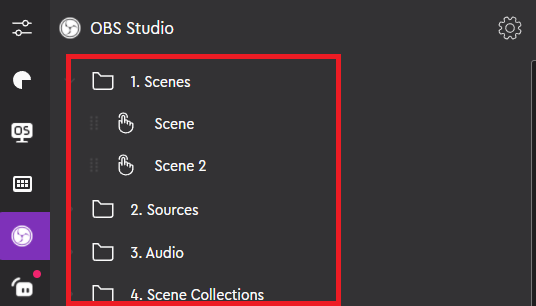
Drag the action or action type on to a dial or button from the action panel to set up OBS Studios actions.
-
Click on an action to customize the icon.
-
Click "Save".
Set up the Razer Stream Controller/ Stream Controller X with Streamlabs
Note: Before setting up, make sure that you are running the latest Streamlabs and Loupedeck software.
-
Open the Loupedeck software
-
Start “Streamlabs”.
-
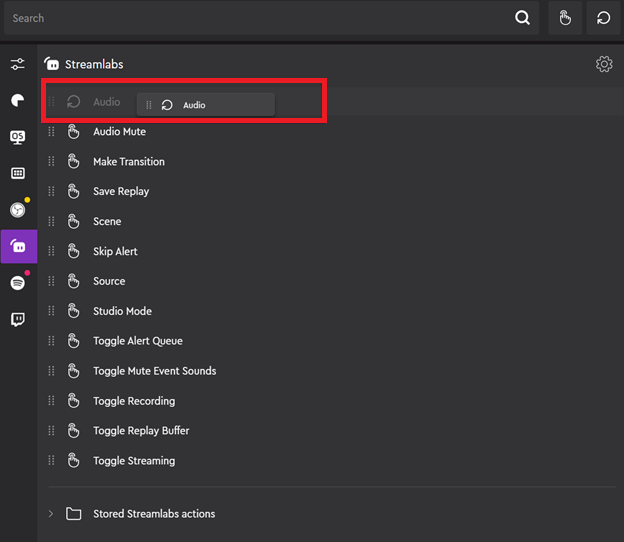
Identify the press action or rotation adjustment you want to add.

-
Drag the desired action to a button or dial.
-
Click on an action to customize the icon.
-
Click “Save”.
Set up the Razer Stream Controller/ Stream Controller X with Twitch
-
Log in to your Loupedeck account.
-
Select the "Hide and show plugins" tab from the action panel list.

-
Confirm that the Twitch plugin is activated.

-
Go to your Twitch plugin's action tab on your action panel.
-
Click "Sign in to Twitch".

-
Follow the verification process in your browser to connect to Twitch.

