
Applicable Model:
Razer Blade models
- Razer Blade 16” (2026)
- Razer Blade 18” (2025)
- Razer Blade 16” (2025)
- Razer Blade 14” (2025)
- Razer Blade 18” (2024)
- Razer Blade 16” (2024)
- Razer Blade 14” (2024)
- Razer Blade 18” (2023)
- Razer Blade 16” (2023)
- Razer Blade 15” (2023)
- Razer Blade 14” (2023)
- Razer Blade 17” (2022)
- Razer Blade 15” (2022)
- Razer Blade 14” (2022)
When the Battery Health Optimizer feature is enabled, the battery will stop charging when it has reached the limit specified even though your device is still plugged in. Enabling this feature will protect your battery and prolong your battery life.
Note: The battery level will drop from 100% to 95% even when plugged in and then it will charge back up to 100% and the cycle repeats.
The Battery Health Optimizer features are:
- Works when charging with PD through USB-C
- Works when charging with Power Adapter of the same connector but of lower wattage
- Charges until the limit even if the Razer Blade is shut down
- When charging limit is reached and a new limit is set, Battery Health Optimizer charges and maintains the new limit
Follow the detailed instructions below to enable the Battery Health Optimizer in Razer Synapse.
-
Open Razer Synapse 4.
Note: Download the latest version of Razer Synapse 4 and update your device to the latest firmware. To download the firmware, click on the models listed above and go to "Drivers & Downloads". -
Go to “BATTERY”.

-
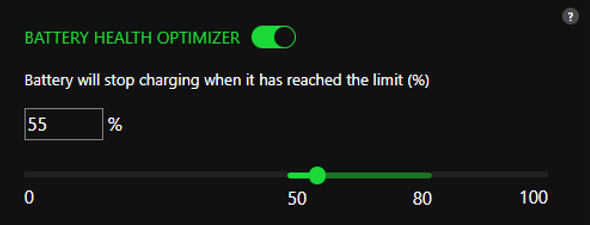
Toggle the ‘BATTERY HEALTH OPTIMIZER” switch to enable this feature.
-
Set your preferred charging limit.
Note: The limit is set from 50 to 80%.

