
Gaming systems run hotter than other laptops due to their performance and power requirements. It is safe for newer processors to run warmer than older processors due to additional innovations from AMD and Intel that allow more performance with higher power draw and thermals. Check AMD Ryzen™ or Intel Core, and select the CPU processor of your Razer Blade to identify its maximum CPU operating temperature.
The Razer Blade’s aluminum chassis helps dissipate heat which makes its surface feel warmer. Ambient temperature, airflow, and the surface where the laptop rests on affects the laptop’s ability to dissipate heat. Keep your fan vents clean and clear of any obstruction.
Note: For Razer Blades that support overclocking, make sure to disable it in Razer Synapse.
This article addresses the following:
-
Excessive fan noise or use
-
Games stop responding
-
Windows stops responding
-
Razer Blade restarts or turns off unexpectedly
-
High temperatures exceeding 90 °C or 194 °F for an extended period of time without performing intensive tasks
IMPORTANT: Do not replace your thermal paste as doing so will void your device's warranty.
You can view the video below for instructions or review a copy of the video transcript.
Below are different options to keep your Razer Blade at optimal temperature while gaming.
Select applicable option
Update Windows
-
Get the latest version of Windows. See How to get the latest software and driver updates from Windows for more details.
If you just updated Windows, please install the "Optional updates" under Settings > Windows Update > Advanced options.
-
Go to Windows Update Assistant to get the latest version.
Update Drivers
Update your graphics drivers. Razer Blades (except for the Razer Blade Stealth models) have both integrated Intel graphics and dedicated Nvidia graphics equipped. Consult your product manual for more information.
Use HWiNFO to check overheating
Use the HWiNFO software to check for overheating. This software provides more details about the temperature in Current, Minimum, Maximum and Average states compared to others that only provide minimum and maximum temperature information, which potentially causes confusion. For example, it is common for the CPU to hit 95° for a spike and then automatically throttle to bring the temperature down. The spike in maximum temperature appears to be a concern but the CPU only stays at that temperature for a short period, and the average temperature remains acceptable.
Clean Air Vents
Over time, dust could accumulate within the vents that prevent them from working properly.
-
Rest the Blade should on solid flat surfaces to keep the air vents clear from obstructions to maximize airflow.
-
Regularly clean the Blade’s air vents to prevent the accumulation of dust.
-
Hold the device upside down and use compressed air can dislodge any clumps of dust that are clogging the vents.
-

Laptop Stand
-
Use a laptop cooler or stand to improve air ventilation.
Ambient Temperature
-
Use the Razer Blade in a cool environment. A hot ambient temperature can affect your Razer Blade’s efficiency to dissipate heat.
-
Refer to the Blade's Safety Guidelines in the user guides for the recommended ambient temperatures.
Adjust Fan Speed
Note: Not all Razer Blade models allow the option to control fan speed. Different fan control options vary depending on the Razer Blade model.
Synapse 4:
- Open Razer Synapse, select your device then go to "PERFORMANCE".

- Adjust the fan speed based on your preference in the following modes:
- Balanced
- Creator
- Gaming
Auto (Default)
- Select the preferred performance mode.
- Select "Auto (Default)". This automatically adjusts the fan speed.
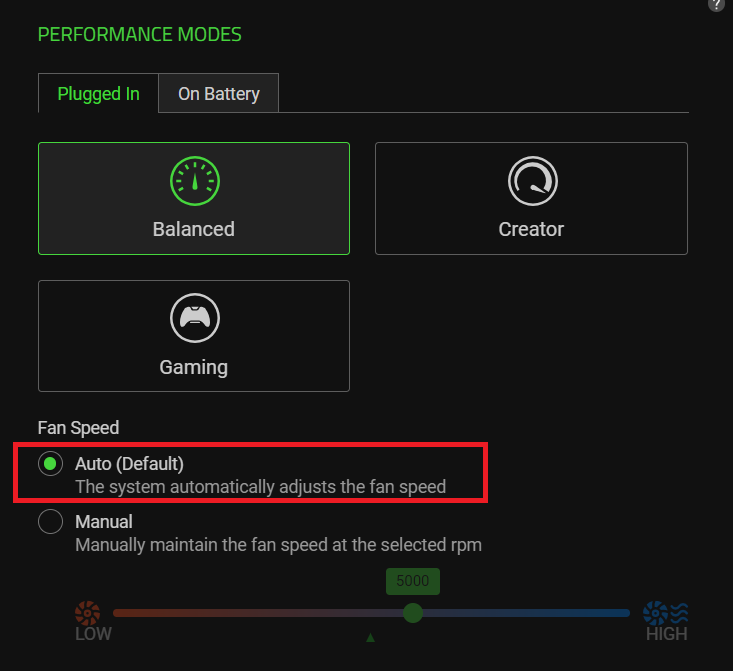
Manual
- Select the preferred performance mode.
- Select "Manual".
- Click ang drag the slider to adjust the fan speed (RPM) to be maintained.

Synapse 3:
-
Open Razer Synapse 3, then go to "SYSTEM" > "PERFORMANCE".

-
Adjust the fan speed based on your preference.
Balanced Mode: Auto (Default)
-
Select the "Balanced" performance mode.
-
Select "Auto (Default)". This automatically adjusts the fan speed.

Balanced Mode: Manual
-
Select the "Balanced" performance mode.
-
Select "Manual"
-
Click ang drag the slider to adjust the fan speed (RPM) to be maintained.

Custom Mode
-
Select the "Custom" performance mode.
-
Select between "LOW", "MEDIUM", or "HIGH" for both CPU and GPU.

-
See How to adjust the fan speed on the Razer Blade for more details.
Close Background Programs
- Close background programs that you are not using.
- Make sure to save any unsaved work in those programs.
Note: Some processes are essential to your system and closing them could cause stability issues.
-
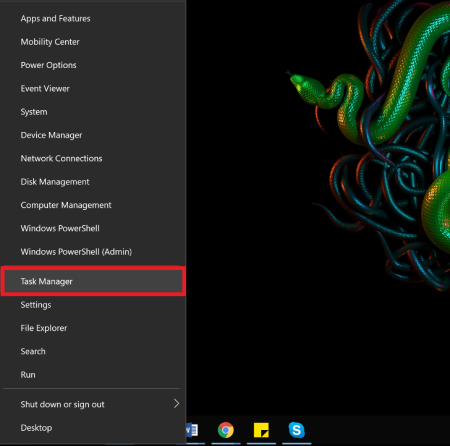
Right-click on the Start button and select “Task Manager”.
-
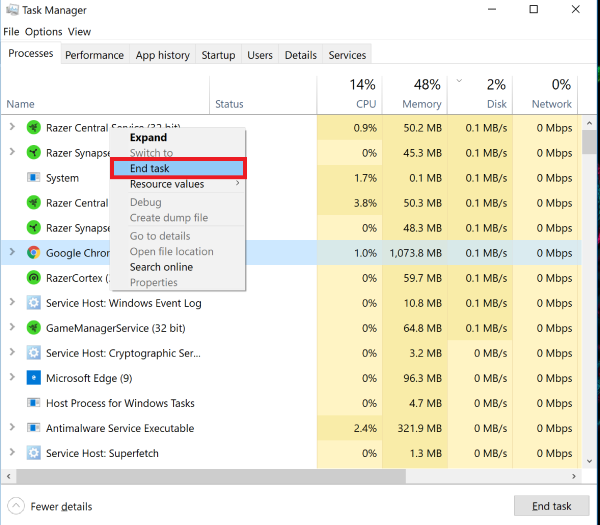
Choose the process you want to close then right-click > “End task”.
Factory Reset
If the issue persists, perform a system recover or factory reset. See the answers below for more details.

