
A firmware updater is a tool that keeps your gaming gear running at its best. Installing the latest firmware can improve performance, fix known issues, and help devices work more smoothly and reliably.
Applicable models:
Firmware v1.05.00_r1
- https://rzr.to/j0zepz | November 29, 2024
Release notes
- Fixed increase of battery level upon changing connection from wired to wireless.
- Improved wireless polling rate and reconnection performance.
Follow the detailed instructions below to run the updater on your device.
Step-by-step Process
Before you start
-
If using a laptop, ensure it is plugged into a wall outlet. Do not let it run on battery alone.
-
Save any open documents on your computer.
-
Close all other programs.
-
Download the latest firmware.
Update process
-
Run the updater.
-
Click "Yes" if the User Account Control window pops up to proceed.
-
Click "NEXT" to proceed. The updater will close all running Razer applications.

-
Plug in the wireless USB dongle to PC and click "UPDATE".

-
Wait until the update process is complete. Do not interrupt.

-
Click "NEXT".

-
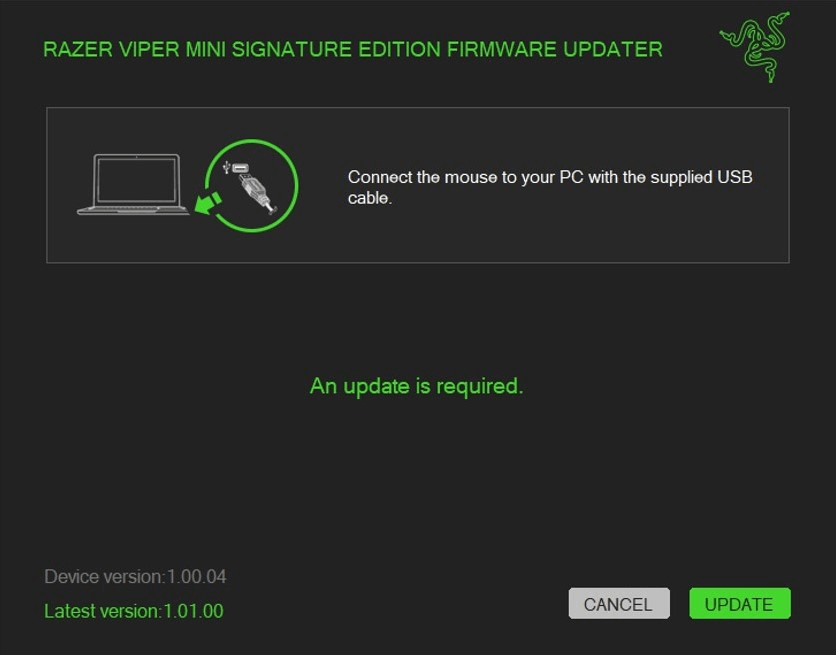
Connect the mouse to your PC and click "UPDATE".
-
Wait until the update process is complete. Do not interrupt.

-
Click "NEXT".

-
Click "CLOSE" once the update is complete.


