
The Razer Naga V2 Pro is geared with unlimited configurations and scroll feel with its adjustable tactility, resistance, and steps. This allows for firmer and more distinct scrolls for precise weapon switching, or for softer and smoother scrolls with multiple steps to easily spam inputs.
You can view the video below for instructions or review a copy of the video transcript.
Follow the detailed instructions below to customize the HyperScroll Pro Wheel of the Razer Naga V2 Pro.
-
Open Razer Synapse.
-
Select Razer Naga V2 Pro from the list of devices.
-
Go to the “SCROLLING” tab.
-
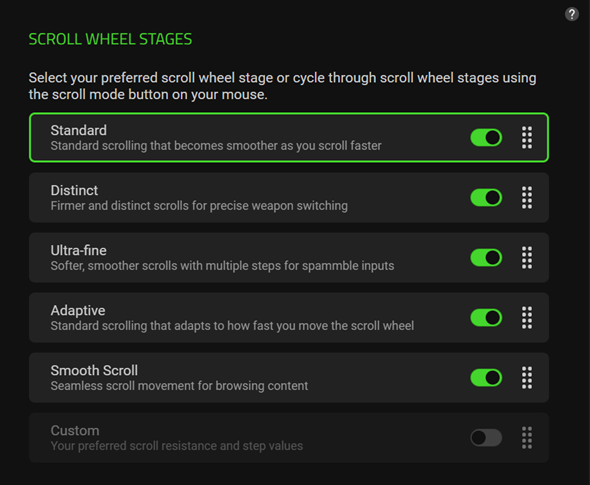
Reorder or disable the options under the “SCROLL WHEEL STAGES” section.
-
Click on the right side of a wheel stage and drag to re-order.
-
Click on the toggle switch to enable or disable a wheel stage.
-
For a more defined wheel stage customization, do the following:
-
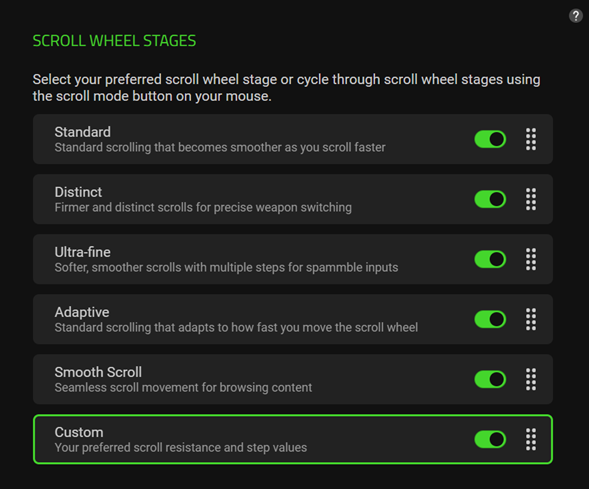
Select the “Custom” wheel stage.
-
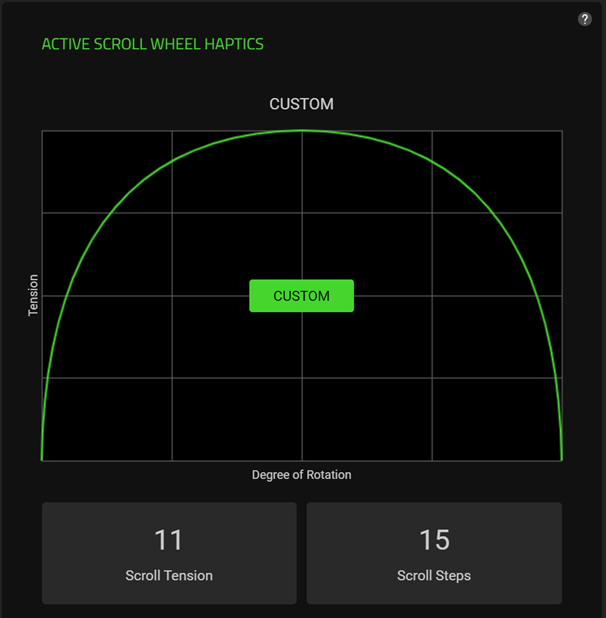
Click “CUSTOM” on the “ACTIVE SCROLL WHEEL HAPTICS” section.
-
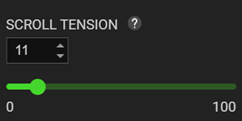
Drag the slider to adjust the Scroll Tension from a scale of zero to a hundred. This changes the strength required for each tick of the scroll wheel. The lower the number, the easier it is to scroll with “zero” providing a completely smooth scroll feel.
-
Drag the slider to adjust the number of steps required for a complete revolution of the scroll wheel from 8 to 96. Lower steps mean thicker, chunkier ticks. Higher steps provide finer ticks and more inputs.

-
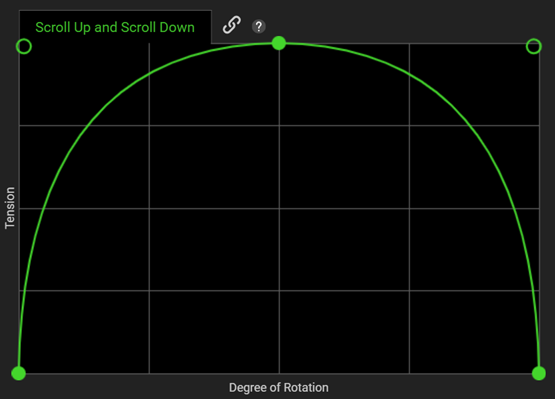
Drag the points and curves in the Scroll Up or Scroll Down graphs to create your own custom scroll wheel haptics. You also have the option to individualize the settings for Scroll Up and Scroll Down by clicking on “Link”.
-
-
Click “SAVE”.

