
Secure Boot is a Windows operating system security feature that blocks malicious programs from running. This feature runs once the Razer Blade starts.
Follow the detailed instructions below to confirm or enable Secure Boot.
Select an option:
Confirm Secure Boot is enabled
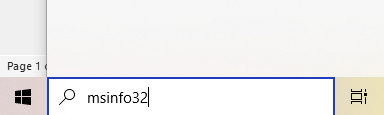
- Enter “msinfo32” in the Windows search box.
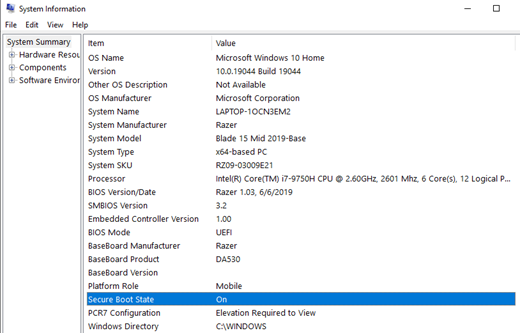
- Look for Secure Boot State.
Enable Secure Boot
If Secure Boot is disabled:
-
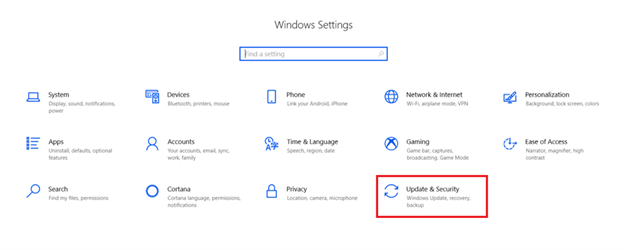
Go to “Settings” > “Update and Security”.
-
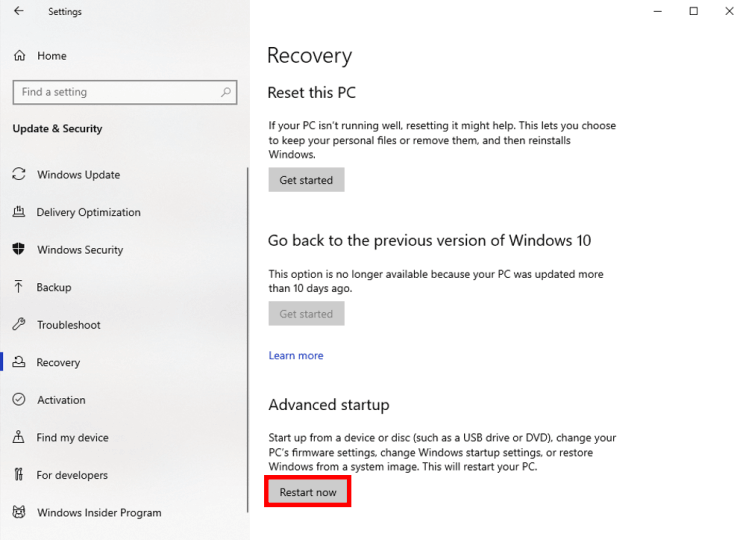
Select “Recovery”.
-
Click “Restart now” under Advanced startup.
The Blade will restart and boot up to “Advanced Startup”.
-
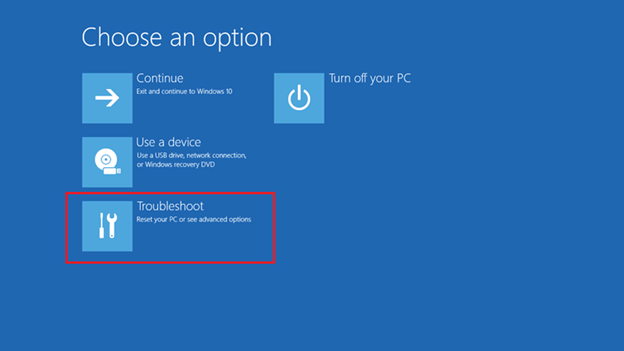
Select “Troubleshoot”.
-
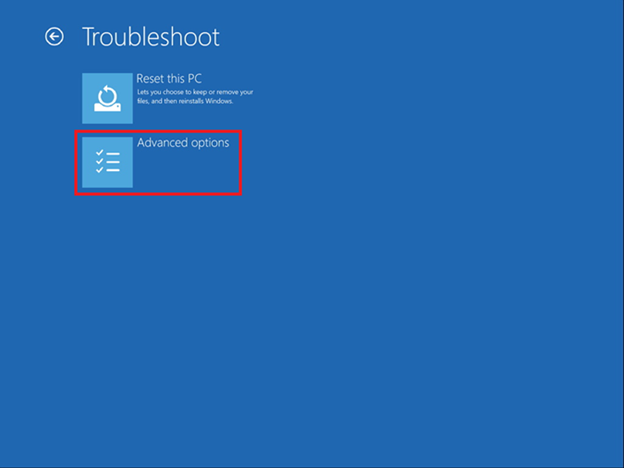
Click “Advanced options”.
-
Click “UEFI Firmware Settings”.

-
Click “Restart”.
-
Once the Blade restarts to BIOS settings, click “Security”.
-
Click “Enabled” next to Secure Boot.

-
Click “Save & Exit” > “Save Changes”.


