
Setting your Blade’s display helps lessen eye strain and contribute to a much more pleasant experience. Windows 10 also allows you to customize your display by settings such as color contrast and the size of screen elements. Before tweaking your brightness settings, know if your laptop display is glossy or matte. These types of displays differ on applied coating which brings subtle differences in looks. Glossy screens give more vivid color and contrast but can make the reflections exceedingly noticeable while matte screens prevent reflections better, but its anti-glare coating makes the color appear less vivid.
Follow the steps below.
Adjust screen brightness
-
Go to Settings > System > Display.
-
Adjust the brightness level using the slider.

Note: Higher brightness settings will drain the battery more quickly.
Use high contrast
-
Go to Settings > Ease of Access > High contrast.
-
Turn on high contrast by sliding the toggle to “On”.
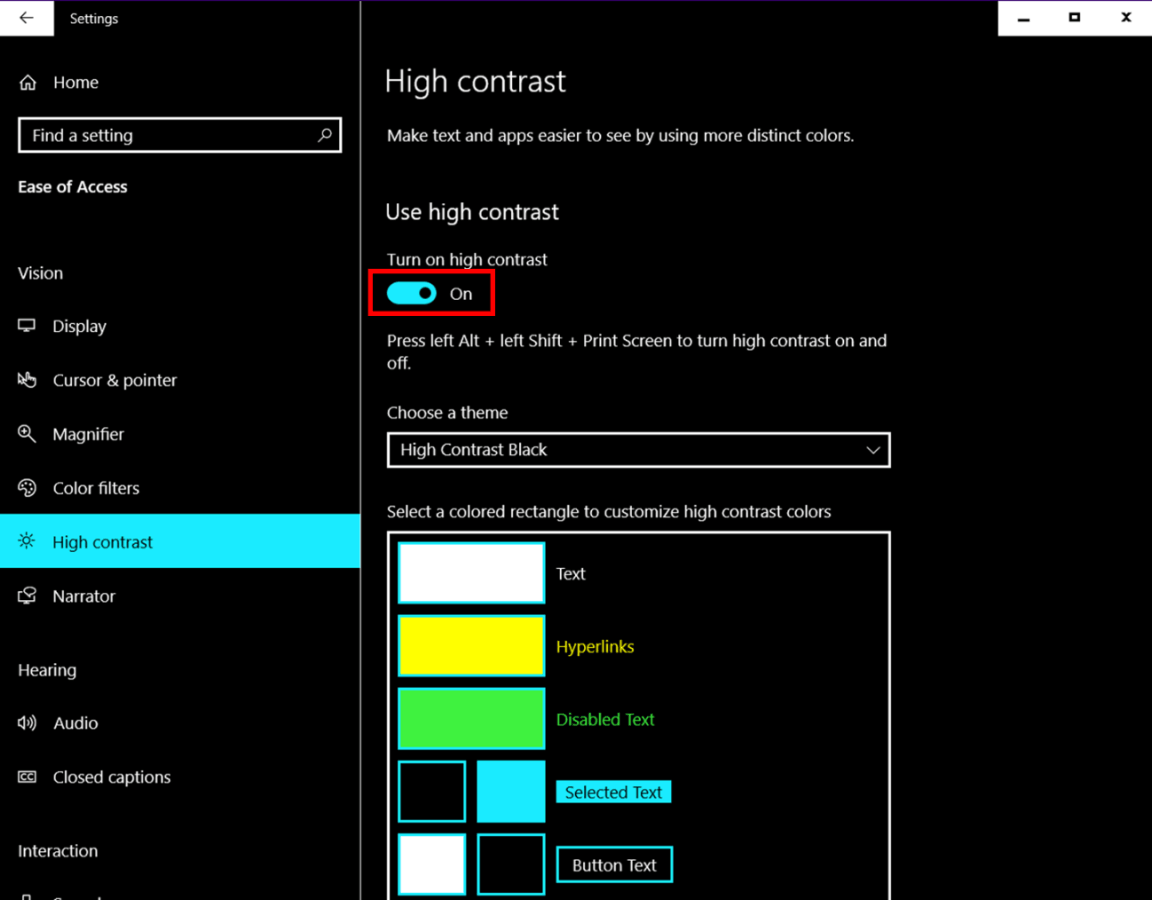
You may also customize high contrast colors.
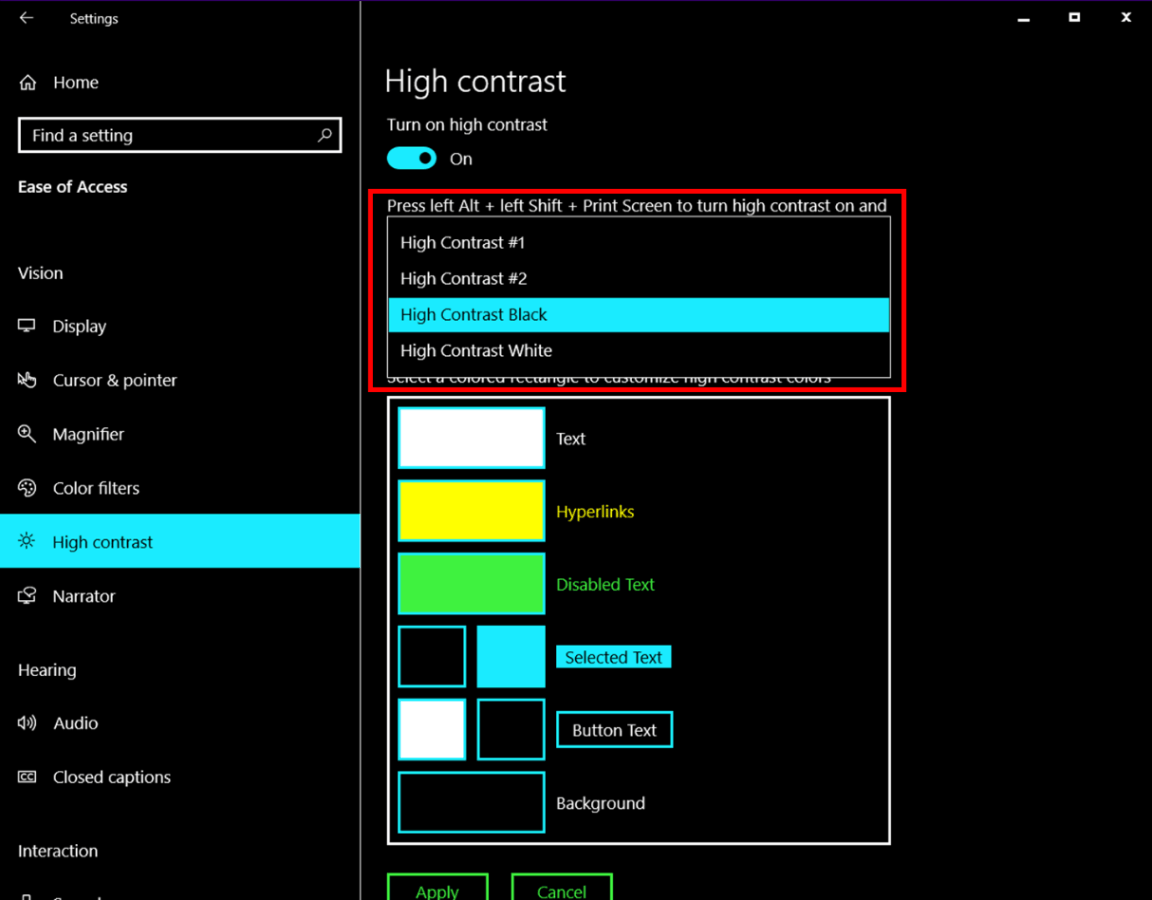
- Click on the drop-down under “Choose a theme”.

- Select your preferred theme.
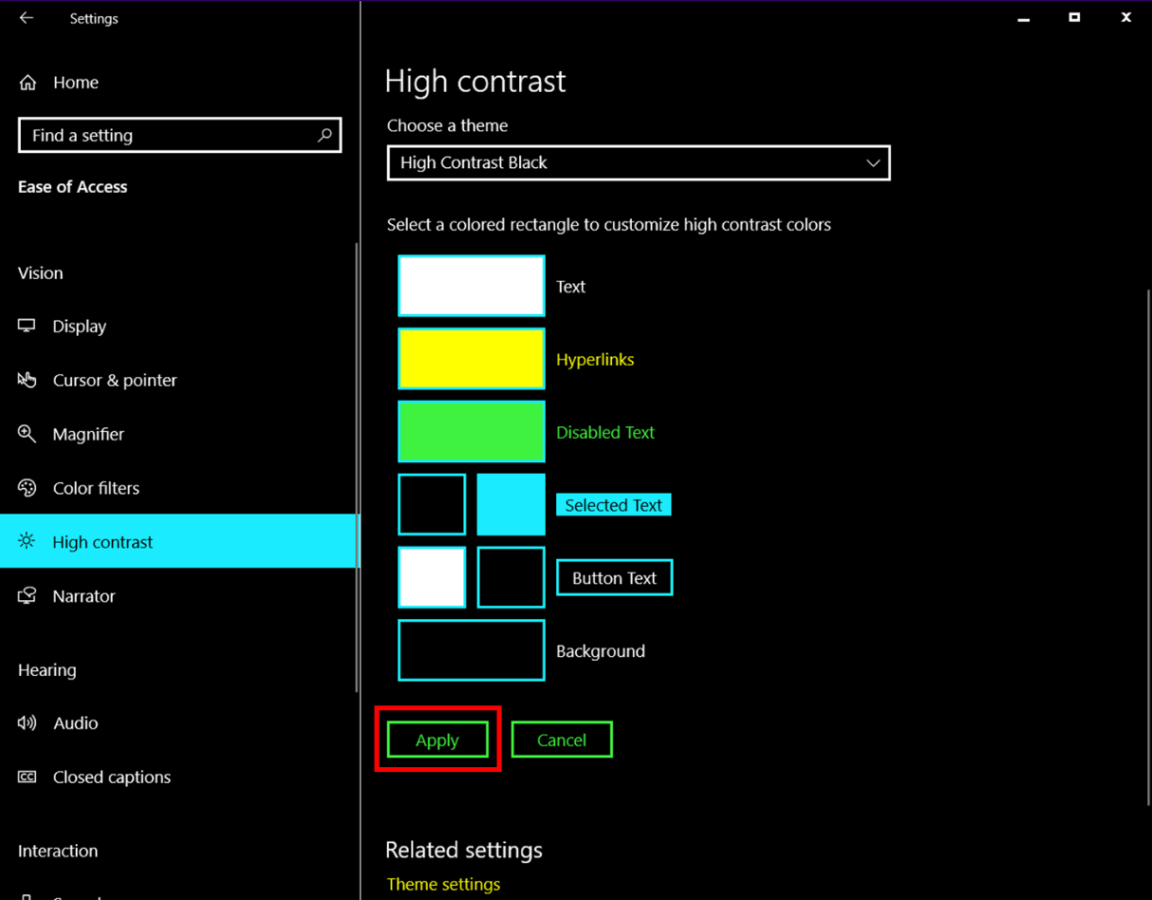
- Click “Apply”.
Invert colors
-
Go to Settings > Ease of Access > Magnifier.
-
Turn on the Magnifier by sliding the toggle to “On”.

-
Adjust the zoom level.

-
Tick the “Invert colors” checkbox to enable.

-
Minimize the “Magnifier”.

