
Applicable Products:
Firmware update v1.8.0.0_r1
- https://rzr.to/7w5ssv | April 4, 2024
- Fixed audio delay issue on MacOS
STEP-BY-STEP PROCESS
Before you start
-
Make sure the laptop is plugged into a wall outlet and not just running on battery before proceeding.
-
Save all files and close all programs.
-
Ensure your system supports Bluetooth 4.0 and above.
-
Download the latest firmware.
Update Process
-
Run the updater.
-
Click "Yes" if the User Account Control window pops up to proceed.
-
Click "NEXT" to proceed. The updater will close all running Razer applications.

-
Connect the supplied power cords and plug them into a power outlet.
-
Connect the right speaker to your computer using the USB-C to USB-A cable.
-
Click "NEXT" to proceed.
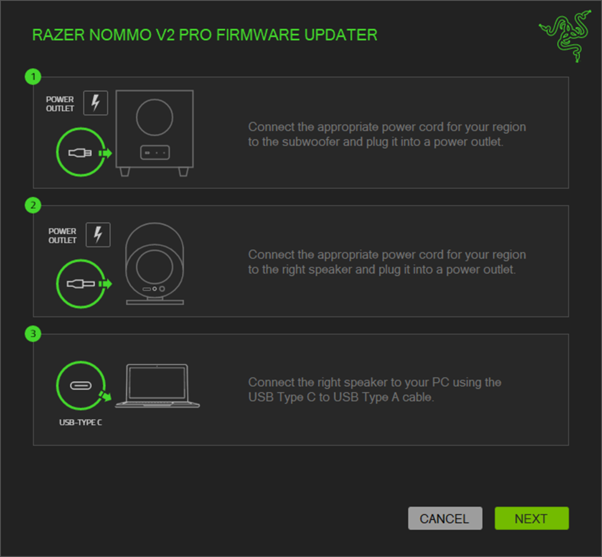
-
Insert the batteries into the Wireless Control Pod.
-
Press and hold the Media control knob until the speakers light up.
Note: Make sure the speakers are in PC mode. The status indicator on the Wireless Control Pod will light up solid green.

-
Click "UPDATE".
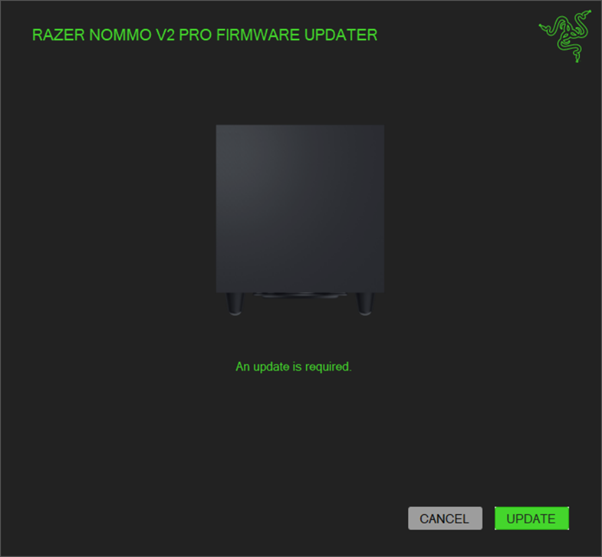
-
Wait until the update process is complete. Do not interrupt.

-
Open the bottom cover of the Wireless Control Pod and remove one of the batteries.

-
Click "UPDATE".

-
Wait until the update process is complete. Do not interrupt.

-
Reinsert the battery into the Wireless Control Pod.
-
Press and hold the Media control knob until the speakers light up.
Note: Make sure the speakers are in PC mode. The status indicator on the Wireless Control Pod will light up solid green.

-
Click "CLOSE" once the update is complete.

Troubleshooting
If your subwoofer fails to pair to the speaker after the firmware update, do the following:
- Download the Razer Nommo V2 Pro Pairing Utility Guide.
- Ensure the subwoofer LED indicator is blinking green. If it is not blinking green, use a tweezer or sim ejection pin to poke on the Subwoofer pairing button as shown below.
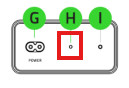
Note: If your subwoofer indicator still shows a static green LED, do the steps below:
For a device running firmware v1.8.0.0_r1 and above, double press and hold the pairing button until the indicator turns blinking green.
For a device running firmware v1.8.0.0_r1 and below, press and hold the pairing button until the indicator turns blinking green.

