
Effective February 3, 2026, Razer Synapse 3 will no longer receive updates or support cloud services. After this date, cloud syncing of configurations across PCs using the same Razer ID will be disabled.
Note: Your installed devices will continue to be configurable in Razer Synapse 3. However, if you uninstall these devices completely, you will need to upgrade to Razer Synapse 4 to continue customization.
Download Razer Synapse 4 and migrate your existing Razer Synapse 3 profiles using the Profile Migration Tool to retain access to your configurations. See How to migrate your Razer Synapse 3 Profile to Razer Synapse 4 for instructions.
Below are the steps on how to collect THX logs.
-
Download the THX diagnostics tool and run the “THXDiagnostics_v1.0.x-xx.exe”.
-
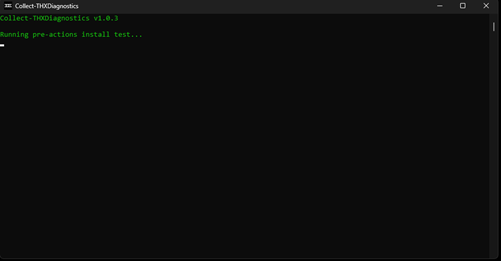
Launch the “Collect-THXDiagnostics” shortcut from your Windows Desktop. A Command Prompt window will appear.
-
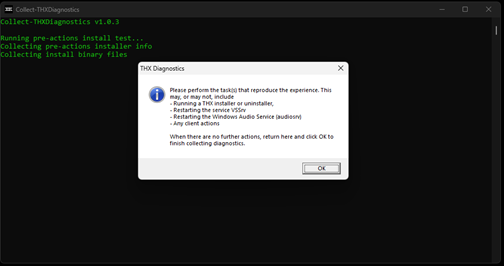
Wait for a pop-up window that prompts for issue reproduction to appear.
-
Launch Razer Synapse 3 and replicate the issue.
For example:
-
If EQ presets are not working, adjust the EQ levels in Razer Synapse.
-
If THX Spatial is not working, toggle THX Spatial on and off in Razer Synapse.
Note: Reinstall Razer Synapse if you are asked to do so by Razer, and provide THX logs.
-
-
Return to the Command Prompt Window once the issue replication is complete.
-
Press “OK” and wait for the log collection to finish.
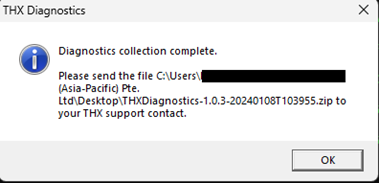
A pop-up window will appear once the log collection is complete. Press “OK” to close the diagnostic tool.
-
The logs will be saved to your Windows Desktop (THXDiagnostics-1.0.x-xxxx.zip). Send this log file to Razer.
-
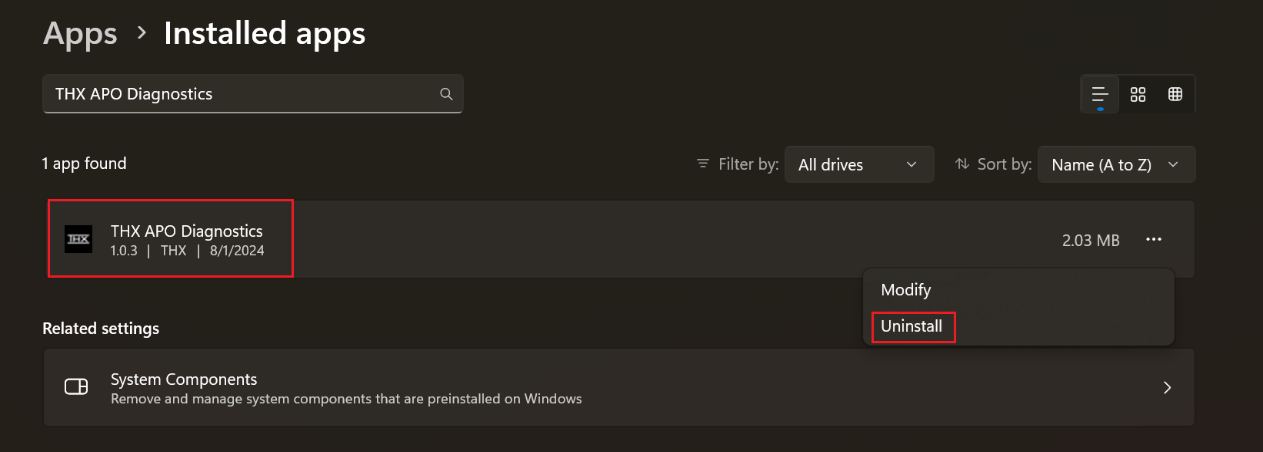
Uninstall the diagnostic tool.
-
Go to Windows Settings > Apps > Installed apps.
-
Search for “THX APO Diagnostics”.
-
Click “Uninstall”.
-

